$ ssh <username>@pi-cluster.local
<username>@pi-cluster.local's password:
$
Why would you build a physical cluster? Today you can go to Amazon, or Digital Ocean, or any of the other cloud providers, and spin up a virtual machine in seconds. But the cloud is just someone else’s computers: a Raspberry Pi cluster is a low-cost, versatile system you can use for all kinds of clustered-computing related technologies, and you have total control over the machines that constitute it. Building something from the ground up can teach you lessons you can’t learn elsewhere.

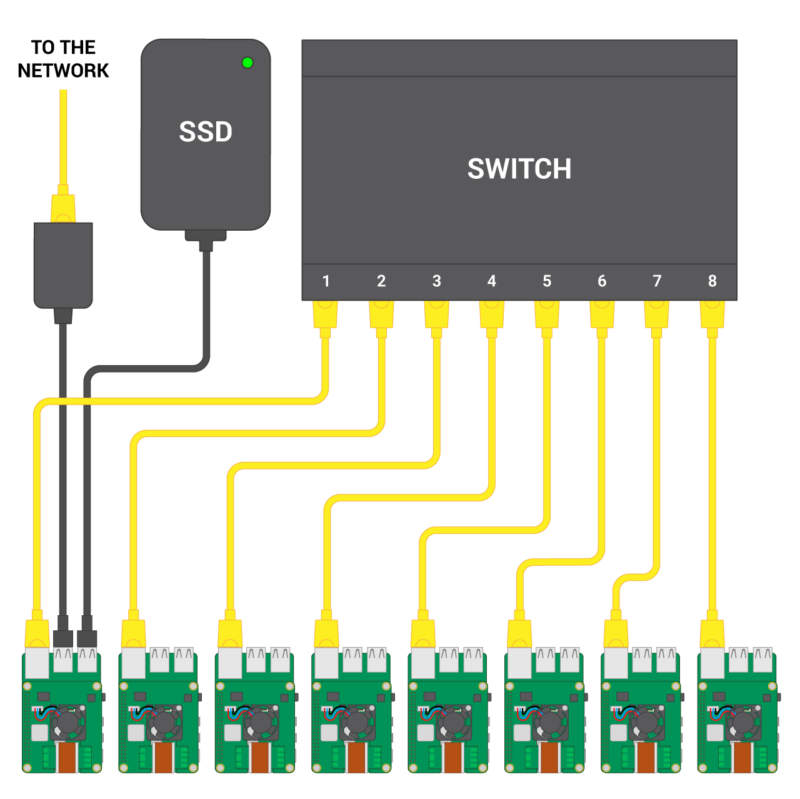
We’re going to put together an eight-node cluster connected to a single managed switch. One of the nodes will be the so-called "head" node: this node will have a second Gigabit Ethernet connection out to the LAN/WAN via a USB3 Ethernet dongle, and an external 1TB SSD mounted via a USB3-to-SATA connector. While the head node will boot from an SD card as normal, the other seven nodes — the "compute" nodes — will be configured to network boot, with the head node acting as the boot server and the OS images being stored on the external disk. As well as serving as the network boot volume, the 1TB disk will also host a scratch partition that is shared to all the compute nodes in the cluster. All eight of our Raspberry Pi boards will have a Raspberry Pi PoE+ HAT attached. This means that, since we’re using a PoE+ enabled switch, we only need to run a single Ethernet cable to each of our nodes and don’t need a separate USB hub to power them.
8 x Raspberry Pi 4
8 x Raspberry Pi PoE+ HAT
8-port Gigabit PoE-enabled switch
USB 3 to Gigabit Ethernet adaptor
USB 3 to SATA adaptor
SSD SATA drive
8 x Ethernet cables
16 GB SD card
Cluster case
The list of parts you’ll need to put together a Raspberry Pi cluster — sometimes known as a "bramble" — can be short, or it can be quite long, depending on what size and type of cluster you intend to build. So it’s important to think about what you want the cluster to do before you start ordering the parts to put it together. The list above is what we used for our eight-Pi cluster, but your requirements might well be different.
What you will need is a full bramble of Raspberry Pi computers, and if you’re intending to power them over PoE as we are, you’ll need a corresponding number of Raspberry Pi PoE+ HAT boards and an appropriate PoE+ switch. Beyond that, however, you’ll need a micro SD card, some Ethernet cables, a USB to Ethernet adapter, a USB to SATA adapter cable along with an appropriately sized SSD drive, and some sort of case to put all the components into after you’ve bought them. The case can either be a custom-designed "cluster case" or, perhaps, something rack-mountable depending on what you’re thinking of doing with the cluster after you’ve built it.
There is however a lot of leeway in choosing your components, depending on exactly what you’re setting up your cluster to do. For instance, depending on the sorts of jobs you’re anticipating running across the cluster, you might be able to get away with using cheaper 2GB or 1GB boards rather than the 4GB model I used. Alternatively, having a local disk present on each node might be important, so you might need to think about attaching a disk to each board to provide local storage.
However, perhaps the biggest choice when you’re thinking about building a cluster is how you’re going to power the nodes. We used PoE for this cluster, which involved adding a PoE+ HAT board to each node and purchasing a more expensive switch capable of powering our Raspberry Pi boards: for larger clusters, this is probably the best approach. For smaller clusters, you could instead think about powering the nodes from a USB hub, or for the smallest clusters — perhaps four nodes or fewer — powering each node directly from an individual power supply.
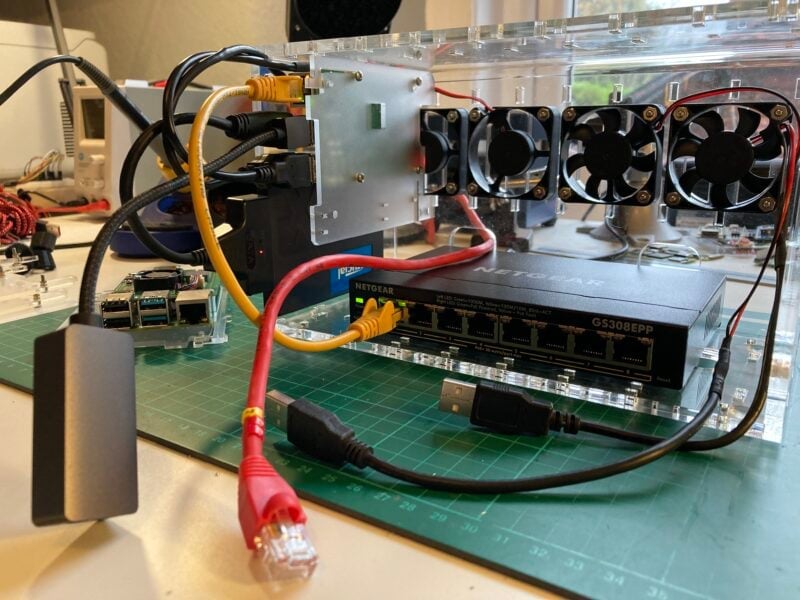
If you decide to power your cluster using PoE, you’ll find you may have to make up some franken-cables. For instance, the fans at the back of the case I’m using were intended to connect to the GPIO header block on the Raspberry Pi, but since we’re using the Raspberry Pi PoE+ HAT to power our nodes, we don’t have access to the GPIO headers.
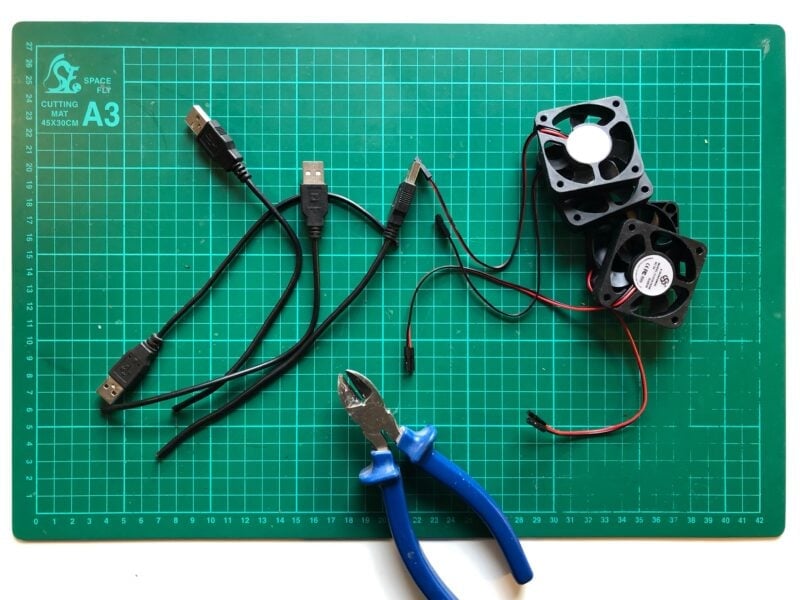
Therefore, for me at least, it’s time to grab some donor USB cables and make up some cables. If you snip the end from a USB cable and peel back the plastic you’ll find four wires; these will often be inside an insulating metal sheath. The wires inside the cable are small and delicate, so carefully strip back the cover if present. You’re looking for the red (+5V) and black (GND) wires. The other two, normally coloured white and green, carry data. You can just cut these data wires off; you won’t need them.
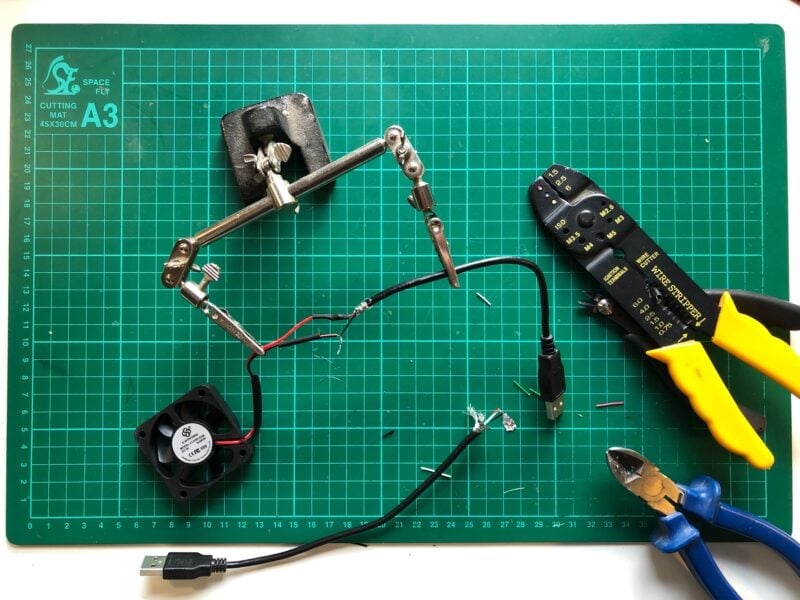
Solder the red and black wires from the fan to the red and black wires in the USB cable. The best thing to do here is to use a bit of heat-shrink tubing over each of the individual solder connections, and then use a bigger bit of heat-shrink over both of the soldered connectors. This will give an electrically insulated, and mechanically secure, connection between the fan and the USB plug end of the new cable.
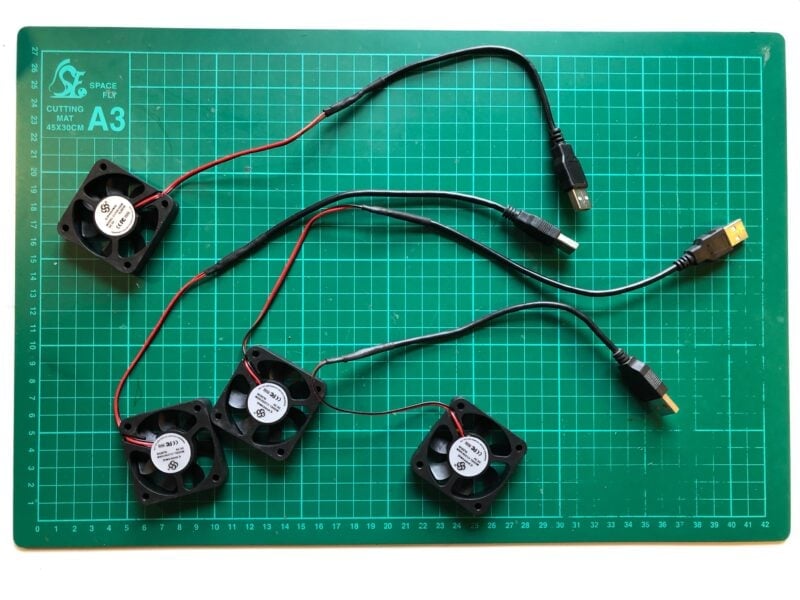
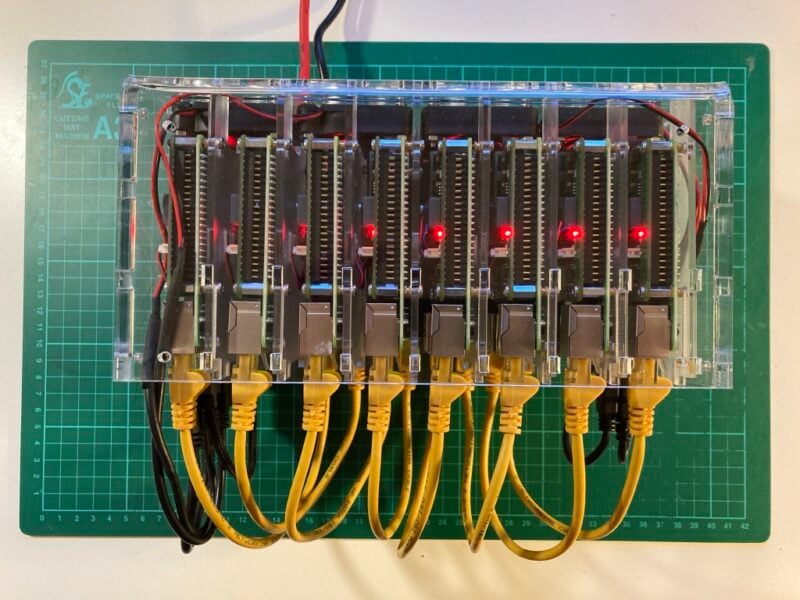
The cluster case I’m using has four fans, mounted at the rear. I’m going to be powering the left-hand two from the head node, or potentially from the first compute node on the left if I need more USB sockets on the head node, and the right-hand two from the right-most compute node.
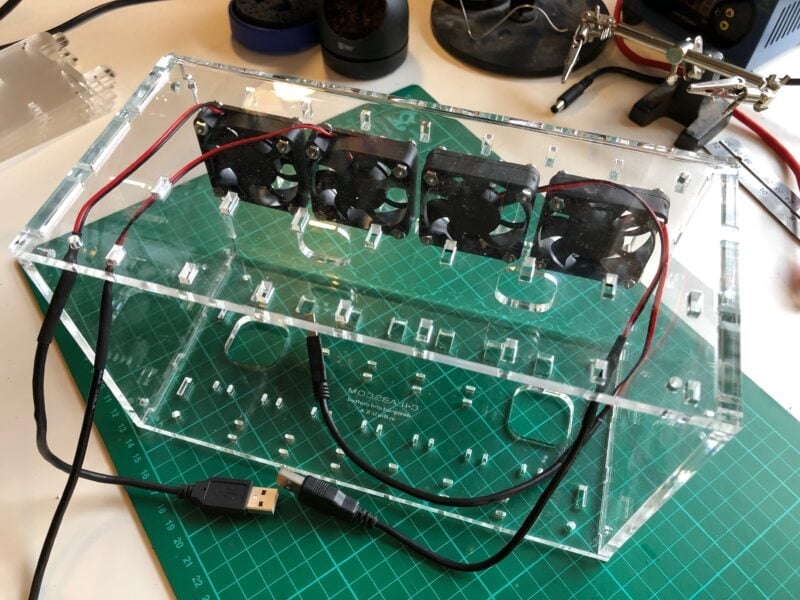
The most common case where you’ll need Franken-cables is probably this one — powering a fan over USB due to lack of access to the GPIO header. But there are other reasons you might need them. For instance, for a cluster I built a few years back, I needed to put together a cable to power an Ethernet switch from a USB hub, rather than from +5V power supply unit.
To begin, follow the Getting Started documentation to set up your Raspberry Pi. For your operating system, choose Raspberry Pi OS (other) > Raspberry Pi OS Lite to run headless (without a mouse and keyboard).
During the OS customisation stage, edit settings as follows:
Enter a hostname of your choice (we suggest pi-cluster for this tutorial)
Enter a username (we suggest pi for this tutorial) and password; you’ll need these later to authenticate
Check the box next to Configure wireless LAN so your Pi can automatically connect to Wi-Fi
Enter your network SSID (name) and password; you can find these in your Wi-Fi settings or on a sticker on your router
Check the box next to Enable SSH so we can connect to the Pi without a mouse and keyboard

The exact way you plug things together is going to depend on your cluster components and whether you picked up a case, or more likely what sort of case you have. I’m going to slot my head node into the far left-hand side of my case. This lets me mount the SSD drive against one wall of the case using a mounting screw to secure it in place.
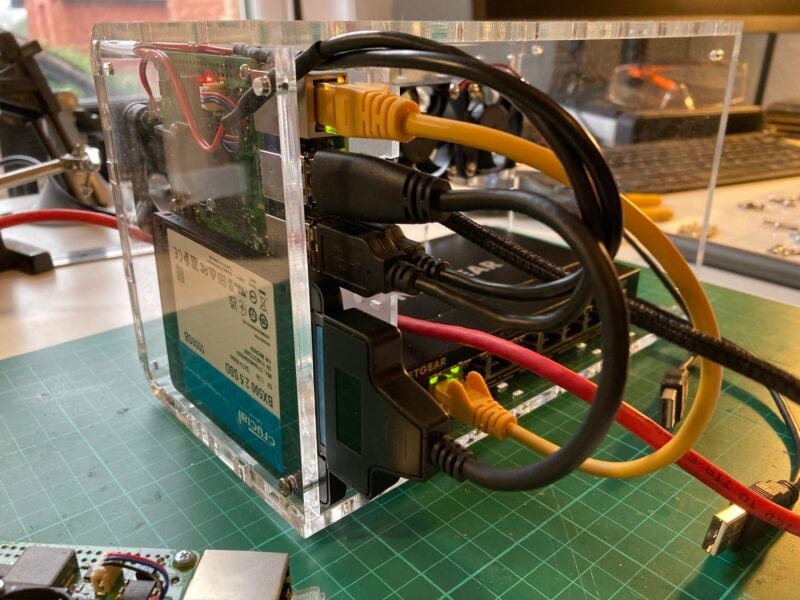
We configured the head node to know about our local wireless network during setup, so we should just be able to ssh directly into the head node using the name we gave it during setup:
$ ssh <username>@pi-cluster.local
<username>@pi-cluster.local's password:
$
If we take a look at the network configuration by typing nmcli,
$ nmcli
wlan0: connected to preconfigured
"Broadcom BCM43438 combo and Bluetooth Low Energy"
wifi (brcmfmac), DC:A6:32:6A:16:91, hw, mtu 1500
inet4 10.3.194.40/22
route4 10.3.192.0/22 metric 600
route4 default via 10.3.194.1 metric 600
inet6 2001:4d4e:300:c2:1fd1:9c44:f362:3805/64
inet6 fe80::a725:b6cc:ce19:3caf/64
route6 fe80::/64 metric 1024
route6 2001:4d4e:300:c2::/64 metric 600
route6 default via fe80::dccc:45ff:fe78:a3cc metric 600
lo: connected (externally) to lo
"lo"
loopback (unknown), 00:00:00:00:00:00, sw, mtu 65536
inet4 127.0.0.1/8
inet6 ::1/128
eth0: disconnected
"eth0"
1 connection available
ethernet (bcmgenet), DC:A6:32:6A:16:90, hw, mtu 1500
DNS configuration:
servers: 10.3.31.1
domains: pitowers.org
interface: eth1
servers: fe80::8498:d3ff:fe31:8eac
interface: eth1
servers: 10.3.194.1
domains: pitowers.org
interface: wlan0
servers: fe80::dccc:45ff:fe78:a3cc
interface: wlan0
$
you can see that wlan0 is connected to our local network with a 10.3.\* address, while eth0 which we’ve plugged into our switch is disconnected. We’ll resolve this later in the project by turning our head node into a DHCP server that will assign an IP address to each of the compute nodes, as well as to our smart switch.
We’ve been able to reach our head node over the network because we configured our wireless interface wlan0 when we set up our SD card. However, it would be good to hardwire our cluster to the network rather than rely on wireless, because we might want to transfer large files back and forth, and wired interfaces are a lot more stable.
To do that we’re going to need an additional Ethernet connection, so I’m going to add a USB 3-to-Gigabit Ethernet adaptor to the head node. We’ll leave the onboard Ethernet socket (eth0) connected to our PoE switch to serve as the internal connection to the cluster, while we use the second Ethernet connection (eth1) to talk to the outside world.
In most cases eth1 will be activated automatically by Network Manager, and pick up an IP address from our LAN’s DHCP server. After plugging in our adaptor we should see something like this,
eth1: connected to Wired connection 2
"Realtek RTL8153"
ethernet (r8152), 00:E0:4C:68:1D:DA, hw, mtu 1500
ip4 default, ip6 default
inet4 10.3.31.194/24
route4 10.3.31.0/24 metric 100
route4 default via 10.3.31.1 metric 100
inet6 2001:4d4e:300:1f:6f2a:f4b1:65a8:b420/64
inet6 fe80::7a88:6d47:4554:bd80/64
route6 fe80::/64 metric 1024
route6 2001:4d4e:300:1f::/64 metric 100
route6 default via fe80::8498:d3ff:fe31:8eac metric 100
added to the results of typing nmcli on the command line.
We’ll leave eth0, the onboard Ethernet socket, connected to the Ethernet switch to serve as the internal connection to the cluster. Internally we’ll allocate 192.168.50.*/24 addresses to the cluster, with our head node having the IP address 192.168.50.1.
$ sudo nmcli con mod "Wired connection 1" ipv4.addresses 192.168.50.1/24 ipv4.method manual
$ sudo nmcli con down "Wired connection 1"
$ sudo nmcli con up "Wired connection 1"
Then, if everything has gone to plan, you should see something like this:
$ nmcli
eth1: connected to Wired connection 2
"Realtek RTL8153"
ethernet (r8152), 00:E0:4C:68:1D:DA, hw, mtu 1500
ip4 default, ip6 default
inet4 10.3.31.194/24
route4 10.3.31.0/24 metric 100
route4 default via 10.3.31.1 metric 100
inet6 2001:4d4e:300:1f:6f2a:f4b1:65a8:b420/64
inet6 fe80::7a88:6d47:4554:bd80/64
route6 fe80::/64 metric 1024
route6 2001:4d4e:300:1f::/64 metric 100
route6 default via fe80::8498:d3ff:fe31:8eac metric 100
wlan0: connected to preconfigured
"Broadcom BCM43438 combo and Bluetooth Low Energy"
wifi (brcmfmac), DC:A6:32:6A:16:91, hw, mtu 1500
inet4 10.3.194.40/22
route4 10.3.192.0/22 metric 600
route4 default via 10.3.194.1 metric 600
inet6 2001:4d4e:300:c2:1fd1:9c44:f362:3805/64
inet6 fe80::a725:b6cc:ce19:3caf/64
route6 fe80::/64 metric 1024
route6 2001:4d4e:300:c2::/64 metric 600
route6 default via fe80::dccc:45ff:fe78:a3cc metric 600
eth0: connected to Wired connection 1
"eth0"
ethernet (bcmgenet), DC:A6:32:6A:16:90, hw, mtu 1500
inet4 192.168.50.1/24
route4 192.168.50.0/24 metric 101
inet6 fe80::a5a8:6819:ddc6:6b2f/64
route6 fe80::/64 metric 1024
lo: connected (externally) to lo
"lo"
loopback (unknown), 00:00:00:00:00:00, sw, mtu 65536
inet4 127.0.0.1/8
inet6 ::1/128
DNS configuration:
servers: 10.3.31.1
domains: pitowers.org
interface: eth1
servers: fe80::8498:d3ff:fe31:8eac
interface: eth1
servers: 10.3.194.1
domains: pitowers.org
interface: wlan0
servers: fe80::dccc:45ff:fe78:a3cc
interface: wlan0
$
Now we have a "second" Gigabit Ethernet connection out to the world via eth1, and our onboard Ethernet is configured with a static IP address, it’s time to make our Raspberry Pi into a DHCP server for our cluster on eth0.
Start by installing the DHCP server itself:
$ sudo apt install isc-dhcp-server
and then edit the /etc/dhcp/dhcpd.conf file as follows:
ddns-update-style none;
authoritative;
log-facility local7;
# No service will be given on this subnet
subnet 10.3.31.0 netmask 255.255.255.0 {
}
# The internal cluster network
group {
option broadcast-address 192.168.50.255;
option routers 192.168.50.1;
default-lease-time 600;
max-lease-time 7200;
option domain-name "cluster";
option domain-name-servers 8.8.8.8, 8.8.4.4;
subnet 192.168.50.0 netmask 255.255.255.0 {
range 192.168.50.20 192.168.50.250;
# Head Node
host cluster {
hardware ethernet dc:a6:32:6a:16:90;
fixed-address 192.168.50.1;
}
}
}
Then edit the /etc/default/isc-dhcp-server file to reflect our new server setup:
DHCPDv4_CONF=/etc/dhcp/dhcpd.conf
DHCPDv4_PID=/var/run/dhcpd.pid
INTERFACESv4="eth0"
as well as the /etc/hosts file:
127.0.0.1 localhost
::1 localhost ip6-localhost ip6-loopback
ff02::1 ip6-allnodes
ff02::2 ip6-allrouters
127.0.1.1 cluster
192.168.50.1 cluster
and then you can reboot the head node to start the DHCP service.
We’ve set things up so that known hosts that aren’t known are allocated an IP address starting from 192.168.50.20. Once we know the MAC addresses of our compute nodes we can add them to the /etc/dhcp/dhcpd.conf file so they grab static IP addresses going forward rather than getting a random one as they come up.
Logging back into your head node after the reboot if you have a managed switch for your cluster, like the NETGEAR switch I’m using which will grab an IP address of its own, you can check your DHCP service is working:
$ dhcp-lease-list
Reading leases from /var/lib/dhcp/dhcpd.leases
MAC IP hostname valid until manufacturer
==================================================================================
80:cc:9c:94:53:35 192.168.50.20 GS308EPP 2021-12-06 14:19:52 NETGEAR
$
Otherwise, you’ll have to wait until you add your first node as unmanaged switches won’t request their own address.
However, if you do have a managed switch, you might well want to give it a static IP address inside the cluster by adding one to the /etc/dhcp/dhcpd.conf and /etc/hosts files in a similar fashion to the head node. I went with switch as the hostname:
192.168.50.1 cluster
192.168.50.254 switch
and 192.168.50.254 as the allocated IP address:
subnet 192.168.50.0 netmask 255.255.255.0 {
range 192.168.50.20 192.168.50.250;
# Head Node
host cluster {
hardware ethernet dc:a6:32:6a:16:90;
fixed-address 192.168.50.1;
}
# NETGEAR Switch
host switch {
hardware ethernet 80:cc:9c:94:53:35;
fixed-address 192.168.50.254;
}
}
To network boot our compute nodes, we’re going to need a bit more space. You could do this by plugging a flash stick into one of the USB ports on the head node, but I’m going to use a USB 3 to SATA Adaptor Cable to attach a 1TB SSD that I had on the shelf in the lab to give the cluster plenty of space for data.
Plugging the disk into one of the USB 3 sockets on the head node I’m going to format it with a GUID partition table, and a creat single ext4 partition on the disk.
$ sudo parted -s /dev/sda mklabel gpt
$ sudo parted --a optimal /dev/sda mkpart primary ext4 0% 100%
$ sudo mkfs -t ext4 /dev/sda1
mke2fs 1.46.2 (28-Feb-2021)
Creating filesystem with 244175218 4k blocks and 61046784 inodes
Filesystem UUID: 1a312035-ffdb-4c2b-9149-c975461de8f2
Superblock backups stored on blocks:
32768, 98304, 163840, 229376, 294912, 819200, 884736, 1605632, 2654208,
4096000, 7962624, 11239424, 20480000, 23887872, 71663616, 78675968,
102400000, 214990848
Allocating group tables: done
Writing inode tables: done
Creating journal (262144 blocks): done
Writing superblocks and filesystem accounting information: done
$
We can then mount the disk manually to check everything is okay:
$ sudo mkdir /mnt/usb
$ sudo mount /dev/sda1 /mnt/usb
$ sudo systemctl daemon-reload
and then make sure it will automatically mount on boot by adding the following to the /etc/fstab file:
/dev/sda1 /mnt/usb auto defaults,user 0 1
You should ensure that you can mount the disk manually before rebooting, as adding it as an entry in the /etc/fstab file might cause the Raspberry Pi to hang during boot if the disk isn’t available.
We’re going to want to make the disk available across the cluster. You’ll need to install the NFS server software:
$ sudo apt install nfs-kernel-server
Create a mount point which we can share:
$ sudo mkdir /mnt/usb/scratch
$ sudo chown pi:pi /mnt/usb/scratch
$ sudo ln -s /mnt/usb/scratch /scratch
Then, edit the /etc/exports file to add a list of IP addresses from which you want to be able to mount your disk:
/mnt/usb/scratch 192.168.50.0/24(rw,sync)
Here we’re exporting it to 192.168.50.0/24 which is shorthand for "all the IP addresses between 192.168.50.0 and `192.168.50.254`".
After doing this you should enable, and then start, both the rpcbind and nfs-server services:
$ sudo systemctl enable rpcbind.service
$ sudo systemctl start rpcbind.service
$ sudo systemctl enable nfs-server.service
$ sudo systemctl start nfs-server.service
Finally, reboot:
$ sudo reboot
We’re going to set up our compute node to network boot from our head node. To do that we’re first going to have to configure our nodes for network boot. How to do this differs between Raspberry Pi models. However, for Raspberry Pi 4 the board must boot a single time from an SD card and the boot order configured using the raspi-config command-line tool.
The easiest way to proceed is to use the Raspberry Pi Imager software to burn a second SD card with Raspberry Pi OS Lite (64-bit). There isn’t any need to specially configure this installation before booting the board as we did for the head node, except to enable SSH.
Next, boot the board attached to the cluster switch:
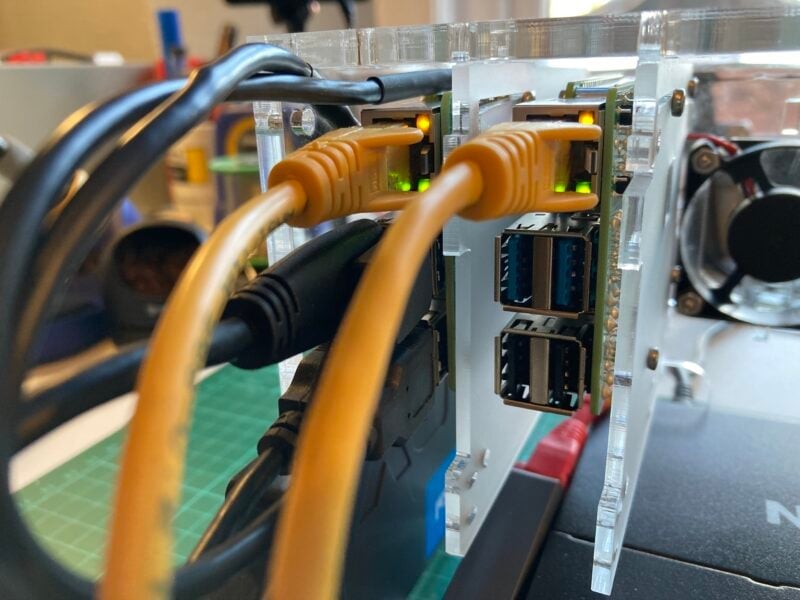
The board should come up and be visible on the cluster subnet after it gets given an IP address by the head node’s DHCP server, and we can look at the cluster network from the head node using dhcp-lease-list:
$ dhcp-lease-list
Reading leases from /var/lib/dhcp/dhcpd.leases
MAC IP hostname valid until manufacturer
===============================================================================================
dc:a6:32:6a:16:87 192.168.50.21 raspberrypi 2021-12-07 11:54:29 Raspberry Pi Ltd
$
We can now go ahead and SSH into the new board and enable network booting using raspi-config from the command line:
$ ssh pi@192.168.50.21
$ sudo raspi-config
Choose Advanced Options > Boot Order > Network Boot. You’ll then need to reboot the device for the change to the boot order to be programmed into the bootloader EEPROM.
If you get an error when trying to enable network boot complaining that "No EEPROM bin file found" then you need to update the firmware on your Raspberry Pi before proceeding. Run the following commands:
$ sudo apt install rpi-eeprom
$ sudo rpi-eeprom-update -d -a
$ sudo reboot
Then, after the node comes back up from its reboot, try to set up network boot once again.
Once the Raspberry Pi has rebooted, check that the boot order using vcgencmd:
$ vcgencmd bootloader_config
BOOT_UART=0
WAKE_ON_GPIO=1
POWER_OFF_ON_HALT=0
[all]
BOOT_ORDER=0xf21
$
You should now see that BOOT_ORDER is 0xf21 which indicates that the Raspberry Pi will try to boot from an SD card first followed by the network. Before proceeding any further, we need to take a note of both the Ethernet MAC address and serial number of the Raspberry Pi.
$ ethtool -P eth0
Permanent address: dc:a6:32:6a:16:87
$ grep Serial /proc/cpuinfo | cut -d ' ' -f 2 | cut -c 9-16
6a5ef8b0
$
Afterwards, you can shut down the board, at least for now, and remove the SD card.
We now need to configure our head node to act as a boot server. There are several options here, but we’re going to use our existing DHCP server, along with a standalone TFTP server. You should create a mount point for the server, and install it:
$ sudo apt install tftpd-hpa
$ sudo apt install kpartx
$ sudo mkdir /mnt/usb/tftpboot
$ sudo chown tftp:tftp /mnt/usb/tftpboot
Edit the /etc/default/tftpd-hpa file:
TFTP_USERNAME="tftp"
TFTP_DIRECTORY="/mnt/usb/tftpboot"
TFTP_ADDRESS=":69"
TFTP_OPTIONS="--secure --create"
Then, restart the service:
$ sudo systemctl restart tftpd-hpa
We then need to set up our boot image, and we’re going to need to create one image per client. The first step is to grab the latest image from the web and mount it so we can make some changes, and then mount the partitions inside the image so we can copy the contents to our external disk:
$ sudo su
# mkdir /tmp/image
# cd /tmp/image
# wget -O raspios_lite_latest.img.xz https://downloads.raspberrypi.com/raspios_lite_arm64_latest
# xz -d raspios_lite_latest.img.xz
# kpartx -a -v *.img
# mkdir bootmnt
# mkdir rootmnt
# mount /dev/mapper/loop0p1 bootmnt/
# mount /dev/mapper/loop0p2 rootmnt/
# mkdir -p /mnt/usb/rpi1
# mkdir -p /mnt/usb/tftpboot/6a5ef8b0
# cp -a rootmnt/* /mnt/usb/rpi1
# cp -a bootmnt/* /mnt/usb/rpi1/boot/firmware
Where "6a5ef8b0" is the serial number of your first node which we retrieved earlier.
Afterwards, we can customise the root file system:
# touch /mnt/usb/rpi1/boot/firmware/ssh
# echo pi:$(echo 'raspberry' | openssl passwd -6 -stdin) > /mnt/usb/rpi1/boot/firmware/userconf.txt
# sed -i /UUID/d /mnt/usb/rpi1/etc/fstab
# echo "192.168.50.1:/mnt/usb/tftpboot/6a5ef8b0 /boot/firmware nfs defaults,vers=3 0 0" >> /mnt/usb/rpi1/etc/fstab
# echo "console=serial0,115200 console=tty root=/dev/nfs nfsroot=192.168.50.1:/mnt/usb/rpi1,vers=3 rw ip=dhcp rootwait" > /mnt/usb/rpi1/boot/firmware/cmdline.txt
and then add it to the /etc/exports files on the head node:
# echo "/mnt/usb/rpi1 192.168.50.0/24(rw,sync,no_subtree_check,no_root_squash)" >> /etc/exports
And then clean up after ourselves:
# systemctl restart rpcbind
# systemctl restart nfs-server
# umount bootmnt/
# umount rootmnt/
# cd /tmp; rm -rf image
# exit
$
Finally, we need to edit the /etc/dhcp/dhcpd.conf file as follows:
ddns-update-style none;
authoritative;
log-facility local7;
option option-43 code 43 = text;
option option-66 code 66 = text;
# No service will be given on this subnet
subnet 10.3.31.0 netmask 255.255.255.0 {
}
# The internal cluster network
group {
option broadcast-address 192.168.50.255;
option routers 192.168.50.1;
default-lease-time 600;
max-lease-time 7200;
option domain-name "cluster";
option domain-name-servers 8.8.8.8, 8.8.4.4;
subnet 192.168.50.0 netmask 255.255.255.0 {
range 192.168.50.20 192.168.50.250;
# Head Node
host cluster {
hardware ethernet dc:a6:32:6a:16:90;
fixed-address 192.168.50.1;
}
# NETGEAR Switch
host switch {
hardware ethernet 80:cc:9c:94:53:35;
fixed-address 192.168.50.254;
}
host rpi1 {
option root-path "/mnt/usb/tftpboot/";
hardware ethernet dc:a6:32:6a:16:87;
option option-43 "Raspberry Pi Boot";
option option-66 "192.168.50.1";
next-server 192.168.50.1;
fixed-address 192.168.50.11;
option host-name "rpi1";
}
}
}
and reboot our Raspberry Pi:
$ sudo reboot
Make sure you’ve removed the SD card from the compute node, and plug the Raspberry Pi back into your switch. If you’ve got a spare monitor handy it might be a good idea to plug it into the HDMI port so you can watch the diagnostics screen as the node boots.
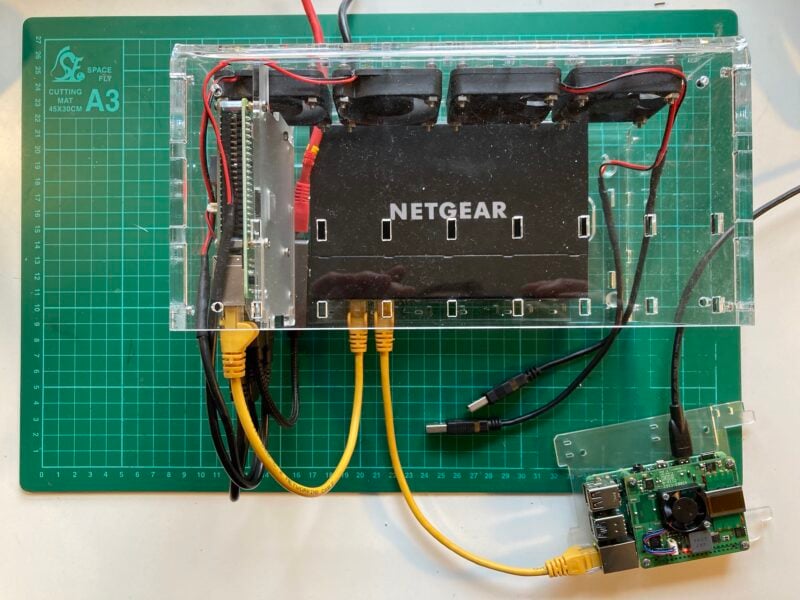
If all goes to plan the board should boot up without incident. Although there are a few things we will need to tidy up, you should now be able to SSH directly into the compute node.
$ ssh pi@192.168.50.11
pi@192.168.50.11's password:
$
If you were watching the boot messages on a monitor, or if you check in the logs, you can see that our image didn’t come up entirely cleanly. If you log back into the compute node you can make sure that doesn’t happen in future by turning off the feature where the Raspberry Pi tries to resize its filesystem on the first boot, and also by uninstalling the swap daemon.
$ sudo systemctl disable resize2fs_once.service
$ sudo systemctl disable sshswitch.service
$ sudo apt remove dphys-swapfile
Next, we should change the hostname from the default raspberrypi to rpi1 using the raspi-config command-line tool:
$ sudo raspi-config
Select System Options > Hostname to change the hostname of the compute node, and select "Yes" to reboot.
Finally, we can make things slightly easier on ourselves, so that we don’t have to use the IP address of our compute and head nodes every time, by adding our current and future compute nodes to the /etc/hosts file on both our head and compute nodes:
127.0.0.1 localhost
::1 localhost ip6-localhost ip6-loopback
ff02::1 ip6-allnodes
ff02::2 ip6-allrouters
127.0.1.1 cluster
192.168.50.1 cluster
192.168.50.254 switch
192.168.50.11 rpi1
192.168.50.12 rpi2
192.168.50.13 rpi3
192.168.50.14 rpi4
192.168.50.15 rpi5
192.168.50.16 rpi6
192.168.50.17 rpi7
Normally if we were mounting a network disk we’d make use autofs rather than adding it as an entry directly into the /etc/fstab file. However here, with our entire root filesystem mounted via the network, that seems like unnecessary effort.
After it reboots log back into your compute node, add a mount point:
$ sudo mkdir /scratch
$ sudo chown pi:pi scratch
Edit the /etc/fstab file there to add the scratch disk:
192.168.50.1:/mnt/usb/scratch /scratch nfs defaults 0 0
Then, reboot the compute node:
$ sudo reboot
It’s going to get pretty tiresome secure-shelling between the cluster head node and the compute nodes and having to type your password each time. So let’s enable secure shell without a password by generating a public/private key pair.
On the compute node you should edit the /etc/ssh/sshd_config file to enable public key login:
PubkeyAuthentication yes
PasswordAuthentication yes
PermitEmptyPasswords no
and then restart the sshd server:
$ sudo systemctl restart ssh
Then going back to the head node we need to generate our public/private key pair and distribute the public key to the compute node. Use a blank passphrase when asked.
$ ssh-keygen -t rsa -b 4096 -C "pi@cluster"
Generating public/private rsa key pair.
Enter file in which to save the key (/home/pi/.ssh/id_rsa):
Enter passphrase (empty for no passphrase):
Enter same passphrase again:
Your identification has been saved in /home/pi/.ssh/id_rsa
Your public key has been saved in /home/pi/.ssh/id_rsa.pub
The key fingerprint is:
SHA256:XdaHog/sAf1QbFiZj7sS9kkFhCJU9tLN0yt8OvZ52gA pi@cluster
The key's randomart image is:
+---
[RSA 4096]----+
| ...o *+o |
| ...+o+*o . |
| .o.=.B++ .|
| = B.ooo |
| S * Eoo |
| .o+o= |
| ..+=o. |
| ..+o +.|
| . +o.|
+----
[SHA256]-----+
$ ssh-copy-id -i /home/pi/.ssh/id_rsa.pub pi@rpi1
/usr/bin/ssh-copy-id: INFO: Source of key(s) to be installed: "/home/pi/.ssh/id_rsa.pub"
/usr/bin/ssh-copy-id: INFO: attempting to log in with the new key(s), to filter out any that are already installed
/usr/bin/ssh-copy-id: INFO: 1 key(s) remain to be installed -- if you are prompted now it is to install the new keys
pi@rpi1's password:
Number of key(s) added: 1
Now try logging into the machine, with: "ssh 'pi@rpi1'"
and check to make sure that only the key(s) you wanted were added.
$
Afterwards, you should be able to login to the compute node without having to type your password.
One thing our compute node doesn’t have right now is access to the LAN. Right now the compute node can only see the head node and eventually, once we add them, the rest of the compute nodes. But we can fix that! On the head node go and edit the /etc/sysctl.conf file by uncommenting the following line:
net.ipv4.ip_forward=1
After activating forwarding we’ll need to configure iptables:
$ sudo apt install iptables
$ sudo iptables -t nat -A POSTROUTING -o eth1 -j MASQUERADE
$ sudo iptables -A FORWARD -i eth1 -o eth0 -m state --state RELATED,ESTABLISHED -j ACCEPT
$ sudo iptables -A FORWARD -i eth0 -o eth1 -j ACCEPT
$ sudo sh -c "iptables-save > /etc/iptables.ipv4.nat"
and then add a line — just above the exit 0 line — in the /etc/rc.local file a line to load the tables on boot:
_IP=$(hostname -I) || true
if
[ "$_IP" ]; then
printf "My IP address is %s\n" "$_IP"
fi
iptables-restore < /etc/iptables.ipv4.nat
exit 0
and reboot:
$ sudo reboot
Adding the rest of the compute nodes is going to be much more straightforward than adding our first node as we can now use our customised image and avoid some of the heavy lifting we did for the first compute node.
Go ahead and grab your SD card again and boot your next Raspberry Pi attached to the cluster switch.
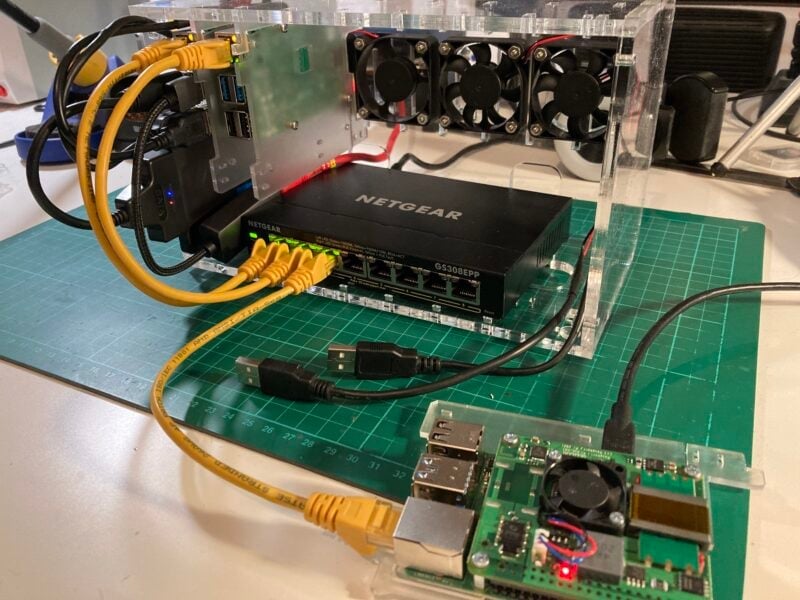
The board should come up and be visible on the cluster subnet after it gets given an IP address by the head node’s DHCP server, and we can look at the cluster network from the head node using dhcp-lease-list.
$ dhcp-lease-list
Reading leases from /var/lib/dhcp/dhcpd.leases
MAC IP hostname valid until manufacturer
===============================================================================================
dc:a6:32:6a:15:e2 192.168.50.21 raspberrypi 2021-12-08 21:15:00 Raspberry Pi Ltd
$
We can now go ahead and SSH into the new board and again enable network booting for this board using raspi-config from the command line:
$ rm /home/pi/.ssh/known_hosts
$ ssh <username>@129.168.50.21
$ sudo raspi-config
Choose Advanced Options > Boot Order > Network Boot. You’ll then need to reboot the device for the change to the boot order to be programmed into the bootloader EEPROM.
Once the Raspberry Pi has rebooted, check the boot order using vcgencmd:
$ vcgencmd bootloader_config
BOOT_UART=0
WAKE_ON_GPIO=1
POWER_OFF_ON_HALT=0
[all]
BOOT_ORDER=0xf21
$
which should now show that the BOOT_ORDER is 0xf21 which indicates that the Raspberry Pi will try to boot from an SD card first followed by the network. Before proceeding any further, we need to take a note of both the Ethernet MAC address and serial number of the Raspberry Pi.
$ ethtool -P eth0
Permanent address: dc:a6:32:6a:15:e2
$ grep Serial /proc/cpuinfo | cut -d ' ' -f 2 | cut -c 9-16
54e91338
$
Afterwards, you can shut down the board, at least for now, and remove the SD card.
Moving back to our head node we can use our already configured image as the basis of the operating system for the next compute node.
$ sudo su
$ mkdir -p /mnt/usb/rpi2
$ cp -a /mnt/usb/rpi1/* /mnt/usb/rpi2
$ mkdir -p /mnt/usb/tftpboot/54e91338
$ echo "/mnt/usb/rpi2/boot/firmware /mnt/usb/tftpboot/54e91338 none defaults,bind 0 0" >> /etc/fstab
$ echo "/mnt/usb/rpi2 192.168.50.0/24(rw,sync,no_subtree_check,no_root_squash)" >> /etc/exports
$ exit
$
Then we need to edit the /mnt/usb/rpi2/boot/firmware/cmdline.txt, replacing rpi1 with rpi2:
console=serial0,115200 console=tty root=/dev/nfs nfsroot=192.168.50.1:/mnt/usb/rpi2,vers=3 rw ip=dhcp rootwait
and similarly for /mnt/usb/rpi2/etc/hostname:
rpi2
Finally, edit the /etc/dhcp/dhcpd.conf file on the head node:
host rpi2 {
option root-path "/mnt/usb/tftpboot/";
hardware ethernet dc:a6:32:6a:15:e2;
option option-43 "Raspberry Pi Boot";
option option-66 "192.168.50.1";
next-server 192.168.50.1;
fixed-address 192.168.50.12;
option host-name "rpi2";
}
and reboot our head node:
$ sudo reboot
Afterwards, you should see both rpi1 and rpi2 are up and running. If you’re interested, we can get a better look at our cluster network by installing nmap on the head node:
$ sudo apt install nmap
$ nmap 192.168.50.0/24
Starting Nmap 7.80 ( https://nmap.org ) at 2021-12-09 11:40 GMT
Nmap scan report for cluster (192.168.50.1)
Host is up (0.0018s latency).
Not shown: 997 closed ports
PORT STATE SERVICE
22/tcp open ssh
111/tcp open rpcbind
2049/tcp open nfs
Nmap scan report for rpi1 (192.168.50.11)
Host is up (0.0017s latency).
Not shown: 999 closed ports
PORT STATE SERVICE
22/tcp open ssh
Nmap scan report for rpi2 (192.168.50.12)
Host is up (0.00047s latency).
Not shown: 999 closed ports
PORT STATE SERVICE
22/tcp open ssh
Nmap scan report for switch (192.168.50.254)
Host is up (0.014s latency).
Not shown: 999 filtered ports
PORT STATE SERVICE
80/tcp open http
Nmap done: 256 IP addresses (4 hosts up) scanned in 6.91 seconds
$

Adding the remaining five compute nodes is now more or less a mechanical process. You’ll need to follow the process we went through for rpi2 for rpi3, rpi4, rpi5, rpi6, and rpi7. Substituting the appropriate MAC address, serial number, and hostname for each of the new compute nodes:
| Hostname | MAC Address | Serial Number |
|---|---|---|
rpi1 |
dc:a6:32:6a:16:87 |
6a5ef8b0 |
rpi2 |
dc:a6:32:6a:15:e2 |
54e91338 |
rpi3 |
dc:a6:32:6a:15:16 |
6124b5e4 |
rpi4 |
dc:a6:32:6a:15:55 |
52cddb85 |
rpi5 |
dc:a6:32:6a:16:1b |
a0f55410 |
rpi6 |
dc:a6:32:6a:15:bb |
c5fb02d3 |
rpi7 |
dc:a6:32:6a:15:4f |
f57fbb98 |
When bringing the last compute node up I also went ahead and plugged the two remaining franken-cables into the final node to power the right-most fans in my case.
Now we have all our nodes up and running, we need some cluster control tools. One of my favourites is the parallel-ssh toolkit. You can install this on the head node from the command line:
$ apt install pssh
and, along with the excellent ParallelSSH Python library allowing you to build your own cluster automation, this will install a number of command-line tools; parallel-ssh, parallel-scp, parallel-rsync, parallel-slurp, and parallel-nuke. These tools can help you run and control jobs, and move and copy files, between the head node and the compute nodes.
To use the command line tools you’ll need to create a hosts file listing all the compute nodes, I saved mine as .pssh_hosts in my home directory:
$ cat .pssh_hosts
rpi1
rpi2
rpi3
rpi4
rpi5
rpi6
rpi7
$
After creating the file we can use the command line tools to, amongst other things, execute a command on all seven of our compute nodes.
$ parallel-ssh -i -h .pssh_hosts free -h
[1] 12:10:15 [SUCCESS] rpi4
total used free shared buff/cache available
Mem: 3.8Gi 56Mi 3.7Gi 8.0Mi 64Mi 3.7Gi
Swap: 0B 0B 0B
[2] 12:10:15 [SUCCESS] rpi1
total used free shared buff/cache available
Mem: 3.8Gi 55Mi 3.7Gi 8.0Mi 64Mi 3.7Gi
Swap: 0B 0B 0B
[3] 12:10:15 [SUCCESS] rpi2
total used free shared buff/cache available
Mem: 3.8Gi 55Mi 3.7Gi 8.0Mi 64Mi 3.7Gi
Swap: 0B 0B 0B
[4] 12:10:15 [SUCCESS] rpi7
total used free shared buff/cache available
Mem: 3.8Gi 56Mi 3.7Gi 8.0Mi 97Mi 3.6Gi
Swap: 0B 0B 0B
[5] 12:10:15 [SUCCESS] rpi3
total used free shared buff/cache available
Mem: 3.8Gi 55Mi 3.7Gi 16Mi 104Mi 3.6Gi
Swap: 0B 0B 0B
[6] 12:10:15 [SUCCESS] rpi5
total used free shared buff/cache available
Mem: 3.8Gi 55Mi 3.7Gi 16Mi 72Mi 3.6Gi
Swap: 0B 0B 0B
[7] 12:10:15 [SUCCESS] rpi6
total used free shared buff/cache available
Mem: 3.8Gi 55Mi 3.7Gi 8.0Mi 64Mi 3.7Gi
Swap: 0B 0B 0B
$
Although you should take note that the results will come back in a random order depending on how quickly the command was executed on each of the compute nodes.
While parallel-ssh is a great tool to allow you to deploy software and do other tasks across your cluster, sometimes you just want to shut the cluster down cleanly with a single command. There are a bunch of ways you can approach this, the simplest is just to write a shell script to login to each of the compute nodes and shut them down before shutting down the head node itself. Alternatively, you could deploy something like the rshutdown service, editing the command appropriately.
Up until this point, the cluster we’ve built is pretty flexible, and now we have a firm base we can start installing software depending on exactly what we’re looking to do with our cluster. For instance, if we’re building a compute cluster for modelling, we’d probably look to install MPI and OpenMP to do parallel processing across our cluster. Alternatively, you might be looking to build out a cluster to host Kubernetes.
Dealing with hotel Wi-Fi is almost always a pain. Signing into a portal that doesn’t always work properly on every device — your phone, laptop, tablet, e-reader, watch, and more — is error-prone, and it’s an easy way to end up accidentally adding pricey internet fees to your hotel stay. Some hotel Wi-Fi only allows a single device per room! Most won’t let your devices communicate with each other, and if they do, they may well present a security risk.
You can use a Raspberry Pi to connect to hotel Wi-Fi once, then broadcast a separate network to all of your devices. With this setup, you won’t have to configure Wi-Fi for all of your devices every time you visit a hotel. Instead, you can set them up once, and then every time you go to a hotel, your devices will automatically connect to the Raspberry Pi’s network.
We’ll begin by setting up the hotspot at home. To use the hotspot once you’re actually at a hotel, see Use the hotspot.
Raspberry Pi
Suitable Raspberry Pi power supply (see the power supply documentation for details)
MicroSD card (see the SD card documentation for details)
Adapter to connect your microSD card with your usual computer
USB Wi-Fi adapter
For the initial SD card setup, you will need:
Another computer connected to your network. We’ll refer to this as your usual computer to distinguish it from the Raspberry Pi computer you are setting up as NAS.
The faster your Raspberry Pi, the better performance you’ll get. For this tutorial, we’ll be using a Raspberry Pi 4 2GB.
It’s a good idea to choose a Raspberry Pi with a built-in Wi-Fi module, because you’ll need two Wi-Fi devices to host your own hotel Wi-Fi hotspot: one to connect to the hotel network, and one to broadcast a network to your other devices.
Most USB Wi-Fi adapters with Linux driver support should suffice.
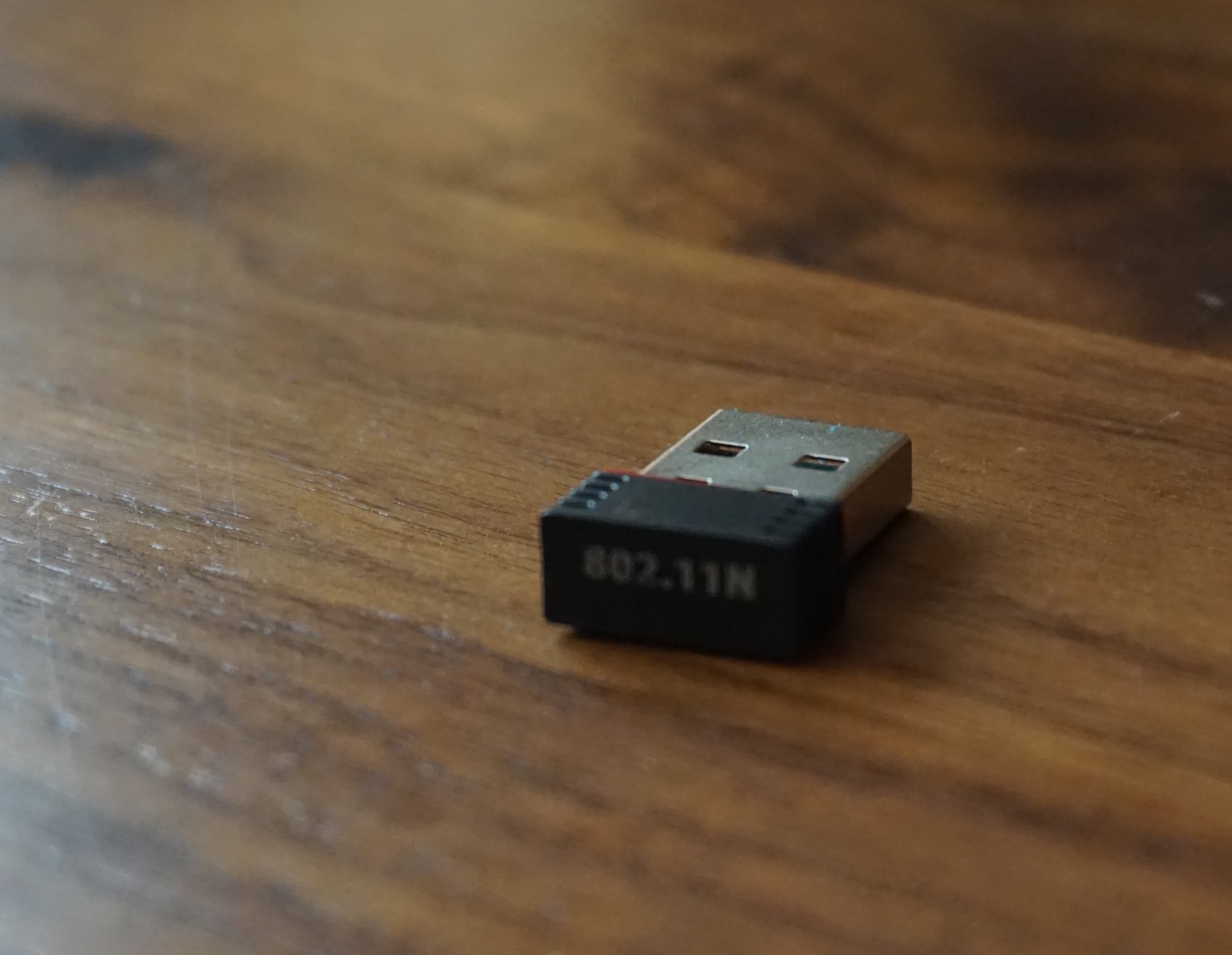
For this tutorial, we used a 802.11 b/g/n 2.4GHz adapter built around the MediaTek MT7601U chipset.

To begin, follow the Getting Started documentation to set up your Raspberry Pi. For your operating system, choose Raspberry Pi OS Lite (32-bit) to run headless (without a mouse and keyboard).
During the OS customisation stage, edit settings as follows:
Enter a hostname of your choice (we suggest pi-hotspot for this tutorial).
Enter a username and password; you’ll need these later to authenticate.
Check the box next to Configure wireless LAN so your Pi can automatically connect to Wi-Fi.
Enter your network SSID (name) and password; you can find these in your Wi-Fi settings or on a sticker on your router.
In the Services tab, check the box next to Enable SSH so we can connect to the Pi without a mouse and keyboard.
Enable password authentication for SSH connections.
Power down your Raspberry Pi by disconnecting it from the power supply. Then, attach your USB WiFi adapter (or adapters) to your Raspberry Pi. Finally, power your Raspberry Pi by plugging it back into the power supply.
SSH allows you to remotely connect to your Raspberry Pi, eliminating the need for a keyboard and mouse. It’s perfect if your Raspberry Pi is located in a hard-to-reach location like the back of your display.
To SSH into the Raspberry Pi, you’ll use the hostname you set using Raspberry Pi Imager. If you have issues connecting using this method, you may want to use your Raspberry Pi’s IP address instead. For more information about finding your IP address and accessing your Raspberry Pi remotely, see the remote access documentation.
Open a terminal session on your usual computer. To access your Raspberry Pi via SSH, run the following command, replacing <username> with the user name you chose in Imager:
$ ssh <username>@pi-hotspot.local
The authenticity of host 'pi-hotspot.local (fd81:b8a1:261d:1:acd4:610c:b069:ac16)' can't be established.
ED25519 key fingerprint is SHA256:s6aWAEe8xrbPmJzhctei7/gEQitO9mj2ilXigelBm04.
This key is not known by any other names
Are you sure you want to continue connecting (yes/no/
[fingerprint])? yes
Warning: Permanently added 'pi-hotspot.local' (ED25519) to the list of known hosts.
<username>@pi-hotspot.local's password:
Linux pi-hotspot 6.1.21-v8+ #1642 SMP PREEMPT Mon Apr 3 17:24:16 BST 2023 aarch64
The programs included with the Debian GNU/Linux system are free software;
the exact distribution terms for each program are described in the
individual files in /usr/share/doc/*/copyright.
Debian GNU/Linux comes with ABSOLUTELY NO WARRANTY, to the extent
permitted by applicable law.
Last login: Tue Oct 24 09:41:00 2023
<username>@pi-hotspot:~ $
When asked for your password, use the password you created in Raspberry Pi Imager.
Now that your Raspberry Pi is up and running, it’s time to transform it into a hotspot.
First, we need to find the USB adapter. Run the following command to identify Wi-Fi devices with the Network Manager CLI:
$ nmcli device
You should see output similar to the following:
DEVICE TYPE STATE CONNECTION
wlan1 wifi connected Example Wi-Fi
lo loopback connected (externally) lo
wlan0 wifi disconnected --
p2p-dev-wlan0 wifi-p2p disconnected --
eth0 ethernet unavailable --
In the above output, the USB Wi-Fi module, wlan1, is connected to a Wi-Fi network named "Example Wi-Fi". The built-in Wi-Fi device, wlan0, is not currently in use, so the state currently reads "disconnected".
If your Raspberry Pi has a built-in Wi-Fi module, it should show up by default as wlan0. The first Wi-Fi module you connect should show up as wlan1, and subsequent adapters will display as wlan2, wlan3, and so on. Depending on your specific configuration, your Raspberry Pi might connect to your network using either the USB adapter or the built-in Wi-Fi module.
Next, we’ll use the built-in Wi-Fi module to broadcast a hotspot network. Run the following command to create a hotspot, replacing the <hotspot name> and <hotspot password> placeholders with a hotspot name and password of your choice:
$ sudo nmcli device wifi hotspot ssid <hotspot name> password <hotspot password> ifname wlan0
ifname wlan0 option at the end of this command specifies that the hotspot should use the built-in Wi-Fi module, which supports the AP (Access Point) mode required to broadcast a hotspot network. To host a hotspot from a Raspberry Pi that lacks a built-in Wi-Fi module, specify an interface corresponding to a USB adapter that supports AP mode.After creating the hotspot network, your hotspot should automatically become active.
Next, connect to the hotspot Wi-Fi network from your usual computer. Look for a network with an SSID matching the hotspot name you chose in the previous step. Use the password you also provided in that step to authenticate.
Then, connect to your Raspberry Pi using SSH:
$ ssh <username>@pi-hotspot.local
And run the following command to view your current connections:
$ nmcli connection
You should see output similar to the following:
NAME UUID TYPE DEVICE
Hotspot 69d77a03-1cd1-4ec7-bd78-2eb6cd5f1386 wifi wlan0
lo f0209dd9-8416-40a0-971d-860d3ff3501b loopback lo
Ethernet 4c8098c7-9f7d-4e3e-a27a-70d54235ec9a ethernet --
Example 1 f0c4fbcc-ac88-4791-98c2-e75685c70e9f wifi --
Example 2 9c6098a7-ac88-40a0-5ac2-b75695c70e9e wifi --
The connection named Hotspot represents your new hotspot network. The Example 1 and Example 2 connections above represent saved Wi-Fi connections which are inactive.
Let’s configure your hotspot network to automatically broadcast whenever your Raspberry Pi boots. When your Raspberry Pi boots, it starts whichever connection has autoconnect enabled with the highest priority. To ensure that your hotspot always starts on boot, we’ll enable autoconnect for the hotspot and configure a priority higher than any other connection.
Re-run the nmcli connection command above and copy the UUID for your hotspot network from the table. Then, run the following command to view connection properties for your hotspot network, replacing the <hotspot UUID> placeholder with the UUID for your hotspot:
$ nmcli connection show <hotspot UUID>
The output will contain a lot of properties that describe your hotspot network. But we’re only interested in the following two properties for now:
connection.autoconnect: no
connection.autoconnect-priority: 0
Run the following command to change the priority and autoconnect properties for your hotspot, replacing the <hotspot UUID> placeholder with the UUID for your hotspot that you copied to your clipboard before:
$ sudo nmcli connection modify <hotspot UUID> connection.autoconnect yes connection.autoconnect-priority 100
If your command executed successfully, we should see the following new values for those properties when we re-run nmcli connection show <hotspot UUID>:
connection.autoconnect: yes
connection.autoconnect-priority: 100
Next, let’s configure a portal website that allows you to easily connect your Raspberry Pi to a hotel Wi-Fi network from a browser.
Install the following tools:
$ sudo apt install python3-flask
Then, run the following command to make a directory where we can create our portal, called wifi-portal:
$ mkdir ~/wifi-portal
Then, navigate into the portal directory:
$ cd ~/wifi-portal
Open app.py in the portal directory, which contains the logic for the portal website:
$ sudo nano app.py
Copy and paste the following code into app.py:
from flask import Flask,request
import subprocess
app = Flask(__name__)
wifi_device = "wlan1"
@app.route('/')
def index():
result = subprocess.check_output(["nmcli", "--colors", "no", "-m", "multiline", "--get-value", "SSID", "dev", "wifi", "list", "ifname", wifi_device])
ssids_list = result.decode().split('\n')
dropdowndisplay = f"""
<!DOCTYPE html>
<html>
<head>
<title>Wifi Control</title>
</head>
<body>
<h1>Wifi Control</h1>
<form action="/submit" method="post">
<label for="ssid">Choose a WiFi network:</label>
<select name="ssid" id="ssid">
"""
for ssid in ssids_list:
only_ssid = ssid.removeprefix("SSID:")
if len(only_ssid) > 0:
dropdowndisplay += f"""
<option value="{only_ssid}">{only_ssid}</option>
"""
dropdowndisplay += f"""
</select>
<p/>
<label for="password">Password: <input type="password" name="password"/></label>
<p/>
<input type="submit" value="Connect">
</form>
</body>
</html>
"""
return dropdowndisplay
@app.route('/submit',methods=['POST'])
def submit():
if request.method == 'POST':
print(*list(request.form.keys()), sep = ", ")
ssid = request.form['ssid']
password = request.form['password']
connection_command = ["nmcli", "--colors", "no", "device", "wifi", "connect", ssid, "ifname", wifi_device]
if len(password) > 0:
connection_command.append("password")
connection_command.append(password)
result = subprocess.run(connection_command, capture_output=True)
if result.stderr:
return "Error: failed to connect to wifi network: <i>%s</i>" % result.stderr.decode()
elif result.stdout:
return "Success: <i>%s</i>" % result.stdout.decode()
return "Error: failed to connect."
if __name__ == '__main__':
app.run(debug=True, host='0.0.0.0', port=80)
Press Ctrl+X, then Y, and finally Enter to save the edited file with nano.
Next, let’s configure your Raspberry Pi to automatically run the Wi-Fi portal after boot. Run the following command to open your cron tab, a Linux scheduling tool:
$ crontab -e
Enter 1 to use the nano text editor to edit your cron schedule.
Then, add the following line to the file, replacing the <username> placeholder with your Raspberry Pi admin account username:
@reboot sudo python3 /home/<username>/wifi-portal/app.py
Press Ctrl+X, then Y, and finally Enter to save the edited file with nano.
And enter the following command to reboot your Raspberry Pi:
$ sudo reboot
You’re now ready to connect to any hotel Wi-Fi network!
You should now have your hotel Wi-Fi hotspot entirely set up. Every time you go to a hotel, repeat the following steps:
Plug in your Raspberry Pi.
Connect your usual computer to the hotspot Wi-Fi connection.
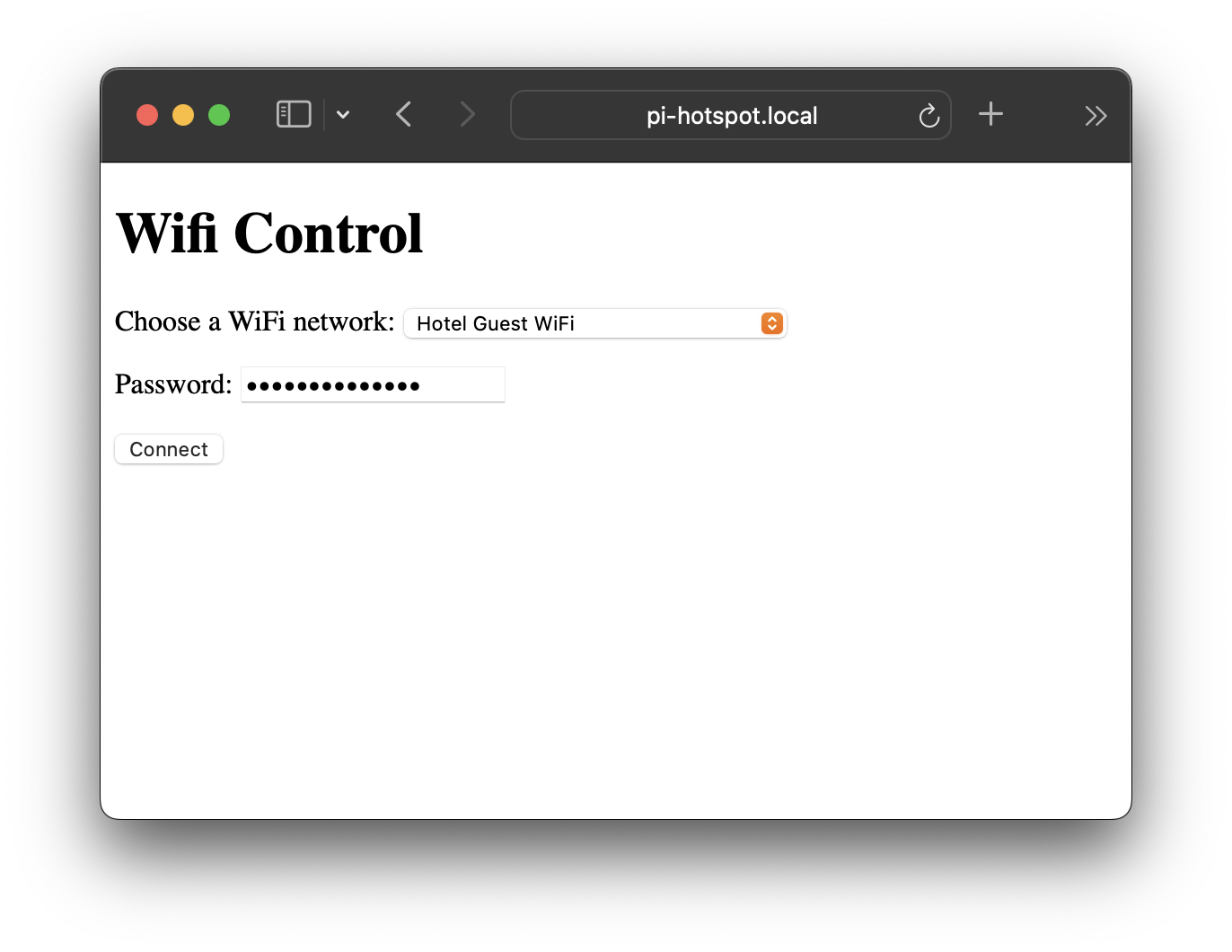
Connect a device to the hotspot and visit http://pi-hotspot.local. Select a Wi-Fi network and enter a password if necessary.

On a device connected to the hotspot, open the captive portal at http://captive.apple.com. Authenticate to get the Raspberry Pi hotspot network connected to the internet.
The first time you use another device with the hotspot, you’ll have to set up the Wi-Fi connection manually. But after that, the device should automatically connect to the hotspot.
Now that you’ve got your own Wi-Fi hotspot routed through hotel Wi-Fi networks, put it to good use! Watch some movies, browse the internet, and relax.
Now you’ve relaxed, consider some improvements to make your hotel Wi-Fi hotspot even more convenient. Using a second Raspberry Pi (or home server, if you already have one), you can host a personal VPN on your home network with PiVPN and configure your hotspot-hosting Raspberry Pi to connect to it. With a VPN connection, you can protect all devices connected to your hotspot from snooping while connected to insecure guest networks.
Internet advertising can often be a nuisance. It takes up valuable bandwidth. It weighs your browser down with trackers. It reports your data back to untrustworthy third parties.
On some devices, like laptops and phones, you can use ad blockers to protect yourself (and your sanity). But on many smart devices, like TVs, refrigerators, toasters, and toilets, you can’t install an ad blocker.
Pi-hole simplifies ad blocking by operating at the network level, instead of on individual devices. That way, you aren’t restricted by which devices can install an ad-blocker; instead, you can protect devices on your network from ever accessing ads in the first place.
Pi-hole blocks ads by acting as a DNS sinkhole.
To understand what a DNS sinkhole is, you need to understand what DNS is. Here are a few key terms:
unique alphanumeric address of a web resource (e.g. raspberrypi.com)
unique numeric address of a web resource (e.g. 104.22.23.160)
Domain Name System, associates domain names with IP addresses
a server that translates domain names into IP addresses
When you type www.raspberrypi.com into your browser, your computer asks a DNS server where to find that domain. The DNS server responds with an IP address (e.g. 104.22.23.160). Then your computer queries that IP address for the resource you’re looking for.
We use domain names because IP addresses aren’t very human-readable; it’s a lot easier to read and write "raspberrypi.com" than four bytes' worth of numbers.
Usually, your computer queries a DNS server hosted somewhere on the internet. It might be hosted by your internet provider, a website hosting company, or any company that runs a lot of servers. Your machine submits a domain, and the DNS server returns the IP address corresponding to that domain. The DNS server doesn’t care if the domain provides something you want (like the article you’re trying to read) or an ad. It just resolves domains into IP addresses.
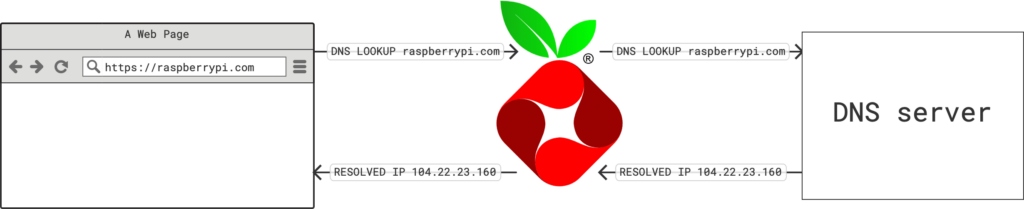
Here’s where Pi-hole comes in. Pi-hole stands between your network and a DNS server. Consider a client device, like your smart toilet, performing a DNS lookup for a domain. The Pi-hole in your network acts like a DNS server; DNS lookups from all client devices, whether that’s your smart toilet or your phone, go to the Pi-hole.
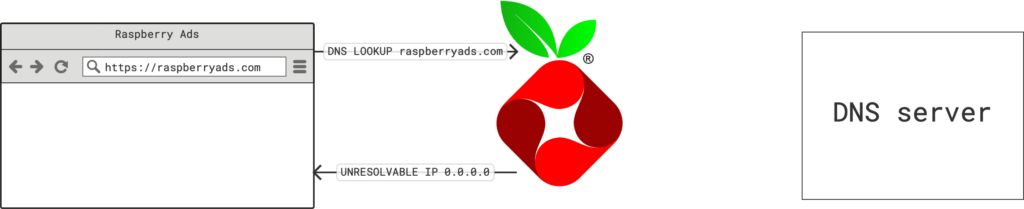
But Pi-hole doesn’t store a perfect up-to-date mapping of all domain names to all IP addresses. Instead, Pi-hole queries a real DNS server outside of your network. However, before it queries that real DNS server, Pi-hole checks a blocklist. If the domain passes this filter, Pi-hole requests the IP address from the DNS server, and returns it to the client device on your network. If the domain doesn’t pass the filter — if it’s included on the blocklist — Pi-hole returns a non-routable address such as 0.0.0.0.
The following diagram shows a lookup via a Pi-hole for the unblocked domain raspberrypi.com:

The following diagram shows a lookup via a Pi-hole for the blocked domain raspberryads.com:

TL;DR: Pi-hole blocks requests made to ad domains from your network, before the requests ever leave your network. Your client devices can’t connect to domains that host ads, but can connect to domains that host useful content.
To install a Pi-hole in your network, you’ll need to do the following things:
Configure a Raspberry Pi running Raspberry Pi OS.
Set up Pi-hole software on your Raspberry Pi.
Direct DNS queries on your network to your Raspberry Pi.
Raspberry Pi
suitable power supply (see the documentation for details)
microSD card (see the documentation for details)
adapter to connect your microSD card with your usual computer
USB cable (check your 3D printer for details)
For the initial SD card setup, you will need:
Another computer connected to your network. We’ll refer to this as your usual computer to distinguish it from the Raspberry Pi computer you are setting up.
You can use any Raspberry Pi model for this. We recommend Zero 2 W if you can’t decide which model to use.
To begin, follow the Getting Started documentation to set up your Raspberry Pi. For your operating system, choose Raspberry Pi OS Lite (32-bit) to run headless (without a mouse and keyboard).
During the OS customisation stage, edit settings as follows:
Enter a hostname of your choice (we suggest pi-hole for this tutorial)
Enter a username and password; you’ll need these later to authenticate
Check the box next to Configure wireless LAN so your Pi can automatically connect to Wi-Fi
Enter your network SSID (name) and password; you can find these in your Wi-Fi settings or on a sticker on your router
Check the box next to Enable SSH so we can connect to the Pi without a mouse and keyboard
Open a terminal on your computer. If you use a Windows computer, you might need to install an SSH client; we suggest PuTTY. Enter the following command to connect to your Raspberry Pi, replacing the <username> placeholder with your own username that you chose in Imager:
$ ssh <username>@pi-hole.local
If ssh asks you if you’re sure you want to continue connecting, reply yes. Enter the password you chose during advanced configuration when prompted.
You’ll know you’ve connected successfully when you see the following prompt with your configured username and hostname:
<username>@<hostname>:~ $
Now that you’ve connected to your Raspberry Pi, run two commands to make sure that all of your packages are up to date:
$ sudo apt update
$ sudo apt full-upgrade
Once the package update commands finish running, reboot your Raspberry Pi to allow all changes to take effect:
$ sudo reboot
Running this command will disconnect you from the Raspberry Pi SSH session. Wait a few seconds for your Raspberry Pi to reboot, and enter the ssh connection command again to reconnect to your device.
Run the following single-line command to run the Pi-hole setup script:
$ curl -sSL https://install.pi-hole.net | bash
The setup script is relatively self-explanatory, but follow these tips if you aren’t sure how to proceed:
When warned about needing a static IP address, click Continue to proceed; we’ll deal with this later
When prompted to select an interface, select wlan0 to use your Raspberry Pi’s Wi-Fi connection
When prompted to choose an upstream DNS provider, choose OpenDNS
Include StevenBlack’s Unified Hosts List
Install the Admin Web Interface
Install lighttpd and the required PHP modules to run the Admin Web Interface
Enable query logging
When prompted to choose a privacy level, choose Anonymous mode

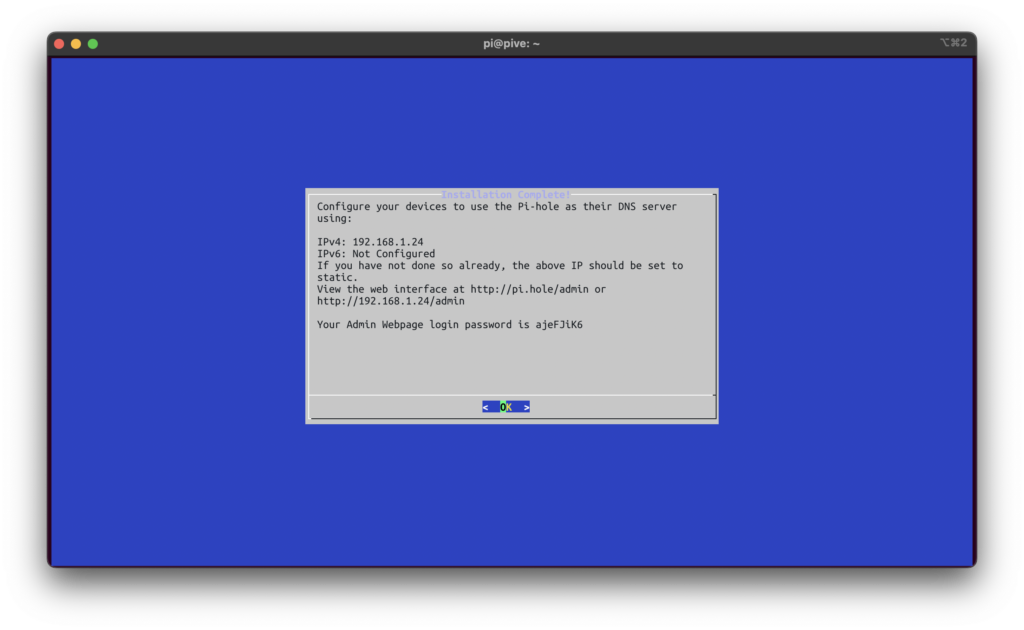
When you see "Installation complete!", the setup is complete. This screen shows the IP address of your Pi-hole, a link to the admin interface, and your administrator password.
Save this password somewhere safe, like a password manager — you’ll need it to work with your Pi-hole in the future
Save the IP address — you’ll need it to configure a static IP address shortly
Pi-hole only provides a single administrator account, so there’s no username.
Press the Control key (Command on macOS) and click the link to the admin interface that uses an IP address. It’ll look something like http://192.168.1.24/admin. Don’t use the pi.hole domain link yet; until we configure the Pi-hole as our DNS provider, it won’t work. The link should open in your browser. You can also copy and paste the link into a browser if control + click doesn’t work in your terminal.
Use the admin password from the setup script output to authenticate. You can now see your Pi-hole admin console! We recommend bookmarking this console for future maintenance.
The tasks below require you to change global settings in your wireless network. You might break your internet connection (for a little while). Proceed with caution!
To complete these tasks, visit the admin interface for your router. You can usually access the admin interface through your router’s IP address. Here are a couple of common ways to find that interface:
Run the following command on your Raspberry Pi to output your router’s IP address:
$ nmcli -f IP4.GATEWAY device show wlan0
Check for a sticker on your router — look for a value called "admin URL" or similar
Once you’ve found the IP address, log in to your router’s admin interface by typing the address (sometimes with the suffix /admin) into your browser. Enter your username and password (if you don’t know these, you may be able to find them on a sticker on your router).
Now that you’ve got your Pi-hole configured, you have three choices to use it to block ads. All of them involve getting Pi-hole between your network and the internet:
configure Pi-hole as the DNS server for your network
configure Pi-hole as the DHCP provider for your network
manually point devices at Pi-hole for DNS
It’s easiest to use your Pi-hole as a DNS server. However, some routers don’t provide a setting to control the default DNS server. If you can’t set a DNS server, try configuring Pi-hole as your DHCP provider. And if you can’t do that either, you can always manually point devices at the Pi-hole for DNS — it’s not as good as full-network ad blocking, but it’s a lot better than nothing.
This is the most common way of configuring a Pi-hole. For this method, you’ll first assign your Raspberry Pi a static IP address from your router’s interface, then point your router’s DNS server settings to the Pi-hole’s static IP address. With this setup, your router controls IP reservations across your network, but devices on the network send DNS queries to your Pi-hole instead of to a DNS server on the internet.
IP addresses are unique numeric codes that allow you to directly interact with devices on your network. For instance, many routers automatically assign themselves the first address in the IP block they are using, such as 192.168.1.1. Most networks use Dynamic Host Configuration Protocol (DHCP) to assign IP addresses to devices automatically. These IP addresses are known as dynamic IP addresses, because they can change at any time.
To run a Pi-hole on your network, we recommend assigning your Pi-hole a static IP address. A static IP address never changes. This allows devices on your network always to find the Pi-hole at the same address.
To start, run the following command on your Raspberry Pi:
$ hostname -I
You should see output similar to the following:
$ 192.168.1.24
This value is the current (dynamic) IP address of your Raspberry Pi on the network.
To assign a static IP address, you also need the MAC address of your Raspberry Pi. A device’s MAC address is a hardware identifier that your router uses to uniquely identify it. Run the following command to find the MAC address of your Raspberry Pi:
$ nmcli -f GENERAL.HWADDR device show wlan0
You should see output similar to the following:
GENERAL.HWADDR: A8:42:EA:58:E0:1C
The value on the right is the MAC address of your Raspberry Pi. Now that we know your Raspberry Pi’s MAC address and IP address, we can configure your router so it always associates the Raspberry Pi’s MAC address with its current IP address. Effectively, we’re turning the current dynamic address into a static one using the MAC address. In your router’s admin interface, configure a static IP address for your Raspberry Pi. There are several ways to accomplish this, depending on your router:
You might be able to find this setting in the "Advanced" section of the router admin interface. Look for a list called "DHCP Reservations", and enter your Raspberry Pi’s IP address and MAC address.
Look for a list of connected devices and find your Raspberry Pi’s IP address or MAC address. Select the option to "Always use this IP address" to make the IP address reservation static.
Check the documentation for your router model for specific instructions.
Once you’ve assigned your Raspberry Pi a static IP address, you can configure individual devices to use Pi-hole as a DNS server in their network settings. But this process is tedious, and some devices don’t provide an easily accessible DNS server setting. However, there is an easier way: most routers automatically suggest a DNS server for devices connected to your network. All you have to do is change the suggested server in your router’s settings, and your entire network should start using your Pi-hole for DNS.
Look for a setting called DNS in your router’s admin interface. You may be able to find the setting in a section called "Internet", "DHCP", "Internet Connection", or "DDNS".
Enter your Pi-hole’s IP address in the DNS (or similarly named) field.
If your router provides multiple custom DNS fields, add your Pi-hole address in each field.
Whatever you do, don’t add any separate DNS entries after the Pi-hole entries — this can break Pi-hole’s ad blocking functionality. When your Pi-hole blocks a domain, it returns a non-routable address such as 0.0.0.0, and some devices will query the secondary DNS server when the first server returns such a non-routable address. If your secondary DNS server isn’t a Pi-hole, every single request blocked by Pi-hole will succeed on the secondary server, and ads will load as if you weren’t running an ad blocker at all.
If your router doesn’t support configuration for static IP addresses or DNS servers, you may still be able to use your Pi-hole automatically across your network. First, check whether you can change the network DHCP server in your router settings. If you can, you can use your Pi-hole both as a DNS server and as the DHCP server that handles IP address reservations across your network.
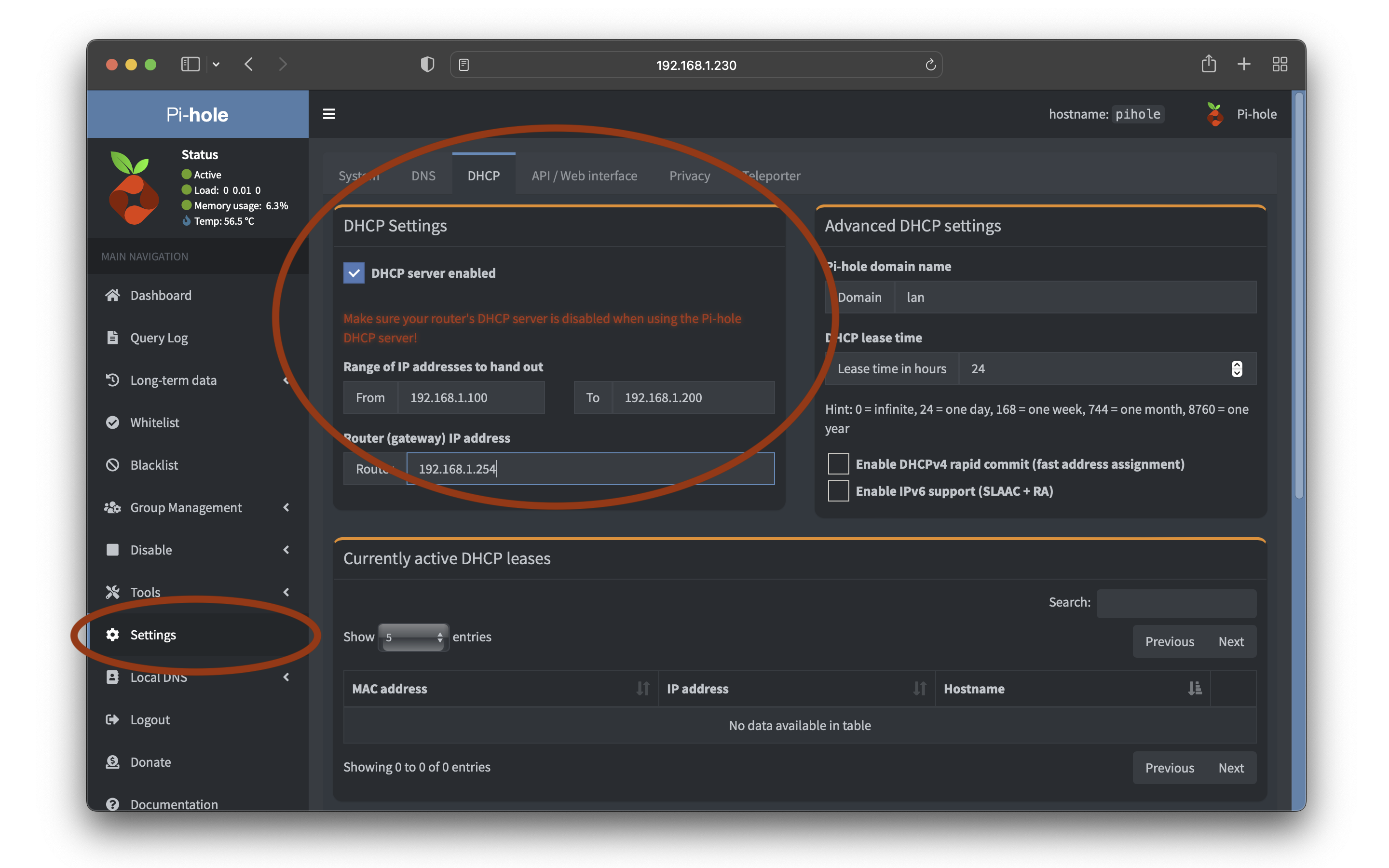
First, navigate to the Pi-hole admin console. If you type your Raspberry Pi’s IP address into your browser, it should redirect you there.
In the left side menu, select the "Settings" page.

In the DHCP tab, in the "DHCP Settings" block, check the "DHCP server enabled" box.
Pi-hole should pre-populate the IP address range with the IP block that your router currently uses, and the router IP address with the router’s current IP address. You can leave these values as they are. Click the Save button in the bottom left to start hosting a DHCP server from Pi-hole.
Finally, visit your router’s admin interface, and set your Pi-hole’s IP address as the DHCP provider for your network. When your Pi-hole is functioning as the DHCP provider, your router delegates all IP-related tasks to it. This includes DNS server configuration, so your Pi-hole can suggest itself as the default DNS server for all devices on your network. Check the documentation for your router model for specific instructions.
On many devices, you can configure DNS settings in Wi-Fi preferences. Look in the "Advanced" section of your Wi-Fi or wired connection preferences for a DNS server setting. Put your Raspberry Pi’s IP address in this field. Your device should immediately start issuing DNS queries to the Pi-hole.
Unless you’ve configured a static IP address for your Raspberry Pi, this IP address can change at any time without warning. Follow the instructions under "Assign your Raspberry Pi a static IP address" in the DNS section above to configure a static IP address — this will prevent your device from losing its connection to the Pi-hole (and most of the internet!) when your Pi-hole’s dynamic IP address changes.
With a Pi-hole acting as the DNS server for your network, many pages will load without ads at all. Most privacy-invading trackers won’t work either. You’ll still see cookie and app install banners, because those can’t be blocked at the DNS level. To check to see if your Pi-hole is working correctly:
Check out Adblock Tester. Without Pi-hole, many browsers score near 0; with Pi-hole, you should see a score at or near 100.
Try visiting http://pi.hole/admin/login.php. Pi-hole always routes the pi.hole domain to your Raspberry Pi when you use Pi-hole as your DNS server.
Visit any site where you normally see ads and visually confirm that ads are no longer there.
Check the proportion of "queries blocked" on the Pi-hole dashboard. Many networks see between 10% and 50% of queries blocked!
Check the DNS server used by other computers in your network. You should be able to find this information in "Details" or "Advanced" Wi-Fi settings. If you see your Raspberry Pi’s IP address, your configuration worked!
If you’ve completed all of the setup steps but you’re still seeing ads (or, worse, DNS queries don’t resolve), try the trusty solution of turning your router off and on again. This should disconnect all devices from your network and renew all DHCP leases, putting your new settings into effect for every device. Congratulations! Your home network is now protected from ads. Put a slice of bread in your smart toaster, watch a movie on your smart TV, and flush your smart toilet in the comfort of privacy and security.
This tutorial was written for Raspberry Pi OS Bullseye and has not yet been updated for our latest operating system, Bookworm. There have been major changes between these two OS releases, including changes to networking. You can still follow this tutorial, but you will have to download and install the "legacy" version of the operating system.
Many of us have become all too familiar with Zoom, Teams, Skype, and countless other video calling applications in recent years. They’re essential to see our coworkers when we work remotely. At times, they have been the only way to see our loved ones. Unfortunately, many laptops and USB webcams use cameras that are, at best, mediocre.
This tutorial helps you create a USB webcam using a Raspberry Pi and a Raspberry Pi camera. Plug it into any Mac, Windows, or Linux computer to use it as a video camera.
Raspberry Pi
cable to connect your Raspberry Pi to your computer for power and data
microSD card
adapter to connect your microSD card with your usual computer
Raspberry Pi camera
Raspberry Pi camera cable
Raspberry Pi case with camera mount
laptop mount or tripod
For the initial SD card setup, you will need:
Another computer connected to your network. We’ll refer to this as your usual computer to distinguish it from the Raspberry Pi computer you are setting up as a webcam.
For this tutorial, we’ll use a Raspberry Pi Zero 2 W. Since this model supports USB On-The-Go (OTG), we can use one cable for both power and data.
For this tutorial, we’ll use a Raspberry Pi Camera Module 3.
You’ll also need a cable to connect your camera with your Raspberry Pi. For all Raspberry Pi Zero models, we recommend the Raspberry Pi Camera Cable.
A Raspberry Pi case with a camera mount keeps your webcam safe from everyday wear and tear.
You could 3D print these Raspberry Pi Zero 2 W case files. This case requires a combination of M2 and M2.5 nylon hex spacers for assembly.
There are also many third-party Raspberry Pi cases available on the market, and some include a camera mount.
Since you’ll connect the entire setup to your computer as a webcam, you should also consider a laptop mount or tripod to make it easier to set up your webcam.
To begin, follow the Getting Started documentation to set up your Raspberry Pi. For your operating system, choose Raspberry Pi OS (Other) > Raspberry Pi OS (Legacy) Lite to run headless (without a mouse and keyboard).
During the OS customisation stage, edit settings as follows:
Enter a hostname of your choice (we suggest pi-webcam for this tutorial)
Enter a username and password; you’ll need these later to authenticate
Check the box next to Configure wireless LAN so your Pi can automatically connect to Wi-Fi
Enter your network SSID (name) and password; you can find these in your Wi-Fi settings or on a sticker on your router
Check the box next to Enable SSH so we can connect to the Pi without a mouse and keyboard
SSH allows you to wirelessly connect to your Raspberry Pi, eliminating the need for a keyboard and mouse. It’s perfect if your Raspberry Pi is located in a hard-to-reach location, like behind a train times display.
To SSH into the Raspberry Pi, you’ll use the hostname you set in Imager. If you have issues connecting using this method, you may want to use the Raspberry Pi’s IP address instead.
For more information about finding your IP address and remote accessing your Raspberry Pi, see the remote access documentation.
Open a terminal session on your usual computer. To access your Raspberry Pi via SSH, run the following command, replacing <username> with the username you chose in Imager:
$ ssh <username>@pi-webcam.local
The first time you do this, confirm that you want to connect. When asked, use the password you created in Raspberry Pi Imager:
$ ssh <username>@pi-webcam.local
The authenticity of host 'pi-webcam.local (fd81:b8a1:261d:1:acd4:610c:b069:ac16)' can't be established.
ED25519 key fingerprint is SHA256:s6aWAEe8xrbPmJzhctei7/gEQitO9mj2ilXigelBm04.
This key is not known by any other names
Are you sure you want to continue connecting (yes/no/
[fingerprint])? yes
Warning: Permanently added 'pi-webcam.local' (ED25519) to the list of known hosts.
<username>@pi-webcam.local's password:
Linux pi-webcam 6.1.21-v8+ #1642 SMP PREEMPT Mon Apr 3 17:24:16 BST 2023 aarch64
The programs included with the Debian GNU/Linux system are free software;
the exact distribution terms for each program are described in the
individual files in /usr/share/doc/*/copyright.
Debian GNU/Linux comes with ABSOLUTELY NO WARRANTY, to the extent
permitted by applicable law.
Last login: Thu Oct 26 09:41:00 2023
<username>@pi-webcam:~ $
Now that you’ve connected to your Raspberry Pi, run two commands to make sure that all of your packages are up to date:
$ sudo apt update
$ sudo apt full-upgrade
Once the package update commands finish running, reboot your Raspberry Pi to allow all changes to take effect:
$ sudo reboot
Running this command will disconnect you from the Raspberry Pi SSH session. Wait a few seconds for your Raspberry Pi to reboot, and enter the ssh connection command again to reconnect to your device.
Now that your Raspberry Pi is up and running, let’s instruct your Raspberry Pi to act as a OTG (On-The-Go) USB device when attached to another computer. We’ll do this by adding to the /boot/firmware/config.txt file. Append to the file with the following command:
$ echo "dtoverlay=dwc2,dr_mode=otg" | sudo tee -a /boot/firmware/config.txt
Our next step is to install a few prerequisite programs:
$ sudo apt install git meson libcamera-dev libjpeg-dev
Meson is an open source build system that we’ll use to put together the camera software later. Libcamera and Libjpeg help your Raspberry Pi use your camera. Type y to confirm that you’d like to install the programs.
Next, download the UVC gadget software. This helps your Raspberry Pi stream video over USB:
$ git clone https://gitlab.freedesktop.org/camera/uvc-gadget.git
Navigate to the downloaded folder:
$ cd uvc-gadget
We now need to make, build, and install the software with the following commands:
$ make uvc-gadget
$ cd build
$ sudo meson install
$ sudo ldconfig
The last command, ldconfig, typically runs after installing new libraries or updating existing ones. It helps Raspberry Pi OS properly link to new libraries.
Next, create a script that will run each time your Raspberry Pi is powered on in order to set everything up. Use the nano text editor to create a bash script:
$ sudo nano ~/.rpi-uvc-gadget.sh
Copy and paste the following code into the text editor:
#!/bin/bash
# Variables we need to make things easier later on.
CONFIGFS="/sys/kernel/config"
GADGET="$CONFIGFS/usb_gadget"
VID="0x0525"
PID="0xa4a2"
SERIAL="0123456789"
MANUF=$(hostname)
PRODUCT="UVC Gadget"
BOARD=$(strings /proc/device-tree/model)
UDC=`ls /sys/class/udc` # will identify the 'first' UDC
# Later on, this function is used to tell the usb subsystem that we want
# to support a particular format, framesize and frameintervals
create_frame() {
# Example usage:
# create_frame <function name> <width> <height> <format> <name> <intervals>
FUNCTION=$1
WIDTH=$2
HEIGHT=$3
FORMAT=$4
NAME=$5
wdir=functions/$FUNCTION/streaming/$FORMAT/$NAME/${HEIGHT}p
mkdir -p $wdir
echo $WIDTH > $wdir/wWidth
echo $HEIGHT > $wdir/wHeight
echo $(( $WIDTH * $HEIGHT * 2 )) > $wdir/dwMaxVideoFrameBufferSize
cat <<EOF > $wdir/dwFrameInterval
$6
EOF
}
# This function sets up the UVC gadget function in configfs and binds us
# to the UVC gadget driver.
create_uvc() {
CONFIG=$1
FUNCTION=$2
echo " Creating UVC gadget functionality : $FUNCTION"
mkdir functions/$FUNCTION
create_frame $FUNCTION 640 480 uncompressed u "333333
416667
500000
666666
1000000
1333333
2000000
"
create_frame $FUNCTION 1280 720 uncompressed u "1000000
1333333
2000000
"
create_frame $FUNCTION 1920 1080 uncompressed u "2000000"
create_frame $FUNCTION 640 480 mjpeg m "333333
416667
500000
666666
1000000
1333333
2000000
"
create_frame $FUNCTION 1280 720 mjpeg m "333333
416667
500000
666666
1000000
1333333
2000000
"
create_frame $FUNCTION 1920 1080 mjpeg m "333333
416667
500000
666666
1000000
1333333
2000000
"
mkdir functions/$FUNCTION/streaming/header/h
cd functions/$FUNCTION/streaming/header/h
ln -s ../../uncompressed/u
ln -s ../../mjpeg/m
cd ../../class/fs
ln -s ../../header/h
cd ../../class/hs
ln -s ../../header/h
cd ../../class/ss
ln -s ../../header/h
cd ../../../control
mkdir header/h
ln -s header/h class/fs
ln -s header/h class/ss
cd ../../../
# This configures the USB endpoint to allow 3x 1024 byte packets per
# microframe, which gives us the maximum speed for USB 2.0. Other
# valid values are 1024 and 2048, but these will result in a lower
# supportable framerate.
echo 2048 > functions/$FUNCTION/streaming_maxpacket
ln -s functions/$FUNCTION configs/c.1
}
# This loads the module responsible for allowing USB Gadgets to be
# configured through configfs, without which we can't connect to the
# UVC gadget kernel driver
echo "Loading composite module"
modprobe libcomposite
# This section configures the gadget through configfs. We need to
# create a bunch of files and directories that describe the USB
# device we want to pretend to be.
if
[ ! -d $GADGET/g1 ]; then
echo "Detecting platform:"
echo " board : $BOARD"
echo " udc : $UDC"
echo "Creating the USB gadget"
echo "Creating gadget directory g1"
mkdir -p $GADGET/g1
cd $GADGET/g1
if
[ $? -ne 0 ]; then
echo "Error creating usb gadget in configfs"
exit 1;
else
echo "OK"
fi
echo "Setting Vendor and Product ID's"
echo $VID > idVendor
echo $PID > idProduct
echo "OK"
echo "Setting English strings"
mkdir -p strings/0x409
echo $SERIAL > strings/0x409/serialnumber
echo $MANUF > strings/0x409/manufacturer
echo $PRODUCT > strings/0x409/product
echo "OK"
echo "Creating Config"
mkdir configs/c.1
mkdir configs/c.1/strings/0x409
echo "Creating functions..."
create_uvc configs/c.1 uvc.0
echo "OK"
echo "Binding USB Device Controller"
echo $UDC > UDC
echo "OK"
fi
# Run uvc-gadget. The -c flag sets libcamera as a source, arg 0 selects
# the first available camera on the system. All cameras will be listed,
# you can re-run with -c n to select camera n or -c ID to select via
# the camera ID.
uvc-gadget -c 0 uvc.0
Press Ctrl+X, then Y, and finally Enter to save the edited file with nano.
Use the following command to make the script executable:
$ sudo chmod +x ~/.rpi-uvc-gadget.sh
To execute this script every time the device boots, add to the /etc/rc.local file. Raspberry Pi OS always executes this file after boot. Edit /etc/rc.local using the following command:
$ sudo nano /etc/rc.local
Add the following command to execute our script above the exit 0 line, replacing the <username> placeholder with the username you specified in Imager:
$ /home/<username>/.rpi-uvc-gadget.sh &
nano with Ctrl+X, then Y, and finally Enter and run the whoami command. This command outputs your username.Press Ctrl+X, then Y, and finally Enter to save the edited file with nano. The file should now look like this:
#!/bin/sh -e
#
# rc.local
#
# This script is executed at the end of each multiuser runlevel.
# Make sure that the script will "exit 0" on success or any other
# value on error.
#
# In order to enable or disable this script just change the execution
# bits.
#
# By default this script does nothing.
# Print the IP address
_IP=$(hostname -I) || true
if
[ "$_IP" ]; then
printf "My IP address is %s\n" "$_IP"
fi
/home/<username>/.rpi-uvc-gadget.sh &
exit 0
Finally, shut down your Raspberry Pi:
$ sudo shutdown -h now
Connect your camera to your Raspberry Pi with the ribbon cable (see here for how to do this).
Put your Raspberry Pi and the connected camera into your case. To assemble the case, fasten together the camera, Raspberry Pi, and 3D-printed case using M2.5 and M2 hex nylon standoffs, nuts and bolts, as this image shows:

The 3D printed case fits any standard cold shoe camera mount:

With your Raspberry Pi configured to run as a USB webcam anytime you plug it in to a computer, all that remains is to use it.
If you’re using a Raspberry Pi Zero 2 W, connect your microUSB cable to the microUSB data port on your Raspberry Pi, not the power port. The power port only supports power.
Plug your Raspberry Pi into your computer. Allow device access on any OS prompts that pop up. Open your favourite video conferencing software and start a meeting. Find your Raspberry Pi webcam in your video options, and set it as your camera. Congratulations — you’re now ready to use your new webcam for video calls!
Looking to take your webcam to the next level? Check out these ideas to make your webcam even better.
Want to impress your friends with a crispy, high-quality camera feed? The Raspberry Pi High Quality Camera has a higher resolution and is compatible with any standard tripod:

Not happy with your webcam case? The piSight project by Max Braun uses the casing from the iconic Apple iSight. This project replaces the 25-year-old iSight’s innards with a Raspberry Pi Zero 2 W and Camera Module 3.


Check out our blog here to read all about it, and find all the necessary 3D print files available for free here.
You can create all kinds of fun projects when you pair a Raspberry Pi with a low-cost USB Software Defined Radio (SDR). An SDR is essentially a radio wave receiver that can pick up signals from a variety of frequencies, including digital television, AM, FM and DAB radio broadcasts, and aircraft transponders.
This tutorial focuses on the signals sent by the many weather satellites orbiting planet Earth. We will create our own antenna in order to receive those signals, then we will use open source software called raspberry-noaa-v2 to decode those signals on a Raspberry Pi.

Raspberry Pi 4
suitable Raspberry Pi power supply (see the power supply documentation for details)
microSD card
adapter to connect your microSD card with your usual computer
USB Software Defined Radio (SDR) receiver (we used this NESDR Mini TV28T v2) USB RTL-SDR, DVB-T & ADS-B Receiver Set)
Raspberry Pi 4 model B case
5 metres of 8mm Microbore Copper Tube (we used this these, sold in a pack of 10)
MCX Male to BNC Female RG316 Low Loss Pigtail Adapter 23.5cm Cable
BNC Male to BNC Female RG58 Coax Cable (the length of this cable depends on where you place your antenna. We used this 10 metre length
1.5 metre length of white plastic 40mm waste pipe
File or sandpaper
Solder
4 x 2mm by 8mm self tapping screws
For the initial SD card setup, you will need:
Another computer connected to your network. We’ll refer to this as your usual computer to distinguish it from the Raspberry Pi computer you are setting up as a weather receiving station.
Version two of the raspberry-noaa software was developed and tested with a Raspberry Pi 4; we can’t guarantee compatibility with older Raspberry Pi models. For this tutorial, we’ll use a Raspberry Pi 4 Model B.
A 3D printer.
Hand saw or chop saw (for cutting the waste pipe to length)
Hacksaw (for cutting 8mm copper tube to length)
Glue (suitable for plastics and wood)
Small screwdriver (for self tapping screws)
8mm drill bit (any general purpose drill bit should do)
Wire cutters
Tape measure
Pencil
Download this tutorial’s .stl files for free from printables.com/model/549255-weather-satellite-receiving-station-antenna.
We’ve updated a project by Steve Blackmore to make our own antenna.
We will make a Quadrifilar Helix Antenna (QHA) to receive weather satellite radio signals. The key feature of a QHA is the helical (spiralled) shape, which allows the antenna to capture signals from all directions. The term "Quadrifilar" means it has four conductors (wires). We’ll wrap the wires around the helix to provide four separate paths for the signal to travel. The QHA is a circularly polarised antenna, so it can receive signals in horizontal and vertical planes. This allows the antenna to maintain efficiency regardless of the antenna’s orientation.
Our antenna consists of a single plastic mast with 3D-printed parts to hold the copper conductors in their correct orientation. We’ll ultimately connect the antenna to the USB SDR connected to our Raspberry Pi.
The following diagram illustrates the exact dimensions that are important to the finished antenna:


First, let’s print out the supports.
Print the pieces using ABS filament using the right settings for your printer. We printed ours using a 0.8mm nozzle, 0.4mm layer height, and 100% infill for maximum strength.

Measure and cut a 1.5 metre length of 40mm waste pipe to make the mast. Then, using a suitably straight edged item — like a long spirit level — draw a line down the length of the mast.

Next, measuring from one end of the pipe, mark the line at three points: 25mm, 925mm, and 1025mm. This is where we’ll mount the conductors.


Our conductors are made from 8mm microbore copper tubing. Using a hacksaw, cut the tube to the following lengths:
Four 85mm lengths for the top horizontal elements
Two 185mm lengths for the bottom horizontal tubes
Two 898mm lengths for the short helix elements
Two 995mm lengths for the long helix elements
Take the four 85mm lengths and drill a 3mm hole approximately 5mm from one end of each length. These holes are for the self-tapping screws that will hold the wiring in place.


Take the 3D-printed top conductor ring and slide it onto the top of the mast, lining up one of the four holes with the first mark you made 25mm from the end. Align the mark exactly onto the centre of the hole; this should leave 10mm of mast exposed at the end.
Next, use the ring to align the drill bit and drill four 8mm holes in the mast 90 degrees apart from each other:

Take the lower conductor ring and slide it into position at the mark you made at 925mm.
Do the same with the bottom ring at the 1025mm mark.

Take extra care during this stage to make sure you correctly align the 3D printed pieces:
align the 925mm ring with the element hole, just like the upper conductor ring
align the bottom ring with the small, flush alignment hole

When you are happy with all your measurements and positioning, drill two 8mm holes in the middle and lower rings.
Next:
push the four 85mm copper tubes into the top ring
push the two 185mm copper tubes into the bottom ring
Your tubes should extend 200mm from the centre of the pipe on either side:

Taking into account the helix shapes, the two long helix elements will be 1012mm long with the corner pieces attached, and the two short helix elements will be 913mm long. Combining those lengths with the helix shaping gives the measurements shown in the previous side view.
Next, drill a 7mm hole approximately 100mm from the end of the mast inline with the cable management holes in the lower conductor rings.
Take your RG58 coax cable and cut off the male connector end — we won’t need it.
Feed the cable into the mast through the drilled hole and out of the end.
Use your wire cutters to strip back the outer plastic jacket on the exposed end by about 50mm. Then, wind the outer woven metal braided wires into one wire.
Remove the insulation layer surrounding the central solid copper wire.

Next, pass the central solid copper wire in the RG58 coax cable through the drilled holes at the end of one of the long helix element loops. Wire it all the way through the end of one of the short helix element loops.
Pass the outer woven metal braided wires through the remaining holes on the other short helix element loop and long helix element loop.
Hold the wires in place with the four self-tapping screws:

Finally, we need to create a balun: a device that helps connect balanced antennas to unbalanced coaxial cables by converting the two transmission line configurations. This plays a crucial role in maintaining signal quality, reducing interference, and optimising the performance of any antenna.
Wind the coax cable around the mast four times, then place a cable management ring just below it to hold it in place. To do this, remove the two lower conductor 3D printed rings attached earlier (this is temporary, we’ll put them back on in the next step).
Now your balun should look like this:

Slide on the mid ring, another cable management ring, and replace the two lower rings.
Slide the two 185mm lengths of copper back into place.
Push-fit four of the solder ring elbows.
Attach the two long and two short helix elements into place.


Look down at the antenna from the top. It should appear circular in shape:

Now is a good time to remeasure (from the center of each element):
The two long helix elements (with the corner pieces attached) should measure 1012mm long.
The two short helix elements should measure 913mm long.
When you’re happy with the placement, use a small amount of solder and a blow torch to weld all 16 connections between the tubes and corner joints.

If you chose to 3D print the antenna stand, slide the mast into place and you’re done!
If you opted to use your own antenna stand, it’s time to figure out another way to mount it.
Regardless of the method you use, position it with an elevated, clear, and unobstructed view of the sky.
To begin, follow the Getting Started documentation to set up your Raspberry Pi. For your operating system, choose Raspberry Pi OS Lite (32-bit) to run headless (without a mouse and keyboard).
During the OS customisation stage, edit settings as follows:
Enter a hostname of your choice (we suggest pi-weather for this tutorial)
Enter a username and password; you’ll need these later to authenticate
Check the box next to Configure wireless LAN so your Pi can automatically connect to Wi-Fi
Enter your network SSID (name) and password; you can find these in your Wi-Fi settings or on a sticker on your router
Check the box next to Enable SSH so we can connect to the Pi without a mouse and keyboard
SSH allows you to wirelessly connect to your Raspberry Pi, eliminating the need for a keyboard and mouse. It’s perfect if your Raspberry Pi is located in a hard-to-reach location, like behind a train times display.
To SSH into the Raspberry Pi, you’ll use the hostname you set in Imager. If you have issues connecting using this method, you may want to use the Raspberry Pi’s IP address instead.
For more information about finding your IP address and remote accessing your Raspberry Pi, see the remote access documentation.
Open a terminal session on your usual computer. To access your Raspberry Pi via SSH, run the following command, replacing <username> with the username you chose in Imager:
$ ssh <username>@pi-weather.local
The first time you do this, confirm that you want to connect. When asked, use the password you created in Raspberry Pi Imager:
$ ssh <username>@pi-weather.local
The authenticity of host 'pi-weather.local (fd81:b8a1:261d:1:acd4:610c:b069:ac16)' can't be established.
ED25519 key fingerprint is SHA256:s6aWAEe8xrbPmJzhctei7/gEQitO9mj2ilXigelBm04.
This key is not known by any other names
Are you sure you want to continue connecting (yes/no/
[fingerprint])? yes
Warning: Permanently added 'pi-weather.local' (ED25519) to the list of known hosts.
<username>@pi-weather.local's password:
Linux pi-weather 6.1.21-v8+ #1642 SMP PREEMPT Mon Apr 3 17:24:16 BST 2023 aarch64
The programs included with the Debian GNU/Linux system are free software;
the exact distribution terms for each program are described in the
individual files in /usr/share/doc/*/copyright.
Debian GNU/Linux comes with ABSOLUTELY NO WARRANTY, to the extent
permitted by applicable law.
Last login: Fri Oct 27 09:41:00 2023
<username>@pi-weather:~ $
Now that you’ve connected to your Raspberry Pi, run two commands to make sure that all of your packages are up to date:
$ sudo apt update
$ sudo apt full-upgrade
Once the package update commands finish running, reboot your Raspberry Pi to allow all changes to take effect:
$ sudo reboot
Running this command will disconnect you from the Raspberry Pi SSH session. Wait a few seconds for your Raspberry Pi to reboot, and enter the ssh connection command again to reconnect to your device.
Attach the SDR dongle to any of the four available USB ports on your Raspberry Pi and attach the MCX male to BNC female adaptor into the side of the SDR. You should feel a reassuring click when the cable is inserted correctly. Attach the other end of the BNC connection to your antenna’s RG58 coax cable BNC female connector.

Now that your Raspberry Pi is up and running and your antenna is ready to use, let’s install raspberry-noaa-v2. Open a terminal and run the following commands to install raspberry-noaa-v2.
First, install git, a popular version control system:
$ sudo apt install git -y
Next, navigate to your home directory and use git to download raspberry-noaa-v2:
$ cd
$ git clone https://github.com/jekhokie/raspberry-noaa-v2.git
Finally, open the configuration file for raspberry-noaa-v2 with the nano text editor:
$ cd raspberry-noaa-v2/
$ cp config/settings.yml.sample config/settings.yml
$ nano config/settings.yml
First, configure your antenna location.
You can obtain your latitude and longitude coordinates from LatLong.net, either by searching for a place name or by navigating your way around the interactive map. Find your coordinates to four decimal places (for example, 52.2048, 0.1304 is close enough to get you to a cracking pub in Cambridge).
Your altitude can be found using whataltitude.com. Replace 0.0 with your altitude in metres.
Change the default values in the configuration file to match your location:
# base station configurations
# latitude: south values are negative
# longitude: west values are negative
latitude: 52.2048
longitude: 0.1304
altitude: 42.0
Next, configure your time zone.
You can use Wikipedia to find your UTC offset.
Change the default values in the configuration file to match your time zone:
# time zone offset from UTC (for example, '-5' for US Eastern)
timezone_offset: -5
Next, update the rest of the locale settings.
Visit php.net/manual/en/timezones.php, click on the link for your region, and find your nearest time zone in the list.
Choose a preferred language from the options provided by Raspberry NOAA V2.
Change the default time zone and language values to match your time zone and preferred language:
# locale settings for timezone and language
# timezone: see https://www.php.net/manual/en/timezones.php
# lang_setting: see the 'webpanel/App/Lang' folder for available
#* * * * languages (2-letter filename - e.g. ar, bg, de, en, es, nl)
timezone: America/New_York
lang_setting: en
Finally, update the web server name setting.
We chose pi-weather as our hostname, so we should update the web server name value to match that hostname:
web_server_name: pi-weather.local
enable_non_tls: false
web_port: 80
enable_tls: true
web_tls_port: 443
cert_valid_days: 365
lock_admin_page: false
admin_username: 'admin'
admin_password: 'admin'
web_passes_date_format: 'd/m/Y'
web_datetime_format: 'd/m/Y H:i:s'
You can also change the date format settings to match your preferred style: the above example formats dates in the UK style. To save your changes, press CTRL+X, then Y, then Enter to save your changes to the configuration file.
Now we can install and automatically start the Raspberry NOAA V2:
$ ./install_and_upgrade.sh
This command could take a few minutes to run.
Using your usual computer, open a browser session and visit https://pi-weather.local:443. You should see the Raspberry NOAA V2 web page.

You will see a live view of weather satellites orbiting the planet and a list of satellites due to pass over your area.
To make this page easier to understand, click the eye icon in the top right corner of the screen (marked in red below) to change view options:

Click the globe icon to the left to open up more options. Under Terrain, select None to show the globe.

Left click and move your mouse around to rotate the globe.
You should see satellites orbiting slowly across the planet, and a small red icon that marks the location of your ground station.
The list under the globe shows all of the satellites due to pass over your ground station. Greyed out lines are historic flyovers. Raspberry NOAA V2 records when a weather satellite flies over and updates the list of upcoming satellites every night.
Once you have received some data, navigate to the Captures tab:

Here you will see a list of all satellite passes recorded. Click on any one for more details.

Each picture represents specific data collected from a satellite pass.
You can click Information in the top right for more details.
For example, the following image shows cloud cover with enhanced emphasis on rainfall shown in bright green and yellow:

And the following image shows temperature:

Different satellites produce different quality images.
The following capture recorded a poor-quality image due to the antenna being indoors:

Image quality depends on many factors:
how directly a satellite passes overhead
antenna placement
configuration settings like gain
Enhancing your satellite-tracking skills can be a rewarding challenge. Even though this tutorial focuses on weather satellites, the principles you’ve learned apply to other satellite types, like amateur radio satellites or CubeSats. Your weather satellite receiving station is not just a standalone project: it can help you deepen your understanding of space and technology.
Consider sharing your experiences and findings with the maker and amateur radio communities. Social media platforms, blog posts, and forum discussions are excellent ways to showcase your work, share ideas, and inspire others.
You can create all kinds of fun projects when you pair a Raspberry Pi with a low-cost USB Software Defined Radio (SDR). An SDR is essentially a radio wave receiver that can pick up signals from a variety of frequencies, including digital television, AM, FM, and DAB radio broadcasts, and weather satellite data.
This tutorial focuses on the information transmitted by the transponders installed on aircraft flying overhead using Automatic Dependent Surveillance – Broadcast (ADS-B). These avionic systems provide identity and altitude information to Air Traffic Control systems on the ground and Traffic Collision Avoidance Systems on other aircraft. Listen in for insight into a world we all take for granted.
As part of this tutorial, you’ll team up with other aviation enthusiasts and contribute to Flightradar24, who operate the world’s largest network of ADS-B/Mode S receivers. This network, together with government air traffic control and other data sources, tracks aircraft around the globe.
Raspberry Pi
suitable Raspberry Pi power supply (see the power supply documentation for details)
microSD card
adapter to connect your microSD card with your usual computer
USB ADS-B receiver dongle
For the initial SD card setup, you will need:
Another computer connected to your network. We’ll refer to this as your usual computer to distinguish it from the Raspberry Pi computer you are setting up as a flight tracker.
This project will work on any Raspberry Pi Model 3 or newer. For this tutorial, we’ll use a Raspberry Pi 3 Model A+.
For the USB ADS-B receiver you can buy any RTL2832/R820T2-based USB dongle that’s available to you locally or from your favourite online retailer. Prices usually start around $20. This tutorial uses NESDR Mini (TV28T v2) USB RTL-SDR, DVB-T & ADS-B Receiver Set.
Download a pre-prepared Raspberry Pi operating system image from flightradar24.com by clicking on the blue "Download Pi24" button:

There are other ADS-B services that offer similar custom OS packages, e.g. FlightAware, ADS-B Exchange, and RadarBox, that will let you build an ADS-B ground station. We picked one here for the tutorial, but if you want to use one of the others, the procedure looks very similar. After installation you can also customise your installation to feed all of these services from a single Raspberry Pi.
Next, follow the Getting Started documentation to set up your Raspberry Pi. For your operating system, choose Use custom and choose the fr24-raspberry-pi-latest.zip file you just downloaded.
During the OS customisation stage, edit settings as follows:
Enter a hostname of your choice (we suggest pi-flighttracker for this tutorial)
Enter a username and password; you’ll need these later to authenticate
Check the box next to Configure wireless LAN so your Pi can automatically connect to Wi-Fi
Enter your network SSID (name) and password; you can find these in your Wi-Fi settings or on a sticker on your router
Check the box next to Enable SSH so you can connect to the Pi without a mouse and keyboard
SSH allows you to wirelessly connect to your Raspberry Pi, eliminating the need for a keyboard and mouse.
To SSH into the Raspberry Pi, you’ll use the hostname you set in Imager. If you have issues connecting using this method, you may want to use the Raspberry Pi’s IP address instead.
For more information about finding your IP address and remote accessing your Raspberry Pi, see the remote access documentation.
Open a terminal session on your usual computer. To access your Raspberry Pi via SSH, run the following command, replacing <username> with the username you chose in Imager:
$ ssh <username>@pi-flighttracker.local
The first time you do this, confirm that you want to connect. When asked, use the password you created in Raspberry Pi Imager:
$ ssh <username>@pi-flighttracker.local
The authenticity of host 'pi-flighttracker.local (fd81:b8a1:261d:1:acd4:610c:b069:ac16)' can't be established.
ED25519 key fingerprint is SHA256:s6aWAEe8xrbPmJzhctei7/gEQitO9mj2ilXigelBm04.
This key is not known by any other names
Are you sure you want to continue connecting (yes/no/
[fingerprint])? yes
Warning: Permanently added 'pi-flighttracker.local' (ED25519) to the list of known hosts.
<username>@pi-flighttracker.local's password:
Linux pi-flighttracker 6.1.21-v8+ #1642 SMP PREEMPT Mon Apr 3 17:24:16 BST 2023 aarch64
The programs included with the Debian GNU/Linux system are free software;
the exact distribution terms for each program are described in the
individual files in /usr/share/doc/*/copyright.
Debian GNU/Linux comes with ABSOLUTELY NO WARRANTY, to the extent
permitted by applicable law.
Last login: Thu Oct 26 09:41:00 2023
<username>@pi-flighttracker:~ $
Now that you’ve connected to your Raspberry Pi, run two commands to make sure that all of your packages are up to date:
$ sudo apt update
$ sudo apt full-upgrade
Once the package update commands finish running, reboot your Raspberry Pi to allow all changes to take effect:
$ sudo reboot
Running this command will disconnect you from the Raspberry Pi SSH session. Wait a few seconds for your Raspberry Pi to reboot, and enter the ssh connection command again to reconnect to your device.
The first step is to create an account with Flightradar24 using your email address and a password of your choice:

Power down your Raspberry Pi.
Next, connect your USB ADS-B receiver dongle to a USB port on your Raspberry Pi. Connect the antenna by plugging it into the side of the dongle. You will feel a slight reassuring click when you attach it correctly:

Power up your Raspberry Pi once more. SSH back into your Raspberry Pi:
$ ssh <username>@pi-flighttracker.local
To set up the flight tracker monitor, run the following command:
$ sudo bash -c "$(wget -O - https://repo-feed.flightradar24.com/install_fr24_rpi.sh)"
After a brief period of setup, a welcome screen and some instructions will appear, followed by the first in a series of configuration steps:
Welcome to the FR24 Decoder/Feeder sign up wizard!
Before you continue please make sure that:
1 - Your ADS-B receiver is connected to this computer or is accessible over network
2 - You know your antenna's latitude/longitude up to 4 decimal points and the altitude in feet
3 - You have a working email address that will be used to contact you
4 - fr24feed service is stopped. If not, please run: sudo systemctl stop fr24feed
To terminate - press Ctrl+C at any point
Step 1.1 - Enter your email address (username@domain.tld)
In order to continue, specify the location of your equipment.
You can obtain your latitude and longitude coordinates from LatLong.net, either by searching for a place name or by navigating your way around the interactive map. Find your coordinates to four decimal places (for example, 52.2048, 0.1304 is close enough to get you to a cracking pub in Cambridge):

You can obtain your altitude from whataltitude.com. If you’re using this site for the first time, you might be prompted to enable location services for your browser to access your geographical position:

Now it’s time to finish the FR24 wizard. Enter the email address that you used to register your Flightradar24 account:
Step 1.2 - If you used to feed FR24 with ADS-B data before, enter your sharing key.
If you don't remember your sharing key, you can find it in your account on the website under "My data sharing".
https://www.flightradar24.com/account/data-sharing
Otherwise leave this field empty and continue.
$:
Leave Step 1.2 blank, as we have not used the service before, and move on.
Step 1.3 - Would you like to participate in MLAT calculations? (yes/no)$:
MLAT, or multilateration, refers to the process of determining an aircraft’s position and heading by analysing the time difference between the arrival of radio signals from the aircraft. Since ADS-B transponders are not fitted on all aircraft, particularly older planes, Flightradar24 calculates aircraft positions using data from three or more other community receivers. For this tutorial we will participate, so we will answer yes to proceed.
Next, enter the latitude, longitude, and altitude details you just looked up:
Step 3.A - Enter antenna's latitude (DD.DDDD)
$:52.XXXX
Step 3.B - Enter antenna's longitude (DDD.DDDD)
$:0.XXXX
Step 3.C - Enter antenna's altitude above the sea level (in feet)
$:39
Using latitude: 52.XXXX, longitude: 0.XXXX, altitude: 39ft above sea level
Validating email/location information...OK
The closest airport found is ICAO:EGSC IATA:CBG near Cambridge.
Latitude: 52.205002
Longitude: 0.175000
Country: United Kingdom
Flightradar24 may, if needed, use your email address to contact you regarding your data feed.
Would you like to continue using these settings?
Enter your choice (yes/no)$:yes
The wizard will show the details for the nearest airport to you, followed by a final request to confirm your settings. Enter yes to continue.
Next, you need to confirm what type of receiver hardware you are using. In this tutorial we need to select 1 - DVBT Stick (USB):
Step 4.1 - Receiver selection (in order to run MLAT please use DVB-T stick with dump1090 utility bundled with fr24feed):
1 - DVBT Stick (USB)
-----------------------------------------------------
2 - SBS1/SBS1er (USB/Network)
3 - SBS3 (USB/Network)
4 - ModeS Beast (USB/Network)
5 - AVR Compatible (DVBT over network, etc)
6 - microADSB (USB/Network)
Enter your receiver type (1-7)$
The remaining setup steps relate to more advanced functionality, so we’ll skip over them in order to get up and running with a basic setup.
In Step 4.3, you can provide additional dump1090 arguments describing how the data received by your device is processed. Leave this empty.
For Steps 5.1 and 5.2, which relate to exporting data from the device to another device or program, answer no.
Step 6 allows the creation of log files. Disable this by entering 0.
Enter your receiver type (1-7)$:1
Checking for dump1090...FOUND
Step 4.3 - Enter your additional dump1090 arguments or leave empty
$:
Step 5.1 - Would you like to enable RAW data feed on port 30002 (yes/no)$:no
Step 5.2 - Would you like to enable Basestation data feed on port 30003 (yes/no)$:no
Step 6 - Please select desired logfile mode:
0 - Disabled
1 - 48 hour, 24h rotation
2 - 72 hour, 24h rotation
Select logfile mode (0-2)$:0
Next, the wizard will submit your form data and register your device:
Submitting form data...OK
Congratulations! You are now registered and ready to share ADS-B data with Flightradar24.
+ Your sharing key (00013e5bf0d25b8d) has been configured and emailed to you for backup purposes.
+ Your radar id is T-EGTC8, please include it in all email communication with us.
+ Please make sure to start sharing data within one month from now as otherwise your ID/KEY will be deleted.
Thank you for supporting Flightradar24! We hope that you will enjoy our Premium services that will be available to you when you become an active feeder.
To start sending data now please execute:
sudo systemctl start fr24feed
Saving settings to /etc/fr24feed.ini...OK
Installation and configuration completed!
Congratulations, you now have a working flight tracker. Make a note of your sharing key and radar id.
The magic of this project is now happening behind the scenes: your receiver is now sending data. For now, just make sure your antenna is near a window with a view of the sky.
The Flightradar24 operating system image for Raspberry Pi has a very convenient built-in web server; that is to say, it will host a small web page on your local network for you to see all the information your flight tracker collects. To access this information, visit pi-flighttracker.local/dump1090/gmap.html.
Press Enter and you will see a live view of the data being collected. Click on individual aircraft for more information about each one:

So that’s what your device is currently doing. Visit flightradar24.com and log into your account to see information from all of the receivers in your area:

There’s a lot to take in here, so we are going to simplify things and display only the aircraft that your device is currently picking up. To do this, click on the Filters icon (circled above) at the bottom of your screen. This will bring up a window with the option to ADD FILTER. Use the slide bar to scroll down and select Radar:

Type in the radar id of your receiver — the one you made a note of earlier — into the box beneath the filter type:

Finally, click on the blue New filter button. The page should show fewer aircraft; these aircraft are the ones currently tracked by your receiver:

Try clicking on individual aircraft and digging into the information, including origin and destination details, type of aircraft, route taken, altitude, and much more. If it’s that time of year, keep an eye out for a certain bearded and red suit-wearing fella with his reindeer; he’ll be up there somewhere.
To dive deeper, think about antenna placement for better reception. Try placing your antenna outside or in an elevated position to see how many more aircraft you can pick up.
Building on this project might take you on a journey to more complex systems with better antennas, or perhaps a solar-powered receiving station. The sky’s the limit!
…unless of course the sky isn’t your thing and you’re more interested in the sea, in which case you might want to look into receivers for Automatic Identification System transponders capable of listening to information about ocean-going vessels.
Do you hate to be late? Travel of any kind can be unpredictable, and UK trains in particular are notoriously unreliable. This tutorial helps you keep abreast of local train departures for your area of the UK in real time using a Raspberry Pi and a monitor of your choice.
Behind the scenes, this uses a Raspberry Pi feature called kiosk mode. Kiosk mode boots your Raspberry Pi into a full-screen web page or application without using the desktop environment. It’s the foundation for many different projects dedicated to information display.
Raspberry Pi
suitable Raspberry Pi power supply (see the power supply documentation for details)
microSD card (see the SD card documentation for details)
adapter to connect your microSD card with your usual computer
monitor
display cable to connect your Raspberry Pi to your monitor (see the display documentation for details)
For the initial SD card setup, you will need:
Another computer connected to your network. We’ll refer to this as your usual computer to distinguish it from the Raspberry Pi computer you are setting up.
This project can run on any Raspberry Pi computer. For this tutorial, we’ll be using a Raspberry Pi Zero 2 W, which has plenty of power to display train times on a monitor.
To begin, follow the Getting Started documentation to set up your Raspberry Pi. For your operating system, choose Raspberry Pi OS (32-bit) to run headless (without a mouse and keyboard).
During the OS customisation stage, edit settings as follows:
Enter a hostname of your choice (we suggest pi-traintimes for this tutorial)
Enter a username and password; you’ll need these later to authenticate
Check the box next to Configure wireless LAN so your Pi can automatically connect to Wi-Fi
Enter your network SSID (name) and password; you can find these in your Wi-Fi settings or on a sticker on your router
Check the box next to Enable SSH so we can connect to the Pi without a mouse and keyboard
SSH allows you to wirelessly connect to your Raspberry Pi, eliminating the need for a keyboard and mouse. It’s perfect if your Raspberry Pi is located in a hard-to-reach location, like behind a train times display.
To SSH into the Raspberry Pi, you’ll use the hostname you set in Imager. If you have issues connecting using this method, you may want to use the Raspberry Pi’s IP address instead.
For more information about finding your IP address and remote accessing your Raspberry Pi, see the remote access documentation.
Open a terminal session on your usual computer. To access your Raspberry Pi via SSH, run the following command, replacing <username> with the username you chose in Imager:
$ ssh <username>@pi-traintimes.local
The first time you do this, confirm that you want to connect. When asked, use the password you created in Raspberry Pi Imager:
$ ssh <username>@pi-traintimes.local
The authenticity of host 'pi-traintimes.local (fd81:b8a1:261d:1:acd4:610c:b069:ac16)' can't be established.
ED25519 key fingerprint is SHA256:s6aWAEe8xrbPmJzhctei7/gEQitO9mj2ilXigelBm04.
This key is not known by any other names
Are you sure you want to continue connecting (yes/no/
[fingerprint])? yes
Warning: Permanently added 'pi-traintimes.local' (ED25519) to the list of known hosts.
<username>@pi-traintimes.local's password:
Linux pi-traintimes 6.1.21-v8+ #1642 SMP PREEMPT Mon Apr 3 17:24:16 BST 2023 aarch64
The programs included with the Debian GNU/Linux system are free software;
the exact distribution terms for each program are described in the
individual files in /usr/share/doc/*/copyright.
Debian GNU/Linux comes with ABSOLUTELY NO WARRANTY, to the extent
permitted by applicable law.
Last login: Tue Oct 24 09:41:00 2023
<username>@pi-traintimes:~ $
Now that you’ve connected to your Raspberry Pi, run two commands to make sure that all of your packages are up to date:
$ sudo apt update
$ sudo apt full-upgrade
Once the package update commands finish running, reboot your Raspberry Pi to allow all changes to take effect:
$ sudo reboot
Running this command will disconnect you from the Raspberry Pi SSH session. Wait a few seconds for your Raspberry Pi to reboot, and enter the ssh connection command again to reconnect to your device.
In the next section, we’ll get your train time display up and running.
All UK train stations have a unique code. You can find the code for your nearest (or favourite ) station at the National Rail website. For this tutorial we’ll use CBG: Cambridge station.
To find the code for your station, see Wikipedia’s list of UK rail stations.
Then, open a web browser on any device and enter the following URL, replacing the CBG at the end with the code for your station:
http://realtime.nationalrail.co.uk/ldbcis/departures.aspx?u=039B1CD1-14D4-4CB9-83B1-A84CC3AEDF83&crs=CBG

You should now see the real-time departure board for your station. Notice that your browser has added a query parameter, H, at the end of the URL. Look for &H=, followed by a number. This scales the page based on your monitor’s resolution.
Make a note of the H query parameter value — you’ll use it later on to scale the display for your Raspberry Pi’s monitor.
To make a usable display of train times, we need to configure our Raspberry Pi to start up the train times web page in kiosk mode. Kiosk mode hides the browser chrome to display just the web page on your display. We also need to disable the screensaver and DPMS (Display Power Management Signalling) so the train times display doesn’t turn off on its own without interaction.
Next, we need to write the contents of .config/wayfire.ini. Run the following command to use the nano text editor to make changes to the file:
$ sudo nano .config/wayfire.ini
Take a look at the section titled [autostart]. At the moment, it reads like this:
[autostart]
panel = wfrespawn wf-panel-pi
background = wfrespawn pcmanfm --desktop --profile LXDE-pi
xdg-autostart = lxsession-xdg-autostart
Let’s append a few lines to this section to automatically start kiosk mode whenever your Raspberry Pi powers on:
chromium = chromium-browser "https://realtime.nationalrail.co.uk/ldbcis/departures.aspx?u=039B1CD1-14D4-4CB9-83B1-A84CC3AEDF83&crs=CBG&H=1440" --kiosk --noerrdialogs --disable-infobars --no-first-run --ozone-platform=wayland --enable-features=OverlayScrollbar --start-maximized
screensaver = false
dpms = false
Add to the file directly below the existing contents of the [autostart] section. Remember to update the CBG station code to your own station code, and to include the H query parameter value you noted before! When you finish, you should end up with the following:
[autostart]
panel = wfrespawn wf-panel-pi
background = wfrespawn pcmanfm --desktop --profile LXDE-pi
xdg-autostart = lxsession-xdg-autostart
chromium = chromium-browser "https://realtime.nationalrail.co.uk/ldbcis/departures.aspx?u=039B1CD1-14D4-4CB9-83B1-A84CC3AEDF83&crs=CBG&H=1440" --kiosk --noerrdialogs --disable-infobars --no-first-run --ozone-platform=wayland --enable-features=OverlayScrollbar --start-maximized
screensaver = false
dpms = false
Press Ctrl+X, then Y, and finally Enter to save the edited file with nano.
Next, reboot your Raspberry Pi:
$ sudo reboot
Now, check the monitor attached to your Raspberry Pi. It should display the train information in full screen mode. Now you’re ready to set your train timetable up wherever it can make your life easier — by your front door, at your desk at work, or possibly at your local train station.
Why not check out our kiosk mode tutorial, which goes into more detail about kiosk mode and keeping your Raspberry Pi secure when left unattended?
Or perhaps try your hand at what might be the ultimate in kiosk mode projects: How to build a super slim smart mirror.
Smart mirrors, or magic mirrors as they’re often called, have been around for several years and are nearly always near the top of any maker’s would-love-to-do list. Their popularity and appeal hasn’t declined with time, and the idea of performing your morning ablutions in front of a mirror that displays your day’s schedule, monitors your home’s systems, and offers up a cheeky joke still sounds a bit like a scene out of a sci-fi movie.
Early smart mirrors often removed a bulky computer monitor from its housing, which entailed dealing with power and wiring issues. So a smart mirror required comfort with with high-voltage electricity and DIY skills to make a custom frame.
Happily, display technology has advanced. Now is an excellent time to build a smart mirror with low-voltage, ultra-slim displays. We’ll build one into a frameless modern design using standard-sized parts and materials in order to minimise the DIY requirement. Combine that with the power, size, and form factor of Raspberry Pi 3A+, and you have yourself a magic recipe.

Smart mirrors display an image on a screen mounted behind a two-way mirror that allows a small amount of light to pass through. This allows you to see the display while still retaining the reflective properties of a mirror.
This project uses a Raspberry Pi 3A+ connected to a disassembled ultra-thin 15.6-inch 1080p USB-C-powered monitor. Everything is mounted behind a specially manufactured piece of pre-cut A3-sized acrylic mirror.
Additional tools and craft skills will be kept to an absolute bare minimum to make this project as uncomplicated as possible, but we will still produce a sleek and modern-looking smart mirror.
suitable Raspberry Pi power supply (see the power supply documentation for details)
microSD card
adapter to connect your microSD card with your usual computer
portable slim 15.6" HDMI USB-C-powered monitor (such as this one)
USB-C power supply for the display
Mini HDMI male to standard HDMI cable, 15cm (with 90 degree connector for display)
8 × M3 15mm + 6mm male-to-female thread nylon hexagon standoff (spacer) pillars
8 × M3 10mm Phillips round head nylon machine bolts, black
8 × M3 nylon machine nuts, black
A3-sized piece of black card
VHB double-sided heavy-duty foam tape
A3-sized 2mm thick clear acrylic (plexiglass) sheet (such as this one)
A3-sized 3mm thick two-way acrylic mirror sheet (such as this one)
50mm duct tape
For the initial SD card setup, you will need:
Another computer connected to your network. We’ll refer to this as your usual computer to distinguish it from the Raspberry Pi computer you are setting up as a smart mirror.
The nylon spacers, nuts, and bolts listed above often come cheaper in kits, such as the one available here.
electric drill
3mm drill bit
craft knife and metal ruler (for cutting card sheet)
small Phillips head screwdriver
prying tool (used to disassemble monitor)
(optional) 3D-printed drill bit alignment jig – STL files available for free at printables.com/344643-3mm-drill-bit-alignment-jig.
This project works with all models of Raspberry Pi, but in order to maintain the intended slim look of our mirror we will use a Raspberry Pi 3 Model A+. If you decide to use a Raspberry Pi 4, you’ll need slightly larger M3 20mm standoffs to accommodate the larger board.
This project will require two power supplies: one for your Raspberry Pi, plus a USB-C power supply for the display itself. You can also use a single power supply that splits to provide both micro USB and USB-C connectors such as this one. If you choose this option, ensure that your power supply can provide sufficient power to both devices.
The 90-degree angle in your HDMI cable should lie flat against the monitor when connected, as demonstrated in the photo below:

The higher the contrast between light and dark, the better your smart mirror will look. When reviewing specifications for a suitable display, pay particular attention to its brightness, which you’ll find specified in units that might be unfamiliar to you: nits and cd/m2. Cd/m2 (candelas per square metre) is a unit that derives from a very old brightness metric based on whale oil candles. Nit derives from the Latin word "nitere", "to shine". Conveniently, 1 nit is equal to 1 cd/m2.
Look for a bright display: no less than 300 nits (or cd/m2).
To begin, follow the Getting Started documentation to set up your Raspberry Pi. For your operating system, choose Raspberry Pi OS (32-bit) to run headless (without a mouse and keyboard).
During the OS customisation stage, edit settings as follows:
Enter a hostname of your choice (we suggest pi-mirror for this tutorial)
Enter a username and password; you’ll need these later to authenticate
Check the box next to Configure wireless LAN so your Pi can automatically connect to Wi-Fi
Enter your network SSID (name) and password; you can find these in your Wi-Fi settings or on a sticker on your router
Check the box next to Enable SSH so we can connect to the Pi without a mouse and keyboard
SSH allows you to wirelessly connect to your Raspberry Pi, eliminating the need for a keyboard and mouse. It’s perfect if your Raspberry Pi is located in a hard-to-reach location, like behind a train times display.
To SSH into the Raspberry Pi, you’ll use the hostname you set in Imager. If you have issues connecting using this method, you may want to use the Raspberry Pi’s IP address instead.
For more information about finding your IP address and remote accessing your Raspberry Pi, see the remote access documentation.
Open a terminal session on your usual computer and run the following to access your Raspberry Pi via SSH, replacing <username> with the username you chose in Imager:
$ ssh <username>@pi-mirror.local
The first time you do this, confirm that you want to connect. When asked, use the password you created in Raspberry Pi Imager:
$ ssh <username>@pi-mirror.local
The authenticity of host 'pi-mirror.local (2a00:23c8:3880:d801:34e0:2052:bc72:dd67)' can't be established.
ED25519 key fingerprint is SHA256:NjLggsBZzj6N99rABupQCwyhjNnGpeMT6T9jaoRShu8.
This key is not known by any other names
Are you sure you want to continue connecting (yes/no/
[fingerprint])? yes
Warning: Permanently added 'pi-mirror.local' (ED25519) to the list of known hosts.
<username>@pi-mirror.local's password:
Linux pi-mirror 5.15.32-v7l+ #1538 SMP Thu Mar 31 19:39:41 BST 2022 armv7l
The programs included with the Debian GNU/Linux system are free software;
the exact distribution terms for each program are described in the
individual files in /usr/share/doc/*/copyright.
Debian GNU/Linux comes with ABSOLUTELY NO WARRANTY, to the extent
permitted by applicable law.
Last login: Thu Oct 26 09:41:00 2023
<username>@pi-mirror:~ $
Now that you’ve connected to your Raspberry Pi, run two commands to make sure that all of your packages are up to date:
$ sudo apt update
$ sudo apt full-upgrade
Once the package update commands finish running, reboot your Raspberry Pi to allow all changes to take effect:
$ sudo reboot
Running this command will disconnect you from the Raspberry Pi SSH session. Wait a few seconds for your Raspberry Pi to reboot, and enter the ssh connection command again to reconnect to your device.

First, prepare your display. Separate it from the housing into component parts. The display we’ve used for this tutorial is fairly generic and is often branded with different names. It comes apart with relative ease and is made up of only a metal front display bezel, a metal rear housing, a driver board, a control board, and two speakers. We need to remove the metal front display bezel which is held in place only by a small amount of glue:

With a prying tool, prise the screen away from the bezel and pull the frame away from the screen. You may find it useful to heat the frame gently with a hairdryer in order to loosen the glue holding it in place:

As soon as you have enough space to get between the bezel and the screen, gently pull the bezel away until it is completely separated. You may need to use the hairdryer again to heat the frame to help the process along:

Once you have removed the frame, fold back the screen gently to reveal the contents of the rear housing. You’ll see two circuit boards: a larger driver board and a smaller controller board. Be sure not to pull out any of the wires and flexes connecting everything; take particular care when handling the screen, as it will be connected to the driver board by a delicate ribbon cable. Again, it’s just glue holding the driver and control boards in place. They can be removed from the housing by heating and prying as we did earlier for the front display bezel:

Detach the two flat speakers from the housing by removing two small Phillips head screws from each one. Finally, remove any pieces of tape that are holding cables in place. Set aside your display ready to install into your smart mirror later in the tutorial.

Let’s take a moment to review the final assembly before we begin some of the construction steps. As the illustration above shows from left to right, there are:
an A3-sized 2mm thick clear acrylic back plate
the disassembled display with the driver, control boards, and Raspberry Pi
a piece of A3-sized black card with a display-sized hole cut from its centre
an A3-sized 3mm thick acrylic two-way mirror
The nylon nuts, bolts, and spacers hold all of these pieces together to form our smart mirror. The design of this smart mirror does not require any sawing or cutting of acrylic pieces, or even any frame-making skills whatsoever. To assemble the mirror:
Drill eight mounting holes.
Make a cutout in the middle of the black card for the display.
Mount the Raspberry Pi and display components to the back of the display.
Secure all the pieces together.
The following sections walk you through these steps in greater detail.
We need to make eight mounting holes in perfectly matching locations through the A3-sized acrylic and card pieces. The easiest way to do this is to drill through all three pieces at the same time into a suitable flat surface, such as a piece of engineered wood, using a general-purpose drill bit (any drill bit other than a masonry bit should work). Prepare the clear acrylic piece, black card, and two-way mirror for drilling by holding them together in alignment. Drill eight 3mm holes exactly 15mm in from the edges of the pieces, at each of the four corners and at the midway points down each of the sides, as shown in the diagram below:

If you have a 3D printer, you can print our alignment jigs to simplify things. You can also measure with a ruler and mark out where holes should be drilled. In order to avoid unnecessary scratches, we recommend keeping the protective covering on your acrylic pieces throughout the entire process:

The display you are using is very unlikely to be exactly A3 in size, so we will give it a black border. This prevents light from passing through the back of the two-way mirror around the display and spoiling the overall effect. Measure your display area. With a craft knife and a metal ruler, cut out an area 1-2mm smaller than your measurements in the center of your A3 black card:


Cover the back of the display with a single layer of 50mm duct tape. This serves two purposes: firstly providing a protective isolation layer between the printed circuit boards and the display, and secondly improving the appearance of the mirror.
Add pieces of VHB double-sided heavy-duty foam tape to the backs of the driver, control, and Raspberry Pi boards, as well as to the two speakers. Attach each of these to the back of the display such that their ports are still accessible from the edge.
Next, attach the display to your black card border using duct tape:

Flip everything over to get a preview of the seamless display effect:

Connect display control board and and your Raspberry Pi with the mini HDMI to HDMI cable.
Connect the power cables (or single split power cable) for the display and Raspberry Pi.
Now we can now assemble the smart mirror using nuts, bolts, and spacers.
For each of the eight holes:
push a bolt from the front of the mirror and through the black card border
screw it into a spacer
fit the matching hole in the back panel over the other end of the spacer
tighten a nut onto the spacer

To program the smart mirror, we’ll run a form of kiosk mode on your Raspberry Pi. This allows you to boot directly into a full-screen application without interacting with the computer. Kiosk mode is the foundation for a wide variety of projects that display information. Airports, shops, hospitals, cafes, and museums all use kiosk devices to provide information or services like timetables, waiting times, product information, directions, self-check-in machines, and more.
In this tutorial, we’ll set up our smart mirror with Magic Mirror2.
Power up your Raspberry Pi and display.
You should see the desktop environment on the display through the two-way mirror. For the best possible viewing experience:
use the display’s native control panel to adjust the brightness and contrast to their maximum values
disable any power-saving mode to prevent the display from dimming
Connect with SSH, replacing <username> with the username you chose in Imager:
$ ssh <username>@pi-mirror.local
By default, your desktop will display in landscape orientation. If this is your preference, move on to the installation of Magic Mirror2. To use your mirror in portrait orientation, we can turn the desktop by editing .config/wayfire.inh. Use the following command to open this file in your preferred text editor, in our case nano:
$ sudo nano .config/wayfire.ini
Add the following lines to the end of the file so it reads as follows:
[output]
transform=90
Press Ctrl+X, then Y, and finally Enter to save the edited file with nano.
Reboot the Raspberry Pi to activate your changes:
$ sudo reboot
When your device reboots, the desktop should display in portrait mode. Connect over SSH again to continue.
First, we’ll install Node.js, the open source server environment program used as the basis for this smart mirror project. Run the following two commands to install Node.js:
$ curl -sL https://deb.nodesource.com/setup_18.x | sudo -E bash -
$ sudo apt install -y nodejs
Next, install a package manager for JavaScript. Run the following command to install Node Package Manager, the default for Node.js:
$ sudo apt install npm
Run the following commands to download the Magic Mirror repository, enter the directory, and install Magic Mirror:
$ git clone https://github.com/MichMich/MagicMirror
$ cd MagicMirror
$ npm run install-mm
Copy over the sample configuration file to use it as a template for our display:
$ cp config/config.js.sample config/config.js
Finally, start the application with the following command:
$ npm run start
Wait a minute or so, and you should see the default Magic Mirror display. It should look like this:

The Magic Mirror software will now display a sample mirror based on the configuration file we copied over a couple of steps earlier. This file specifies what, when, and how to display information on your screen. The default configuration displays a number of modules, including time, date, weather, US holidays, a news feed, and a compliments module. You can adjust, add, and remove modules to your liking.
Since the amazing Michael Teeuw created the original magic mirror, a community of enthusiasts has created hundreds of modules. One lets you know when your local refuse collector is coming. Another keeps you up-to-date on the newest online cat videos. If you can’t find one you like, write your own! The great thing about a project like this is that you can personalise it to suit your specific requirements.
We need to finish one more step before we can customise our mirror. Magic Mirror currently starts and stops manually from the command line over SSH. We’ll add an autostart program that also gives you a few extra features you might find useful.
Before we begin, stop Magic Mirror by pressing Ctrl+C.
PM2 is a process manager for Node.js applications like Magic Mirror. With PM2, we can start, stop, maintain, and interact with Magic Mirror. Install PM2 with the following command:
$ sudo npm install -g pm2
To use PM2, we’ll have to start it after every boot. Luckily, there’s built-in help for this. Execute the following command to set up autostart for PM2:
$ pm2 startup
After a short introduction, this should output a command that will automatically start PM2 after boot.
Copy and run the command provided by the response.
Next, create a small bash script that starts Magic Mirror:
$ sudo nano ~/mm.sh
Type or paste the following code into it:
cd ./MagicMirror
DISPLAY=:0 npm start
Press Ctrl+X, then Y, and finally Enter to save the edited file with nano.
Enter the following command to make the file executable:
$ sudo chmod +x ~/mm.sh
Now, use PM2 to run your new bash script that start the Magic Mirror application with the following command:
$ pm2 start mm.sh
The mirror will display exactly as it did before, but PM2 controls the process now.
PM2 autostarts programs it controls from saved state.
Run the following command to save PM2’s current state:
$ pm2 save
If your Raspberry Pi loses power, PM2 will autostart when your Raspberry Pi is powered up again. PM2 will restore the most recently saved state. And the smart mirror will automatically start working.
To begin our journey to a fully customised mirror, we will modify an existing module to meet our needs.
Since the config.js file is where some of the magic happens, let’s take a closer look at it:
$ sudo nano MagicMirror/config/config.js
The file is written in JavaScript.
Press CTRL+X to exit nano without making any changes. Whenever you make a successful change to your config.js file, type the following to make a backup:
$ sudo cp MagicMirror/config/config.js MagicMirror/config/config.jsBACKUP
Since we’ve given the backup file the made-up filename extension .jsBACKUP, the system will ignore it. But if you make a change to config.js that causes an error and you’re unable to fix it, you can replace your broken config.js file with your functional config.jsBACKUP file with the following command:
$ sudo cp MagicMirror/config/config.jsBACKUP MagicMirror/config/config.js
These backups can help you keep track of changes to your smart mirror configuration over time. Consider adding a number or a date after "BACKUP" in the commands above to keep multiple backup files as you tweak your configuration over time.
Backups are especially handy when you see this dreaded error screen:

Edit your config.js file to modify one of the modules that appear on our mirror.
The last module in the file is the news feed module, which pulls news from an RSS feed — a way of distributing content updates from a website in a concise format.
Open your configuration file in nano:
$ sudo nano ~/MagicMirror/config/config.js
For this tutorial, we’ll add two feeds: one for Raspberry Pi Tutorials, and one that provides news local to Pi Towers. Once we’ve done that, the bottom of our file will look like this:
{
module: "newsfeed",
position: "bottom_bar",
config: {
feeds: [
{
title: "Raspberry Pi Tutorials",
url: "/tutorials/feed"
},
{
title: "Cambridge Independent News",
url: "https://www.cambridgeindependent.co.uk/_api/rss/cambridge_independent_news_feed.xml"
}
],
showSourceTitle: true,
showPublishDate: true,
broadcastNewsFeeds: true,
broadcastNewsUpdates: true
}
},
]
};
/*************** DO NOT EDIT THE LINE BELOW ***************/
if (typeof module !== "undefined") {module.exports = config;}
feeds list. Don’t forget to separate the feed entries with a comma!Once you are happy with the changes you’ve made to the file, press CTRL+X, then Y, then Enter. Then, type the restart command for the Magic Mirror application to see the result:
$ pm2 restart mm
Edit your config.js file to remove one of the modules that appear on our mirror.
We’ll remove the weather module, which appears in the top right corner of our screen. It’s made up of two small modules, one for the current weather and one for a forecast. Here at Cambridge UK it’s always sunny, so we don’t need this weather forecast.
Open your configuration file in nano:
$ sudo nano ~/MagicMirror/config/config.js
Delete this entire section from the config file, removing everything from the first open curly bracket to the last closing curly bracket and comma:
{
module: "weather",
position: "top_right",
config: {
weatherProvider: "openweathermap",
type: "current",
location: "New York",
locationID: "5128581", //ID from http://bulk.openweathermap.org/sample/city.list.json.gz; unzip the gz file and find your c>
apiKey: "YOUR_OPENWEATHER_API_KEY"
}
},
{
module: "weather",
position: "top_right",
header: "Weather Forecast",
config: {
weatherProvider: "openweathermap",
type: "forecast",
location: "New York",
locationID: "5128581", //ID from http://bulk.openweathermap.org/sample/city.list.json.gz; unzip the gz file and find your c>
apiKey: "YOUR_OPENWEATHER_API_KEY"
}
},
Once you are happy with the changes you’ve made to the file, press CTRL+X, then Y, then Enter. Then, type the restart command for the Magic Mirror application to see the result:
$ pm2 restart mm
Adding a new module involves two steps:
Install the module.
Modify config.js again use the module.
There are plenty of modules to choose from, but we’re going with one that will display an image of our choice where the weather modules used to be. This particular module is called MMM-EasyPix and was made by Mykle.
To begin, download MMM-EasyPix into the modules folder:
$ cd ~/MagicMirror/modules/
$ git clone https://github.com/mykle1/MMM-EasyPix
Next, modify config.js to use the module.
Open your configuration file in nano:
$ sudo nano ~/MagicMirror/config/config.js
Paste the following sample MMM-EasyPix configuration into the list of modules:
{
module: "MMM-EasyPix",
position: "top_right",
config: {
picName: "grid.jpg", // Enter the picture file name.
maxWidth: "100%", // Size picture precisely. Retains aspect ratio.
}
},
The code above calls the MMM-EasyPix module and assigns the following parameters:
positions the picture in the top right corner of our display where the weather modules used to be
names the picture we want to show (in this case grid.jpg, one of several demo images preloaded with the module and found in the folder ~/MagicMirror/modules/MMM-EasyPix/pix)
sizes the image
Once you are happy with the changes you’ve made to the file, press CTRL+X, then Y, then Enter. Then, type the restart command for the Magic Mirror application to see the result:
$ pm2 restart mm
To position a module, select from the following list. Enter the position as a new value for the position field:
top_bar
bottom_bar
top_left
bottom_left
top_center
bottom_center
top_right
bottom_right
upper_third
middle_center
lower_third
You should now see a new image on the display:

Let’s replace that image with the Raspberry Pi logo.
Fetch the image from the internet:
curl https://upload.wikimedia.org/wikipedia/en/c/cb/Raspberry_Pi_Logo.svg -o ~/MagicMirror/modules/MMM-EasyPix/pix/logo.svg
Finally, edit the config.js file again to change grid.jpg to our logo.svg image file.
Open your configuration file in nano:
$ sudo nano ~/MagicMirror/config/config.js
Paste the following sample MMM-EasyPix configuration into the list of modules:
{
module: "MMM-EasyPix",
position: "top_right",
config: {
picName: "logo.svg", // Enter the picture file name.
maxWidth: "100%", // Size picture precisely. Retains aspect ratio.
}
},
Once you are happy with the changes you’ve made to the file, press CTRL+X, then Y, then Enter. Then, type the restart command for the Magic Mirror application to see the result:
$ pm2 restart mm
Congratulations! You’re ready to go off on your own to build the best smart mirror you can imagine.

Start by checking out more of the wide variety of modules made by the community you’re now a part of.
A favourite of ours is MMM-Remote-Control, which allows users to control their mirror via a web browser from any smart phone or tablet. This frees you from SSH on the command line, replacing it with a graphical interface.
Because we have retained the speakers and their connections from the original screen and used the Raspberry Pi HDMI connection, you can play audio. There are plenty of possibilities for audio-related modules, like a smart speaker or an online radio player.
With the addition of a camera and microphone, you could create a voice-activated smart mirror with facial recognition, and integrate it with smart home features you may already have.
Perhaps you have an idea that no one else has considered yet, which may lead you to develop your own module. The chance to make sci-fi a reality awaits you!
Control and manage your 3D printer and more using OctoPrint and Raspberry Pi. Here’s everything you need to know to get started!
Raspberry Pi
suitable power supply (see the documentation for details)
microSD card (see the documentation for details)
adapter to connect your microSD card with your usual computer
USB cable (check your 3D printer for details)
Raspberry Pi camera or USB webcam (optional)
For the initial SD card setup, you will need:
Another computer connected to your network. We’ll refer to this as your usual computer to distinguish it from the Raspberry Pi computer you are setting up.
OctoPrint supports older Raspberry Pi devices, but this tutorial uses a 2GB Raspberry Pi 4 Model B for a faster, smoother experience.
To begin, follow the Getting Started documentation to set up your Raspberry Pi. For your operating system, choose Other specific purpose OS > 3D printing > OctoPi (stable).
During the OS customisation stage, edit settings as follows:
Enter a hostname of your choice (we suggest octopi for this tutorial)
Enter a username and password; you’ll need these later to authenticate
Check the box next to Configure wireless LAN so your Pi can automatically connect to Wi-Fi
Enter your network SSID (name) and password; you can find these in your Wi-Fi settings or on a sticker on your router
Check the box next to Enable SSH so we can connect to the Pi without a mouse and keyboard
Connect your 3D printer to your Raspberry Pi using the appropriate USB cable for your printer. For this tutorial, we’re using an Ender 5, which requires a USB-A-to-mini-USB cable.
Open a web browser on your usual computer. Type http://octopi.local into the address bar. This will allow you to set up OctoPrint. Follow the on-screen instructions to set up OctoPrint and enter details for your 3D printer. Once complete, OctoPrint will restart and you’ll be able to get printing by following the on-screen instructions.

You can access OctoPrint at any time by visiting http://octopi.local on a computer or mobile device connected to the same network as your Raspberry Pi.
To keep an eye on your models as they print, add a Raspberry Pi camera or a USB webcam.
To do this:
Unplug your Raspberry Pi from the power supply
Connect your Raspberry Pi camera or webcam

Reconnect the power supply and open OctoPrint at http://octopi.local
Click the wrench icon to enter the OctoPrint Settings menu
Under FEATURES, select Webcam Timelapse
Here, you can click the Test button to make sure your camera works properly and make any necessary changes, such as altering aspect ratio and rotation.
You can also enable time-lapse recordings of your prints and save them to your Raspberry Pi.
You can view your camera settings under Control on the main OctoPrint dashboard.
OctoPrint offers a dashboard that meets the needs of most users. More advanced users may want to investigate the third-party plugins managed by the community. You can find them in the OctoPrint Settings menu.
OctoPrint is a free-to-download open-source web interface created and maintained by Gina Häußge. If you would like to support OctoPrint, you can make a contribution via their website.
Are you looking to (re)discover the joy of playing retro video games using a Raspberry Pi and RetroPie? Here’s everything you need to know to get started!
Raspberry Pi
suitable Raspberry Pi power supply (see the power supply documentation for details)
microSD card (see the SD card documentation for details)
adapter to connect your microSD card with your usual computer
display cable to connect your Raspberry Pi to your monitor (see the display documentation for details)
monitor
USB flash drive
USB gaming controller
For the initial SD card setup and to add games to your RetroPie, you will need:
Another computer connected to your network. We’ll refer to this as your usual computer to distinguish it from the Raspberry Pi computer you are setting up for retro gaming.
Although RetroPie will work on any Raspberry Pi, even the $5 Raspberry Pi Zero, we recommend using one with as much RAM as possible. More RAM means a smoother gaming experience. For this tutorial, we’ll be using an 8GB Raspberry Pi 4.
Raspberry Pi 400 is also a great choice, especially if some of your favourites use the keyboard as a controller.
To begin, follow the Getting Started documentation to set up your Raspberry Pi. For your operating system, choose Emulation and game OS > RetroPie and select the appropriate image for your Raspberry Pi model.
During the OS customisation stage, edit settings as follows:
Enter a hostname of your choice (we suggest retropi for this tutorial)
Enter a username and password; you’ll need these later to authenticate
Check the box next to Configure wireless LAN so your Pi can automatically connect to Wi-Fi
Enter your network SSID (name) and password; you can find these in your Wi-Fi settings or on a sticker on your router
Check the box next to Enable SSH so we can connect to the Pi without a mouse and keyboard
We’re using a generic USB gaming controller, but you can also use a variety of wired console controllers such as those made for Xbox and PlayStation. If you plan on using a wireless gaming controller that doesn’t have its own dongle, be prepared to troubleshoot some connection issues.
RetroPie should now begin its initial start up process. When prompted, follow the on-screen instructions to configure your controller. When complete, press your newly assigned A button to exit the setup.
You’ll need to format your USB flash drive to FAT32 or exFAT before you use it to move your games to your Raspberry Pi. You can format it on macOS using the Disk Utility application, or on Windows by right-clicking on the flash drive then selecting Format.
Next, create a new folder on your USB flash drive and name it retropie. Eject the flash drive from your usual computer and plug it into your Raspberry Pi. RetroPie will now create folders on the USB flash drive for you. This should only take a few minutes. You’ll know it’s complete when the LED on your Raspberry Pi stops blinking.
Game files are called ROMs. You can download them from a variety of online sources. There are a few copyright restrictions surrounding ROMs; always check that the website you’re using does not supply pirated content. Websites like itch.io provide some brilliant homebrew ROMs, and you can also find some official SEGA ROMs on Steam.
Remove the USB flash drive from your Raspberry Pi and plug it back into your usual computer. You’ll now see a vast array of folders on the drive, named after all your favourite consoles, in /retropie/roms. It’s now time to drop your ROMs into their respective folders and eject the USB flash drive again.
Plug the USB flash drive back into your Raspberry Pi once more and wait for the LED to stop blinking. The transfer time depends on how many ROMs you’re transferring, so don’t worry if it takes a while. We recommend using this time to make yourself a nice cup of tea.
Eject the USB flash drive, then restart your Raspberry Pi by selecting Start on your controller, followed by Quit, and then RestartEmulationStation.
Once your Raspberry Pi restarts, you’ll find all your games uploaded and ready to play.
You can repeat the download and transfer process to add more ROMs to your Raspberry Pi at any time without losing your existing games.
Happy playing!
Makers across the world have used Raspberry Pi and RetroPie to build arcade systems and homebrew handheld consoles to play their favourite games. Here are some of our favourites:

Five of what we believe to be some of the best RetroPie builds shared on social media.

We see a lot of Raspberry Pi Zero retro gaming mods, but we think this one might just take the biscuit.

Using a Raspberry Pi Zero, it’s fairly easy to create your own Cart at minimal cost!
The MagPi magazine has put together a 164-page guide with everything you need to know about retro gaming with Raspberry Pi. You can download a free PDF from The MagPi magazine website, or find it in the Bookshelf app on Raspberry Pi OS.


RetroPie is free-to-download open source software built upon a variety of emulators such as EmulationStation and RetroArch. If you’d like to support the RetroPie team, you can make a contribution via their website.
Make watching TV more immersive: you can extend the action on screen to the surrounding environment and reduce eye-strain with Raspberry Pi-powered ambient lighting.
To configure ambient lighting for your TV, you’ll need to do the following things:
Set up your LEDs.
Configure a Raspberry Pi running Raspberry Pi OS.
Install HyperHDR to your Raspberry Pi.
Configure your setup for the best ambient lighting experience.
Raspberry Pi
suitable Raspberry Pi power supply (see the power supply documentation for details)
microSD card (see the SD card documentation for details)
adapter to connect your microSD card with your usual computer
HDMI Capture Card (see Choose a capture card below)
NeoPixels LED strip (see Choose an LED strip below)
DC5V barrel jack AC adapter (see Choose a power supply below)
Female barrel jack connector
2x HDMI to HDMI cable
USB-A male to USB-A male cable
2x female to male jumper wire
Optional — HDMI hub (for multiple input sources; require an additional HDMI to HDMI cable)
For the initial SD card setup, you will need:
Another computer connected to your network. We’ll refer to this as your usual computer to distinguish it from the Raspberry Pi computer you are setting up as the ambient lighting controller.
This tutorial uses a Raspberry Pi 3. We do not recommend using a Raspberry Pi Zero for this project.
If you plan to watch content from streaming sites such as Netflix and Disney+, you’ll need a capture card that supports HDCP. Choose a capture card that matches your display resolution: for instance, if your TV has a resolution of 4K (or you might soon upgrade to a 4K tv), you’ll want a 4K capture card.
The size of your monitor dictates the length of LED strip you need to purchase. To determine the length, measure all the edges of your monitor and add them together. For example, our 47" TV measures 106cm along the top and bottom, and 62cm either side. So we’ll need at least 336cm of NeoPixels. As strips are usually sold in metres, we ordered 4m and cut off the excess.
The more LEDs you have, the more power you will need. To get an approximate measure of the output you’ll need to run your LED strip, use the following equation:
0.06 x LED quantity = output current
Our project uses 150 LEDs, so we’ll need approximately 9A power. As 9A isn’t a standard output current for off-the-shelf power supplies, and because we also need to power our Raspberry Pi, we’re using a 5V 10A barrel jack power supply for our setup.
To begin, follow the Getting Started documentation to set up your Raspberry Pi. For your operating system, choose Raspberry Pi OS Lite (32-bit) to run headless (without a mouse and keyboard).
During the OS customisation stage, edit settings as follows:
Enter a hostname of your choice (we suggest pi-ambient for this tutorial)
Enter a username and password; you’ll need these later to authenticate
Check the box next to Configure wireless LAN so your Pi can automatically connect to Wi-Fi
Enter your network SSID (name) and password; you can find these in your Wi-Fi settings or on a sticker on your router
Check the box next to Enable SSH so we can connect to the Pi without a mouse and keyboard
SSH allows you to wirelessly connect to your Raspberry Pi, eliminating the need for a keyboard and mouse. It’s perfect if your Raspberry Pi is located in a hard-to-reach location like the back of your television.
To SSH into the Raspberry Pi, you’ll use the hostname you set in Imager. If you have issues connecting using this method, you may want to use the Raspberry Pi’s IP address instead.
For more information about finding your IP address and remote accessing your Raspberry Pi, see the remote access documentation.
Open a terminal session on your usual computer. To access your Raspberry Pi via SSH, run the following command, replacing <username> with the username you chose in Imager:
$ ssh <username>@pi-ambient.local
The authenticity of host 'pi-ambient.local (fd81:b8a1:261d:1:acd4:610c:b069:ac16)' can't be established.
ED25519 key fingerprint is SHA256:s6aWAEe8xrbPmJzhctei7/gEQitO9mj2ilXigelBm04.
This key is not known by any other names
Are you sure you want to continue connecting (yes/no/
[fingerprint])? yes
Warning: Permanently added 'pi-ambient.local' (ED25519) to the list of known hosts.
<username>@pi-ambient.local's password:
Linux pi-ambient 6.1.21-v8+ #1642 SMP PREEMPT Mon Apr 3 17:24:16 BST 2023 aarch64
The programs included with the Debian GNU/Linux system are free software;
the exact distribution terms for each program are described in the
individual files in /usr/share/doc/*/copyright.
Debian GNU/Linux comes with ABSOLUTELY NO WARRANTY, to the extent
permitted by applicable law.
Last login: Tue Oct 24 09:41:00 2023
<username>@pi-ambient:~ $
When asked for your password, use the password you created in Raspberry Pi Imager.
We’re going to install HyperHDR, a fork of Hyperion that supports HDR. While not everyone using this tutorial will need HDR support, having this added benefit will future-proof your build with no loss of Hyperion functionality.
Now you’ve gained access to your Raspberry Pi, it’s best to check it’s up-to-date with the latest version of Raspberry Pi OS. To do this, run the following commands in a terminal:
$ sudo apt update
$ sudo apt upgrade
Next, we need to download and install HyperHDR. HyperHDR is available for a variety of platforms. The following code will allow us to check the system and install the Raspberry Pi-specific software. Run the following script, entering Y when prompted.
$ wget https://github.com/awawa-dev/HyperHDR/releases/download/v17.0.0.0/HyperHDR-17.0.0.0-Linux-`uname -m`.deb
$ sudo apt install ./HyperHDR-17.0.0.0-Linux-`uname -m`.deb
$ sudo sed -i '/^User/d' /etc/systemd/system/hyperhdr\@.service
$ sudo systemctl daemon-reload
$ sudo service hyperhdr@pi restart
$ sudo service hyperhdr@pi status
The above script has been slightly edited from EverythingSmartHome’s original install script to include the recent version of HyperHDR. You can find the original script at https://gist.github.com/EverythingSmartHome/e4151d7e9b7c1c953a72ddb536730c6d.
Your LED strip should arrive pre-wired with three wires: live, ground, and data. Ideally, they’ll be pre-installed into a connector, with additional live and ground wires, which we’ll be using to power the strip.
These two wires will likely be red and white, or red and black. Red is live, and white/black is ground. If required, strip them to expose 0.5cm of wire

Next cut the USB-A end from your microUSB/USB-C cable. Depending on the type of cable, you’ll find either two or three wires inside. Again, these represent live and ground and, in some cases, data. As with the LED strip, strip 0.5cm of the live wire (usually red), and the ground wire (usually white or black)

Insert the live wire from the LED strip and microUSB/USB-C lead into the + hole of your female barrel jack connector and tighten them in place. Our connector uses a small screw to secure the wires. Next, insert the ground wire from the LED strip and microUSB/USB-C lead into the + hole of the connector and again tighten them into place

We’re going to use the GPIO pins of the Raspberry Pi to connect to the data wire of the LED strip. By default, HyperHDR is configured to connect to GPIO 18 and, though you can change this in the dashboard settings later, there’s no reason not to use GPIO 18.

You may also wish to connect a second wire between the ground wire of your LED strip and one of the GPIO ground pins to prevent your lights from flickering. For some setups, we’ve found this isn’t necessary, and for some it is. Better safe than sorry.

Next, you need to line the rear edge of your monitor with the LED strip. Try to get them as close to the edge as you can without making them visible from the front. When approaching corners, you can either:
cut your strip and solder wires to allow for the bend
use dedicated LED strip corner adapters
fold the strip as shown
Folding is the easiest option, but remember to account for any 'hidden' LEDs later when we set up HyperHDR.

For ease, attach your LED in a clockwise direction when facing the monitor. If you attach them anti-clockwise, remember to select Reverse direction in the LED layout menu of HyperHDR later on in the process.
Connect the USB port of your capture card to a USB port of your Raspberry Pi using a USB-to-USB cable.
Connect the capture card’s HDMI OUT port to your monitor using an HDMI-to-HDMI lead.
Lastly, connect your input device (games console, DVD Player, TV receiver) to the capture card’s HDMI INPUT port using the second HDMI to HDMI lead.

If you have more than one device you wish to input into your TV, you can use an HDMI hub. Plug all your devices into the hub and connect the hub’s HDMI OUT port to the HDMI IN port of the capture card.
Once everything is plugged in, connect your power supply to the barrel jack connector. Your setup is now complete. We recommend tidying up your wires and securing everything to the back of your TV or into a ventilated container.
Next, we’re going to use the HyperHDR dashboard to configure the setup for your monitor. Open a browser window on your computer and enter your hostname into the address bar: http://pi-ambient.local:8090
The HyperHDR dashboard will open in the browser window. If it does not, check your network connection and restart your Raspberry Pi.

Our first step is to tell HyperHDR what type of LEDs we have, and how many there are. Select LED hardware in the side menu. This should open up the LED controller menu.
There are many different types of LED controllers on the market. We’re using a ws2812B LED strip, as it’s a good balance between functionality and cost. So we’ll select "ws281x" from the Controller type dropdown menu.

Once you’ve selected your controller type, you need to enter the number of LEDs on your strip in both the Hardware LED count and Maximum LED count boxes. Confirm your jumper wire is connected to GPIO 18 and that 18 is selected in the GPIO number box, then click Save settings.
Next, select LED layout at the top of the page.
Here, we need to tell HyperHDR where our LEDs are. Enter the number of LEDs for the top, bottom, and sides of your monitor into the appropriate boxes. You’ll also want to move the input indicator to the correct position. Ours is located at the bottom of our television.

Ideally, you’ll have attached your LEDs in a clockwise direction. If not, now is the time to select Reverse direction.
Click Save layout.
Select Video capturing from the side menu.
Check USB capture > Device for your capture card. If you don’t see the capture card, try restarting the Raspberry Pi and waiting a few minutes.
Select your capture card and save settings at the bottom of the menu.

In Instance USB capture, select Enable USB capture and save settings at the bottom of the menu.
Select Image processing from the side menu. Scroll down and activate Blackbar detection and Save settings.

Lastly, we’re going to make sure HyperHDR is aware of the RGB order of your LED strip. Select Advanced from the side menu, followed by Misc and RGB order wizard. Here, you’ll need to tell HyperHDR whether the colours on the screen match the colours of your LEDs:

After following the steps of this tutorial, you should see your LED lights reacting to the video content on your television. If you don’t, go back and double-check the steps to ensure you followed them correctly.
Chances are, you’ll need to tweak the settings to get the best experience from your LEDs. We needed to move the input location a few LEDs in the LED layout section to match our lights to the images on the screen. For those of you with a taste for colour theory, HyperHDR offers a variety of more advanced options. To access them, select Advanced from the side menu, followed by Misc and Settings level. Here, you can select Expert to access all HyperHDR features in the dashboard.

For support with Hyperion settings and issues, please visit the Hyperion forums.
For HyperHDR specific queries and to submit issues with the software, visit the HyperHDR GitHub repo.
For support with official Raspberry Pi products, please visit the Raspberry Pi Forums.
If you enjoy Raspberry Pi-based DIY build projects, there’s a good chance that Iron Man might just be one of your favourite superhero characters. A billionaire inventor who created a suit of armour powered by a small, powerful electric generator known as an Arc Reactor — what’s not to like? We’re going to build our own Arc Reactor using a strip of LEDs and some wizardry to produce a 3D infinity mirror effect.
In this tutorial we’ll use a Raspberry Pi Pico to control 31 individually addressable LED lights mounted between two discs of acrylic plastic. One of those discs will have a layer of adhesive mirror sheet and the other will have a one-way mirror film; this will give the LEDs a 3D infinity effect. Unfortunately, we haven’t yet perfected our own plasma fusion power source at Raspberry Pi, so instead we will use a rechargeable battery and enclose everything in a 3D-printed case.
Raspberry Pi Pico
micro USB charging cable for Raspberry Pi Pico
Flexible strip of colour pixel LED lights (these tend to come in 1m lengths; we used this 144 WS2812B strip and cut it down to a strip of 31 LEDs, leaving plenty left over for another project)
3mm thick acrylic sheet, sufficient to cut 2 x 70mm discs
Self-adhesive flexible mirror tile sheet (not glass)
One-way mirror self-adhesive film (the type used as sun-blocking window stickers)
USB-C 5V 1A TP4506 charging board for 18650 lithium battery (or micro USB equivalent)
Rechargeable 3.7V 1100mAh 603449 lithium-ion battery
2-position 3P SPDT panel-mount micro slide toggle switch, latching
Approx 100cm of 26AWG silicone stranded copper wire (or similar)
Quick-drying superglue
3D-printed enclosure parts (STL design files available for free at printables.com/model/278332-raspberry-pi-pico-iron-man-arc-reactor)
This list will help you locate everything you need from your favourite online retailer.
As part of the initial setup, you will also need:
A computer, a micro USB cable, and soldering equipment and supplies (soldering in this project is minimal: no need to worry if you are not proficient at soldering!)
To begin, flash the Pico with firmware using the drag-and-drop method to transfer files. This works just like transferring files to a USB memory stick.
On your computer, download the UF2 file for the latest release of the Pico MicroPython firmware from micropython.org/download/rp2-pico/. The MicroPython programming language is an implementation of Python optimised for use with microcontrollers.
To copy the UF2 file you’ve just downloaded over to your Pico, you need to put it into bootloader mode. Hold down the BOOTSEL button (the small button next to the USB port) while simultaneously plugging a micro USB cable connected to your Pico into your usual computer. Your Pico should now show up as a drive called RPI-RP2:

Drag and drop the .uf2 firmware file that you just downloaded into the RPI-RP2 drive. Your Pico will now reboot automatically. Once you’ve done this, the next time you plug in your Pico, it won’t show up as a drive. But leave the Pico connected for now.
Download, install, and open Thonny, a Python IDE (Integrated Development Environment). It’s the software you’ll use on your computer to program your Pico. With your Pico still connected, Thonny should look like this:

If you see >>> in the Shell window, then you’re already connected to your Pico and have an interactive session enabled. This means you’re ready to program your Pico.
If you don’t see >>> in the Shell window, check that Thonny is set up correctly:
Click on the text in the very bottom right corner of the Thonny window. Check that the MicroPython (Raspberry Pi Pico) interpreter is selected. If anything else is selected, choose MicroPython (Raspberry Pi Pico) from the list.
If for some reason you weren’t successful in flashing the firmware, Thonny may prompt you to install it at this stage. If Thonny prompts you to do this, repeat the Install firmware step.
If you still don’t see >>> in the Shell window, disconnect and reconnect your Pico. Then, press the red STOP sign in Thonny’s top menu bar to reset everything.
Now you’re ready to program your Pico. Copy and paste the following into the empty <untitled> Thonny program window:
import array, time
from machine import Pin
import rp2
# Configure the number of WS2812 LEDs.
NUM_LEDS = 31
PIN_NUM = 28
brightness = 1
@rp2.asm_pio(sideset_init=rp2.PIO.OUT_LOW, out_shiftdir=rp2.PIO.SHIFT_LEFT, autopull=True, pull_thresh=24)
def ws2812():
T1 = 2
T2 = 5
T3 = 3
wrap_target()
label("bitloop")
out(x, 1) .side(0)
[T3 - 1]
jmp(not_x, "do_zero") .side(1)
[T1 - 1]
jmp("bitloop") .side(1)
[T2 - 1]
label("do_zero")
nop() .side(0)
[T2 - 1]
wrap()# Create the StateMachine with the ws2812 program, outputting on pin
sm = rp2.StateMachine(0, ws2812, freq=8_000_000, sideset_base=Pin(PIN_NUM))
# Start the StateMachine, it will wait for data on its FIFO.
sm.active(1)
# Display a pattern on the LEDs via an array of LED RGB values.
ar = array.array("I",
[0 for _ in range(NUM_LEDS)])
##########################################################################
def pixels_show():
dimmer_ar = array.array("I",
[0 for _ in range(NUM_LEDS)])
for i,c in enumerate(ar):
r = int(((c >> 8)
& 0xFF) * brightness)
g = int(((c >> 16)
& 0xFF) * brightness)
b = int((c
& 0xFF) * brightness)
dimmer_ar
[i] = (g<<16) + (r<<8) + b
sm.put(dimmer_ar, 8)
time.sleep_ms(10)
def pixels_set(i, color):
ar
[i] = (color
[1]<<16) + (color
[0]<<8) + color
[2]
def pixels_fill(color):
for i in range(len(ar)):
pixels_set(i, color)
def color_chase(color, wait):
for i in range(NUM_LEDS):
pixels_set(i, color)
time.sleep(wait)
pixels_show()
time.sleep(0.2)
def wheel(pos):
# Input a value 0 to 255 to get a color value.
# The colours are a transition r - g - b - back to r.
if pos < 0 or pos > 255:
return (0, 0, 0)
if pos < 85:
return (255 - pos * 3, pos * 3, 0)
if pos < 170:
pos -= 85
return (0, 255 - pos * 3, pos * 3)
pos -= 170
return (pos * 3, 0, 255 - pos * 3)
def rainbow_cycle(wait):
for j in range(255):
for i in range(NUM_LEDS):
rc_index = (i * 256 // NUM_LEDS) + j
pixels_set(i, wheel(rc_index
& 255))
pixels_show()
time.sleep(wait)
BLACK = (0, 0, 0)
RED = (255, 0, 0)
YELLOW = (255, 150, 0)
GREEN = (0, 255, 0)
CYAN = (0, 255, 255)
BLUE = (0, 0, 255)
PURPLE = (180, 0, 255)
WHITE = (255, 255, 255)
COLORS = (BLACK, RED, YELLOW, GREEN, CYAN, BLUE, PURPLE, WHITE)while True:
print("fills")
for color in COLORS:
pixels_fill(color)
pixels_show()
time.sleep(0.2)
print("chases")
for color in COLORS:
color_chase(color, 0.01)
print("rainbow")
rainbow_cycle(0)
Thonny should now look like this:

One of the advantages of MicroPython is that much of it is readable English. For example, at the beginning of this program, we can see that Pico will control 31 LEDs via pin 28 and that they are to be set at maximum brightness (1 on a 0-1 scale where 0.5 is 50% brightness). The rest of the program instructs your Pico to display patterns and colours on the LEDs repeatedly.
Select File > Save as…:

A prompt will appear asking you to specify where you want to save the file:

Click on Raspberry Pi Pico and enter the file name main.py:

It’s important to name the file main.py because Pico runs any file with this name automatically after booting. Congratulations: you’ve programmed your Pico!
Four 3D-printed pieces are required to house all the component parts: the back, main body, Pico stand, and front. We will glue them together to form the complete assembly. You can download the 3D print files for free at printables.com. Print them using any FDM (Fused Deposition Modelling) 3D printer with a build area of 70mm2 or larger. We recommend you use a material that is easy to print with, such as PLA or PETG filament.

For this project, you will need two acrylic discs 3mm thick and 70mm in diameter, one of which will require a hole approximately 5mm in diameter for wiring. If you have access to a laser cutter, making these is straightforward. Otherwise, it might be time to dig out your old pencil case and find a pair of compasses.
Using a jigsaw, cut out a 70mm circle and neaten up the edges with sandpaper or a file. The final discs don’t need to be absolutely flawless, since the subsequent steps will cover any minor imperfections. One disc should be drilled with a 5mm hole in the centre to allow wiring to pass through later:

Mark a 70mm circle on your flexible adhesive mirror tile and another on your one-way mirror self-adhesive film. To make them perfectly round, cut them out using scissors. Ensure that you remove all the protective layers from your acrylic discs and then peel the adhesive backing from your mirror sheets in turn. Attach the circle of mirror tile sheet to the disc with the hole, which will be used to mount your Pico, and the circle of one-way mirror film to the other disc.
The Arc Reactor base contains the rechargeable battery, on/off switch, and USB-C charging board, all of which you need to glue into place inside the 3D-printed cutouts. At this stage, you need to do some cutting of wires, stripping and soldering. Use the photograph below as a reference to ensure that:
the positive and negative wires from the battery are soldered to the correct USB-C charging board positive and negative inputs
the positive output from the board is soldered to the centre pin of the sliding switch
You can solder the positive wire from the switch to either of the two outer switch terminals:

Next, solder three wires directly to the back of your Pico. The wires should be long enough to complete the wiring circuit later in the assembly process: about 20cm. To provide power to your Pico:
connect a red wires to the pin marked VBUS
connect a black wire to the pin marked GND
Solder a third wire, shown here in blue, to the pin marked GP28. Our MicroPython script uses this pin to communicate with the LEDs:

LED strips usually come pre-wired, but their joints are often bulky, so we will make our own wiring loom. Using a pair of scissors, remove any pre-existing wiring and cut a strip of 31 LEDs. Be sure to cut along the line between LEDs:

The strip is also marked with arrows to show the correct current direction, + symbols for the positive wire, 0 for the data wire, and G for the negative or ground wire. When cutting, be sure to snip down the middle of each solder pad. If you’re not careful, it could be tricky to solder the wires to the pads.

Solder three more wires, also approximately 20cm in length, as shown in the photo above: red for positive, blue for data, and black for ground. You may find it more convenient to solder from the rear of the strip.
Feed the three wires attached to your Raspberry Pi Pico through the small 3D-printed Pico stand.
Thread the wires through the hole in the mirrored disc.
Glue the stand to the underside of your Pico and to the reflective side of the disc.
Ensure that Pico sits above the surface of the mirror on the stand to achieve the 3D infinity effect:

Place the disc with the one-way film in the main 3D-printed body.
Glue the front ring to the body. The front ring will conceal any minor imperfections in the disc.
Stick the strip of 31 LEDs around the inside of the 3D-printed body, ensuring that the wiring and connections are aligned with the gap in the body, so that you can easily pass the wires around the side of the disc on which your Pico is mounted. Most LED strips have self-adhesive backing, which makes this straightforward. Refer to this diagram to see how everything will fit together:

With Pico already glued to its mirrored disc, you can now pair it with the main body housing the LEDs and the one-way mirror, and with the base containing the battery, charging board, and switch. Make sure that you have the ends of all your wires threaded through to the Arc Reactor base.
Solder (trimming any excess wire length as necessary):
the two blue data wires together
all three red positive wires together
all three negative ground wires together
Don’t forget to insulate your joins with heat shrink tubing or tape!
Before you glue the pieces together and make it final, check that everything is working as expected and that your LEDs are lighting up by sliding the switch. Check that the charging board functions by attaching a USB-C charger or battery pack: a small LED should illuminate when it’s charging.
Finally, glue the parts together.
Congratulations. You have finished assembling your Arc Reactor!
Upgrades! Everyone enjoys an upgrade, especially Iron Man. Why not use a Raspberry Pi Pico W running a webserver to control your LEDs wirelessly from a browser on your smartphone? Or you could add a touch of paint and stick some velcro to the back of the reactor so that you can wear it on your chest like Tony Stark.
Network-attached storage (NAS) allows you to save files from your computer and mobile devices to external hard drives via your home or office wireless network. Using Raspberry Pi, you can connect your existing storage devices — such as external portable hard drives and USB flash drives — to create secure backups of all your important files, accessible from anywhere in the world.
Raspberry Pi
suitable Raspberry Pi power supply (see the power supply documentation for details)
microSD card (see the SD card documentation for details)
adapter to connect your microSD card with your usual computer
Powered USB hub
Ethernet cable
External USB storage
For the initial SD card setup, you will need:
Another computer connected to your network. We’ll refer to this as your usual computer to distinguish it from the Raspberry Pi computer you are setting up as NAS.
The faster your Raspberry Pi, the faster your data will save to your external storage. For this tutorial, we’ll be using a Raspberry Pi 4 8GB.
Unless you’re very frugal with file sizes, an SD card probably isn’t large enough for NAS.
So in this tutorial, we’ll use a portable USB solid state drive (SSD). You could also use a USB flash drive or a USB hard disk drive (HDD). We recommend clearing your drive of data, as you may need to format it.
To maintain a consistent power supply to your external hard drives, it is best to use a powered USB hub to connect your storage to your Raspberry Pi.
To begin, follow the Getting Started documentation to set up your Raspberry Pi. For your operating system, choose Raspberry Pi OS Lite (32-bit) to run headless (without a mouse and keyboard).
During the OS customisation stage, edit settings as follows:
Enter a hostname of your choice (we suggest pi-nas for this tutorial)
Enter a username and password; you’ll need these later to authenticate
Check the box next to Configure wireless LAN so your Pi can automatically connect to Wi-Fi
Enter your network SSID (name) and password; you can find these in your Wi-Fi settings or on a sticker on your router
Check the box next to Enable SSH so we can connect to the Pi without a mouse and keyboard
For the best performance, connect your Raspberry Pi to your network via an Ethernet cable. For most people, this means connecting the device directly to your router.
Power down your Raspberry Pi by disconnecting it from the power supply. Then, attach your storage to the powered USB hub, and the hub to your Raspberry Pi. Finally, power your Raspberry Pi by plugging it back into the power supply.
SSH allows you to wirelessly connect to your Raspberry Pi, eliminating the need for a keyboard and mouse. It’s perfect if your Raspberry Pi is located in a hard-to-reach location like the back of your television.
To SSH into the Raspberry Pi, you’ll use the hostname you set in Imager. If you have issues connecting using this method, you may want to use the Raspberry Pi’s IP address instead.
For more information about finding your IP address and remote accessing your Raspberry Pi, see the remote access documentation.
Open a terminal session on your usual computer. To access your Raspberry Pi via SSH, run the following command, replacing <username> with the username you chose in Imager:
$ ssh <username>@pi-nas.local
The authenticity of host 'pi-nas.local (fd81:b8a1:261d:1:acd4:610c:b069:ac16)' can't be established.
ED25519 key fingerprint is SHA256:s6aWAEe8xrbPmJzhctei7/gEQitO9mj2ilXigelBm04.
This key is not known by any other names
Are you sure you want to continue connecting (yes/no/
[fingerprint])? yes
Warning: Permanently added 'pi-nas.local' (ED25519) to the list of known hosts.
<username>@pi-nas.local's password:
Linux pi-nas 6.1.21-v8+ #1642 SMP PREEMPT Mon Apr 3 17:24:16 BST 2023 aarch64
The programs included with the Debian GNU/Linux system are free software;
the exact distribution terms for each program are described in the
individual files in /usr/share/doc/*/copyright.
Debian GNU/Linux comes with ABSOLUTELY NO WARRANTY, to the extent
permitted by applicable law.
Last login: Tue Oct 24 09:41:00 2023
<username>@pi-nas:~ $
When asked for your password, use the password you created in Raspberry Pi Imager.
Now that the Raspberry Pi is up and running, it’s time to transform it into network storage.
First, we need to find the identifiers for the drives we want to format. To see the storage devices currently connected to your system, run the following command:
$ lsblk
You should see output similar to the following:
NAME MAJ:MIN RM SIZE RO TYPE MOUNTPOINT
sda 8:0 0 1.8T 0 disk
mmcblk0 179:0 0 238.8G 0 disk
├─mmcblk0p1 179:1 0 256M 0 part /boot
└─mmcblk0p2 179:2 0 238.5G 0 part /
This command describes storage devices connected to your Raspberry Pi. The mmcblk0 device is your microSD card. The first USB storage device you connect should show up as Storage Device A, or sda for short. If you connect additional USB storage devices, you’ll see them as Storage Device B (sdb), C (sdc), etc.
Next, partition your drive so Raspberry Pi OS recognizes it as a single storage device:
$ sudo fdisk /dev/sda
When prompted:
Enter n to create a new partition.
If a partition already exists, use d to delete it.
Enter p for primary partition.
Use the default option for all other prompts.
Now that the drive has been partitioned, we need to format it so Raspberry Pi OS can read and write data. The following command formats your drive into the ext4 file system:
$ sudo mkfs.ext4 /dev/sda1
Next, mount the drive to make it available to the file system on your Raspberry Pi:
$ sudo mount /dev/sda1
And ensure that the drive is mounted after each boot:
$ sudo nano /etc/fstab
Add the following line at the end of the file:
/dev/sda1 /mnt/sda1/ ext4 defaults,noatime 0 1
Press Ctrl+X, then Y, and finally Enter to save the edited file with nano.
Run the following command to create a shared folder on your drive:
$ sudo mkdir /mnt/sda1/shared
Run the following command to grant read, write, and execute permissions to the folder to all users on your Raspberry Pi:
$ sudo chmod -R 777 /mnt/sda1/shared
Run the following command to install Samba, a tool that shares directories over a network between computers:
$ sudo apt install samba samba-common-bin
Then tell Samba to share the directory over the network. We can give Samba instructions via the Samba configuration file, smb.conf. Open the configuration file in an editor:
$ sudo nano /etc/samba/smb.conf
And add the following line at the end of the file:
[shared]
path=/mnt/sda1/shared
writeable=Yes
create mask=0777
directory mask=0777
public=no
Press Ctrl+X, then Y, and finally Enter to save the edited file with nano.
Restart Samba to load the configuration changes:
$ sudo systemctl restart smbd
Finally, you’ll want to grant access to your Samba share so only authenticated users can access files over the network.
Run the following command to create a user to manage Samba sharing:
$ sudo adduser pi-nas-user
And add a password to that user with the following command:
$ sudo smbpasswd -a username
From your desktop, press Command+K. Type smb://pi-nas.local and press the Enter key.

Enter the username pi-nas-user and the password you chose in the Grant drive access step:

Your shared folder will now show in a Finder window.
Open Windows Explorer. In the path bar, enter pi-nas.local and press the Enter key.

That should create a new entry under Network in the left navigation bar and show its contents. Double-click on the share and enter the username pi-nas-user and the password you chose in the Grant drive access step when prompted.
You can connect your iPhone to your NAS system using the iOS Files app.
Open the app, navigate to the Browse view, and select the three dots icon in the top right of the screen.

You should see a Connect to Server option. Enter pi-nas.local.
Under Connect as, select Registered User. Enter the username pi-nas-user and the password you chose in the Grant drive access step.

Tap Next in the upper right to connect.
Now that you’ve got shared storage on your network, put it to good use! Use it to collaborate with friends and family quickly and easily. Donate all of your USB flash drives to a worthy cause, since you don’t need them any more to share data. Cut down on cloud storage usage by migrating large files onto your NAS.
To make your network storage configuration even nicer, consider setting up RAID (Redundant Array of Inexpensive Disks) to protect your data from corruption and disk failures.
You might get annoyed at the rat’s nest of cables, hubs, and drives around your Raspberry Pi NAS. Don’t worry: Thingiverse has you covered with a variety of 3D printed case designs that will help you clean up the physical appearance of your drives and hubs.
Kiosks are designed to offer users specific information or experiences while preventing access to any other activities on the device. They are often found in airports, shops, hospitals, cafes, and museums — any location where people need easy access to information or services like timetables, waiting times, product information, directions, self check-in machines, and so on. Kiosk mode on a Raspberry Pi allows you to boot straight into a full‑screen web page or an application without using the desktop environment. It’s the foundation for many different projects that display information for a dedicated interaction with a user. To demonstrate kiosk mode, we are going to set up a Raspberry Pi to boot automatically to a full‑screen raspberrypi.com web page, then alternate this with the time.is/London web page.
Raspberry Pi
Suitable Raspberry Pi power supply (see the power supply documentation for details)
microSD card (see the SD card documentation for details)
Display cable to connect your Raspberry Pi to your monitor (see the display documentation for details)
Monitor
For the initial SD card setup, you will need:
Another computer connected to your network; we’ll refer to this as your usual computer to distinguish it from the Raspberry Pi computer you are setting up as the web kiosk
An adapter to connect your microSD card to your usual computer (alternatively, newer models of Raspberry Pi allow you to install an operating system directly from the internet)
Kiosk mode relies on you running a graphical web browser, and this in turn requires a Raspberry Pi 3 or newer with at least 1 GB of RAM (as both Chromium and Firefox will refuse to run on anything older). This tutorial also assumes that you’re using a Raspberry Pi with built-in Wi-Fi®, but it should be easy to adapt these instructions for wired Ethernet.
To begin, follow the 'Getting started' documentation to set up your Raspberry Pi. For your operating system, choose Raspberry Pi OS (64-bit).
In this tutorial, we’re going to run the Raspberry Pi without a mouse or keyboard, so during Raspberry Pi Imager’s OS customisation stage, edit the settings as follows:
Enter a hostname of your choice (we suggest pi-kiosk for this tutorial)
Enter a username and password; you’ll need these later to authenticate
Check the box next to Configure wireless LAN so that your Raspberry Pi can automatically connect to Wi-Fi
Enter your network SSID (name) and password; you can find these in your network settings or on a sticker on your router
On the Services tab, check the box next to Enable SSH so that we can connect to the Raspberry Pi without a mouse or keyboard
SSH allows you to wirelessly connect to your Raspberry Pi, eliminating the need for a keyboard or mouse. It’s perfect if your Raspberry Pi is located in a hard-to-reach location, like the back of your television.
To SSH into the Raspberry Pi, you’ll use the hostname you set in Imager. If you have issues connecting using this method, you may want to use the Raspberry Pi’s IP address instead.
For more information about finding your IP address and remotely accessing your Raspberry Pi, see the remote access documentation.
Open a terminal session on your usual computer. To access your Raspberry Pi via SSH, run the following command, replacing <username> with the username you chose in Imager:
$ ssh <username>@pi-kiosk.local
The authenticity of host 'pi-kiosk.local (fd81:b8a1:261d:1:acd4:610c:b069:ac16)' can't be established.
ED25519 key fingerprint is SHA256:s6aWAEe8xrbPmJzhctei7/gEQitO9mj2ilXigelBm04.
This key is not known by any other names
Are you sure you want to continue connecting (yes/no/[fingerprint])? yes
Warning: Permanently added 'pi-kiosk.local' (ED25519) to the list of known hosts.
<username>@pi-kiosk.local's password:
Linux pi-kiosk 6.1.21-v8+ #1642 SMP PREEMPT Mon Apr 3 17:24:16 BST 2023 aarch64
The programs included with the Debian GNU/Linux system are free software;
the exact distribution terms for each program are described in the
individual files in /usr/share/doc/*/copyright.
Debian GNU/Linux comes with ABSOLUTELY NO WARRANTY, to the extent
permitted by applicable law.
Last login: Tue Oct 24 09:41:00 2023
<username>@pi-kiosk:~ $
When asked for your password, use the password you created in Raspberry Pi Imager.
As the kiosk will be left unattended and/or displayed in a public place, it’s always a good idea to make sure that your software is up to date.
Run this command to refresh the list of available updates:
$ sudo apt update
Then run this command to install those updates:
$ sudo apt -y full-upgrade
This tutorial requires one additional piece of software, wtype, which simulates keyboard activity. To install it, run the following command:
$ sudo apt -y install wtype
Next, we’ll tell your Raspberry Pi what to present in kiosk mode and how to present it. In this tutorial, we’ll display the Raspberry Pi home page and a page showing the time in London, switching between the two every few seconds.
To achieve this, we will edit .config/labwc/autostart, which is a configuration file used to automatically run programs when the Raspberry Pi OS desktop has loaded.
Edit the .config/labwc/autostart file in nano, a text editor, by running the following command:
$ nano .config/labwc/autostart
Add the following two lines:
chromium / https://time.is/London --kiosk --noerrdialogs --disable-infobars --no-first-run --enable-features=OverlayScrollbar --start-maximized &
~/switchtab.sh
The first line opens the Chromium web browser in kiosk mode, with two tabs open: raspberrypi.com and time.is. The extra options alter kiosk mode in the following ways:
--noerrdialogsSuppresses error messages
--disable-infobarsDisables notification infobars
--no-first-runSkips the first-run setup experience that typically appears when launching for the first time
--enable-features=OverlayScrollbarScrollbars appear only when necessary and overlay content instead of using a dedicated scroll gutter
--start-maximizedStarts the browser in maximised full-screen mode
The second line executes a bash script (which we’ll create soon!) that automatically switches between the two tabs every ten seconds.
The ampersand (&) at the end of the first line is very important, as it ensures that both lines in the autostart file are run in parallel. If it were omitted, chromium would run, but the switchtab.sh script wouldn’t. (Technically, if the ampersand were missing, the switchtab.sh script would run after chromium has finished running — but since we’re running Chromium in kiosk mode, there’s no way to quit it!)
Press Ctrl+X, then Y, and finally Enter to save the edited file with nano.
Next, we’ll write the bash script that switches between the two tabs. Usually, the keyboard shortcut Ctrl+Tab cycles through open browser tabs. The script will use the program we installed, wtype, to simulate and automate these keystrokes. To create the script with nano, type:
$ nano ~/switchtab.sh
Add the following to the file:
#!/bin/bash
# Find Chromium browser process ID
chromium_pid=$(pgrep chromium | head -1)
# Check if Chromium is running
while [[ -z $chromium_pid ]]; do
echo "Chromium browser is not running yet."
sleep 5
chromium_pid=$(pgrep chromium | head -1)
done
echo "Chromium browser process ID: $chromium_pid"
# Loop to send keyboard events
while true; do
# Send Ctrl+Tab using `wtype` command
wtype -M ctrl -P Tab -p Tab
sleep 10
done
This script first checks that the Chromium browser is running. If not, it waits five seconds before trying again (this gives Chromium enough time to launch before moving on). To toggle between the two tabs, the script uses wtype to simulate Ctrl+Tab every ten seconds.
Press Ctrl+X, then Y, and finally Enter to save the new file with nano. Mark the file as executable so that it can be run as a script:
$ chmod +x ~/switchtab.sh
Finally, reboot your Raspberry Pi:
$ sudo reboot
Once your Raspberry Pi has rebooted, your display should be showing Chromium in kiosk mode, toggling between raspberrypi.com and time.is every ten seconds.
Depending on which websites your Raspberry Pi kiosk is displaying, you may want to temporarily plug a USB mouse into your Raspberry Pi so that you can dismiss any cookie pop-ups; the mouse can be unplugged again afterwards.
Kiosk-mode devices run unattended for long periods of time and frequently restart. They are usually left unattended in public places, making them vulnerable to unwanted attention or interference. Kiosks can also be a potential target for hackers. None of this is conducive to a reliable, long-term kiosk-mode installation. Although it’s not realistic to make them 100% secure, there are a number of things we can do to protect devices running in kiosk mode.
As this project currently stands, simply plugging a keyboard and mouse into the USB ports on your Raspberry Pi would give an attacker full control. To defend against this, the Raspberry Pi should be placed in a physically secure case to make the ports inaccessible.
Until now, you have connected to your Raspberry Pi with SSH using a password. We can provide an extra layer of security by using pre-generated private-public ED25519 keys and removing the ability to log in with a username and password altogether. With key-based authentication, you’ll keep a private key on your usual computer and a public key on your Raspberry Pi. This variant of authentication is much harder to crack than a username and password. To create ED25519 keys (which are more secure than the older RSA keys), open a terminal on your usual computer and run the following:
$ ssh-keygen -t ed25519
Accepting the defaults when prompted will create a private key and a public key. The location of these saved files is also given:
$ ssh-keygen
Generating public/private ed25519 key pair.
Enter file in which to save the key (/Users/<username>/.ssh/id_ed25519):
Enter passphrase (empty for no passphrase):
Enter same passphrase again:
Your identification has been saved in /Users/<username>/.ssh/id_ed25519
Your public key has been saved in /Users/<username>/.ssh/id_ed25519.pub
The key fingerprint is:
SHA256:u3Ry3y8g3tEo4TChzzjmebihkWqonbhVj7qiq3BsjMk <username>@<hostname>.local
The key's randomart image is:
+--[ED25519 256]--+
| |
| . |
| . . |
| . o . |
| . +S+ . o |
|.= . ++ o.+ + . |
|+E* +oo++.o+ o |
|+*.+ o+o.=..... |
|@=*.. .o. . .o.|
+----[SHA256]-----+
$
The id_ed25519 file is your private key; do not share it. The id_ed25519.pub file is your public key. To use key-based authentication, transfer the public key to your Raspberry Pi.
Run the following command on your usual computer to print your public key to your terminal:
$ cat ~/.ssh/id_ed25519.pub
Copy the output of the command into your clipboard. Now, let’s move the public key onto your Raspberry Pi.
Connect to your Raspberry Pi over SSH:
$ ssh <username>@pi-kiosk.local
Then, create a folder called .ssh in your home directory:
$ mkdir ~/.ssh
Next, open a text editor for a new file named authorized_keys in the .ssh folder:
$ nano ~/.ssh/authorized_keys
Paste the contents of id_ed25519.pub from your usual computer into this file. Press Ctrl+X, then Y, and finally Enter to save the file with nano. Finally, disconnect from your Raspberry Pi:
$ exit
Now try reconnecting, from your usual computer, to your Raspberry Pi via SSH again:
$ ssh <username>@pi-kiosk.local
If everything works as expected, you will no longer be prompted to enter a password. We can now disable password access completely by editing the /etc/ssh/sshd_config file:
$ sudo nano /etc/ssh/sshd_config
Find the line that reads #PasswordAuthentication yes. Uncomment it by removing the #, then change yes to no, so that it looks like this:
# To disable tunneled clear text passwords, change to no here!
PasswordAuthentication no
#PermitEmptyPasswords no
Press Ctrl+X, then Y, and finally Enter to save the file with nano. Reboot your Raspberry Pi:
$ sudo reboot
Now your Raspberry Pi is hardened against attacks over SSH.
Unplugging your Raspberry Pi to shut it down can eventually result in system file corruption. Any operating system stored on an SD card may eventually fail if used for long periods of time. To reduce these risks, you can set your SD card to read-only. Open the raspi-config tool with the following command:
$ sudo raspi-config
Navigate through the menu system as follows:
Select Performance Options
Select Overlay File System
Confirm that you would like to enable the overlay file system
Confirm that you would like to write-protect the boot partition
Press Tab to navigate to the Finish button
Confirm reboot
This whole process may take a few minutes to complete.
If you need to enable read-write access again to carry out an update or adjust your scripts, SSH back into your Raspberry Pi and use the above raspi-config command to disable the overlay file system, then reboot when prompted.
You can now carry out any work required. When you’ve tested your modifications, you’ll need to run raspi-config one more time to revert your SD card to a read-only state.
This guide covers the basics of setting up a simple web page viewer in kiosk mode. From here, you can explore more complex kiosk projects, such as a CCTV viewing station, a home automation system, or perhaps the ultimate kiosk-mode project: a magic mirror. Our tutorial is based on Magic Mirror2, the winner of The MagPi (now Raspberry Pi Official Magazine)'s 50th-issue celebration feature, as voted by the Raspberry Pi community.